This mobile app testing checklist is the list of what to test before you go live: every check, the result that counts as a pass, and where to verify it. Work down it on the build you intend to ship. Each group is short and links to the guide that explains how to do that kind of testing, so the checklist stays something you can finish.
It is not a process or a glossary. If you need the order the work happens in and who owns each step, that is our mobile app testing process guide. If you need to know what kinds of testing exist, that is our types of mobile app testing guide. For how all of it fits together, start with our what is mobile app testing guide. This page is the list you tick.
How to use this checklist
- Each row is one check. “Pass when” is the result that counts. Write your own numbers into it (your start-time budget, your device list, your session length) before you run anything, so nobody argues about the result afterwards.
- “Where to verify” says whether a virtual device gives you a result you can trust, or whether the behavior comes from hardware, a manufacturer’s (OEM) build of the OS or a real radio, in which case only a real device counts. “No device needed” marks backend checks, documents and sign-offs.
- Record a status for every row: Pass, Fail, Blocked or Not applicable. Next to it, note the owner, the build and device configuration it ran on, and where the evidence lives (the test run, the log, the recording). Put the shared details once, above the table: app, version, date, tester.
- A row you skip is a decision. Mark it Not applicable or Blocked and write down why, so it is visible at the release decision rather than discovered in production.
Scope it to the release. For a first launch, run every group. For an update, run the critical-journey rows, the upgrade from the version users have now, and whatever the change triggers; the change table linked in the regression group below maps one to the other. For a hotfix, retest the failing configuration, run smoke, and check the release rows. Whatever the scope, finish with the release gate and the store and launch checks before you ship.
Teams often ask for a mobile app test plan when what they need on release day is this list. The plan says what you will test, on which devices, by when. The checklist is how you confirm you did it on this build.
A copy of every row, with columns for the status and the evidence, is in the checklist template further down.
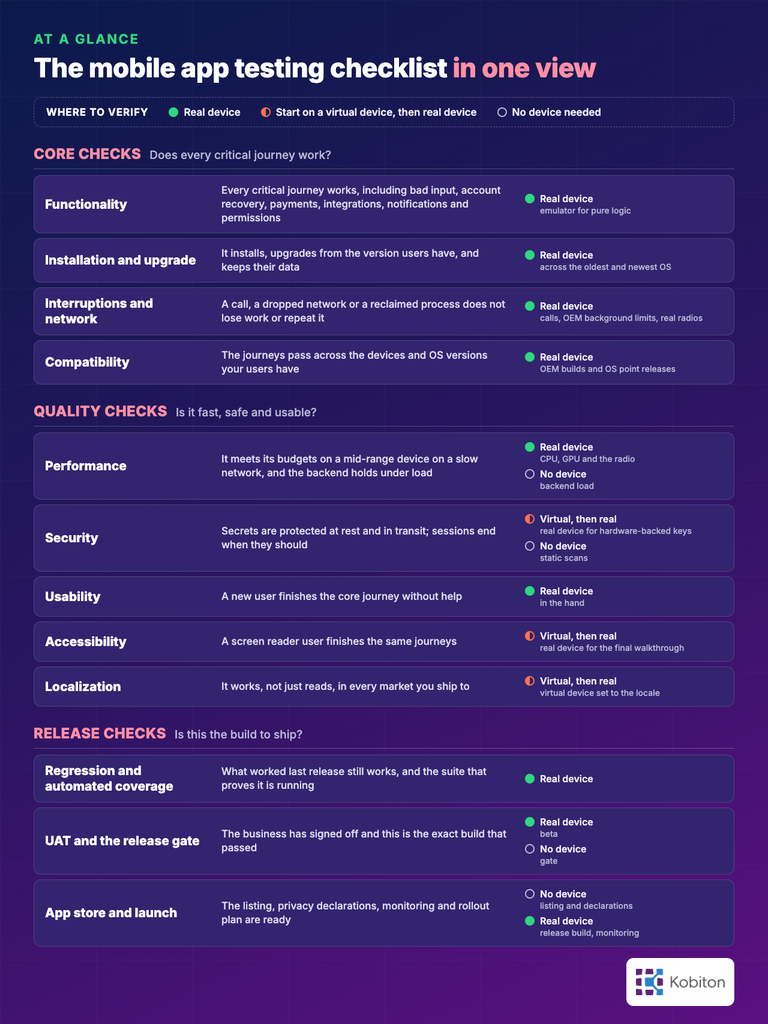
The mobile app testing checklist at a glance
Here is the whole checklist in one view. The sections below give the rows and the pass criteria for each group.
| Group | What you are verifying | Where to verify | Go deeper |
|---|---|---|---|
| Functionality | Every critical journey works, including bad input, account recovery, payments, integrations, notifications and permissions | Real device (emulator for pure logic) | Mobile functional testing guide |
| Installation and upgrade | It installs, upgrades from the version users have, and keeps their data | Real device across the oldest and newest OS | Types guide: installation and upgrade |
| Interruptions and network | A call, a dropped network or a reclaimed process does not lose work or repeat it | Real device: calls, OEM background limits and real radios (start on a virtual device for notifications and backgrounding) | Types guide: interruption testing |
| Compatibility | The journeys pass across the devices and OS versions your users have | Real device: OEM builds and OS point releases are the variable | Mobile compatibility testing guide |
| Performance | It meets its budgets on a mid-range device on a slow network, and the backend holds under load | Real device: CPU, GPU and the radio are what you measure (no device for backend load) | Mobile app performance testing guide |
| Security | Secrets are protected at rest and in transit; sessions end when they should | Start on a virtual device; real device for hardware-backed keys and the app-switcher snapshot; no device for static scans | Security testing for mobile apps |
| Usability | A new user finishes the core journey without help | Real device in the hand | Mobile usability testing guide |
| Accessibility | A screen reader user finishes the same journeys | Real device for the final screen reader walkthrough; automated validations can start on a virtual device | Accessibility testing checklist |
| Localization | It works, not just reads, in every market you ship to | Virtual device set to the locale for formats and layout; real device for OEM keyboards and OS point releases | App localization testing guide |
| Regression and automated coverage | What worked last release still works, and the suite that proves it is running | Real device | Regression testing; mobile test pyramid |
| UAT and the release gate | The business has signed off and this is the exact build that passed | Real device (beta) / No device needed (gate) | Mobile app testing process guide |
| App store and launch | The listing, privacy declarations, monitoring and rollout plan are ready | No device needed for the listing and declarations; real device running the release build for monitoring and permission prompts | Process guide: after release |
Core checks: does every critical journey work?
Functionality
Start with the journeys the business depends on: sign up, sign in, account recovery, the core transaction, sign out. A feature that works on the happy path and fails on bad input is not done.
| Check | Pass when | Where to verify |
|---|---|---|
| Every critical journey end to end, including forgot password and account recovery | Each journey finishes with the right result on screen and the right data on the server; a reset link is single-use and expires, and after resetting the user signs in through the normal flow with the new password while the old password is rejected | Emulator for pure logic; real device for camera, biometrics, permissions and the OS keyboard |
| Mandatory fields and input validation | Bad input is rejected with a message that says how to fix it; good input is never rejected, including paste, autofill, special characters and emoji | Real device: OS keyboards and autofill differ |
| Navigation, scrolling and back | Every screen can be reached and left; Android system back and iOS swipe-back land where the user expects; no dead ends | Real device |
| Payments and purchases | Success, decline and cancel each leave the right state; a retry never charges twice; store purchases run in the sandbox | Real device: store billing and wallets |
| Restore purchases and subscriptions (only if the app has them) | After a reinstall or a new device, a non-consumable purchase restores and entitlement returns; a subscription reflects renewal, expiry and revocation; purchases run in the sandbox | Real device: store billing and wallets |
| Third-party integrations (maps, social sign-in, a payment software development kit, or SDK) | Each completes end to end against live or sandbox services and returns to the app in a known state | Real device |
| Push notifications and deep links | Tapping either opens the right screen. This holds whether the app is running or closed, and whether the user is signed in or out | Real device |
| Permissions | The app asks only when it needs the permission, works when it is denied, and recovers when it is granted later in Settings | Real device |
| Error and empty states | A server error, a timeout and an empty result each show a state the user can act on, never an endless spinner | Start on a virtual device; real device to confirm |
What to test and how to write the cases is in our mobile functional testing guide.
Installation and upgrade
Most of your users will meet this release as an upgrade. Test that path, not only the clean install.
| Check | Pass when | Where to verify |
|---|---|---|
| Fresh install of the release build | It installs, launches and completes onboarding on the oldest and newest OS you support | Real device across the oldest and newest OS |
| Upgrade from each version still in use | The user stays signed in, their data and settings survive, and the migration ran (check your analytics for which versions are live) | Real device |
| Reinstall after uninstall | It behaves as a fresh install, or restores data the way your backup policy says it should | Real device |
| A device that is nearly out of storage | The install or upgrade succeeds when space permits; otherwise the user gets an explanation, existing data is preserved, and it succeeds once space is freed | Real device |
| Older app versions against the new backend | Versions still installed keep working, or get a clear prompt to update | No device needed for the contract; real device for the prompt |
Interruptions and network conditions
Phones get interrupted. Test the flows that write data or move money while something else happens.
| Check | Pass when | Where to verify |
|---|---|---|
| An incoming call mid-transaction | The app returns to the same step, and the transaction happens once or not at all | Real device: the iOS Simulator cannot place a cellular call |
| A notification, an app switch, a locked screen | On return, the screen and anything typed are still there | Start on a virtual device for notifications and backgrounding; real device to confirm |
| The OS reclaims the app’s process in the background | On return, the app restores the screen and the user’s input, and a completed transaction is not repeated. Force it by limiting background processes in Android’s developer options or killing the backgrounded process with Android Debug Bridge (adb) | Start on a virtual device; real device for OEM background limits |
| The network drops mid-request | The request ends in a known state: done, failed with a message, or pending with a safe retry; nothing is silently lost or sent twice | Real device on a real radio |
| Wi-Fi to cellular, airplane mode, a slow connection | The app reports the actual connection state, preserves pending work, shows progress or an actionable timeout, and resumes safely | Real device: real radios drop and reconnect |
| Low battery and power-saving mode | Background work is deferred, not lost, and nothing crashes | Real device |
| Rotation, split screen, and folding or unfolding a foldable | The screen is recreated with no input or position lost (on Android, “Don’t keep activities” in developer options also exercises this recreation) | Start on a virtual device; real device for foldables |
Compatibility across your device list
The functional rows above prove one configuration. This group proves the rest. The device list comes from your own analytics, not a market-share chart.
| Check | Pass when | Where to verify |
|---|---|---|
| Device list built from your install base | The list covers roughly 80% of active installs, plus the risk edges (low-RAM Android, tablet, foldable if your analytics show one). For a first launch with no install base, pick from your target audience, beta data and supported OS range, record the assumptions, and revise after launch | No device needed: it comes from your analytics |
| Oldest and newest supported OS on each platform | Every critical journey passes on both | Real device |
| At least one manufacturer skin (OEM) besides stock Android | Permission prompts, background limits and notifications behave on it | Real device: OEM builds and OS point releases are the variable |
| Screen sizes from small phone to tablet | No clipped, overlapping or off-screen elements on any listed device | Start on a virtual device; real device for OEM rendering |
| Dark mode, orientation and the largest system font | Text stays readable and nothing truncates or overlaps | Start on a virtual device; real device for OEM rendering |
How to build the list and tier it is in the device section of our mobile app testing process guide. Turning it into coverage is in our mobile compatibility testing guide.
Quality checks: is it fast, safe and usable?
Performance
Set the budgets before you test, then judge against them on a mid-range device on a throttled connection, not a flagship on office Wi-Fi.
| Check | Pass when | Where to verify |
|---|---|---|
| Cold start | Time to a usable first screen is inside the budget you set, on a mid-range device | Real device: CPU, GPU and the radio are what you measure |
| Key transitions and scrolling | No visible stutter on the screens users spend time on | Real device |
| Memory over a long session | Over a session of a length you set, memory settles instead of climbing, the app does not crash, and the device does not throttle it to unusable | Real device: memory pressure and heat are hardware |
| Battery | Over a background period of a length you set, drain stays within what the app’s features need | Real device |
| Slow and congested networks | Key screens stay inside budget on a throttled connection and show progress while they load | Real device on a conditioned network |
| Backend under load | Under the steady, peak, burst and sustained load profiles you define, responses stay inside your latency budget and errors inside your error budget, the service recovers within your recovery time after a burst, and the app shows a message rather than crashing when a budget is exceeded | No device needed for the load; real device to see the app’s side |
| Crashes and ANRs | No crash or application-not-responding (ANR) error in the release candidate runs | Real device |
Which performance tests to run and how to measure them is in our mobile app performance testing guide. Crash hunting is in our mobile app crash testing guide.
Security
Check the controls your app actually uses: where it stores secrets, how it talks to the server, how sessions end.
| Check | Pass when | Where to verify |
|---|---|---|
| Sensitive data at rest | Tokens and credentials sit in protected storage (Keychain on iOS; Keystore-protected encryption on Android); nothing sensitive is in plain files, logs, or the app-switcher snapshot | Start on a virtual device; real device for hardware-backed keys and the app-switcher snapshot |
| Data in transit | All traffic is over HTTPS and the app refuses a connection with an invalid certificate | Start on a virtual device; real device to confirm |
| Sessions and sign-in | Sessions expire; signing out ends the session on the server; repeated failed sign-ins are limited | Start on a virtual device; real device to confirm |
| Authorization | The API refuses a request for another user’s data, whatever the app sends | No device needed |
| Static and dependency scans | No unresolved high-severity finding in the code and dependency scans | No device needed |
| Penetration test | Releases that touch sign-in, payments or sensitive data have one, with findings resolved or accepted in writing | Real device for the runtime tests |
The OWASP Mobile Application Security Verification Standard (MASVS) is the full list of controls. Our security testing guide for mobile apps covers how to test them.
Usability
Usability is the one group nobody can automate. Watch real people use the build.
| Check | Pass when | Where to verify |
|---|---|---|
| First-time use of the critical journey | A person who has not seen the app finishes it without help while you watch | Real device in the hand |
| Error messages | Each one says what happened and what to do next, in the user’s words | Real device |
| Loading and progress | Anything that is not instant shows progress; nothing looks frozen | Real device |
| Platform conventions | Back behavior, gestures and the share sheet work the way each platform’s users expect | Real device |
| One-handed reach | The controls of the core journey can be reached with a thumb on the largest phone on your list | Real device in the hand |
How to run the sessions and read them is in our mobile usability testing guide.
Accessibility
The usability rows asked whether a new user can finish the journey. These ask whether someone using assistive tech can finish the same one.
| Check | Pass when | Where to verify |
|---|---|---|
| Screen reader walkthrough of each critical journey | It can be completed with VoiceOver and with TalkBack, and every control announces a label that says what it does | Real device for the final walkthrough: VoiceOver on the iOS Simulator is limited, and TalkBack on an emulator may not match the shipped version |
| Focus order | Focus moves in a logical sequence that preserves meaning and operation, including into and out of dialogs | Real device for the final walkthrough |
| Contrast | At least 4.5:1 for normal text and 3:1 for large text (Web Content Accessibility Guidelines, WCAG 2.2 level AA) | Automated validations can start on a virtual device; real device to confirm |
| Touch targets | At least 44 by 44 points on iOS and 48 by 48 dp on Android | Automated validations can start on a virtual device; real device to confirm |
| Text scaling and color | Nothing truncates at the largest system font size, and no information is carried by color alone | Start on a virtual device; real device to confirm |
The full list is our mobile app accessibility testing checklist. To run the walkthroughs, see our VoiceOver and TalkBack tutorials.
Localization
Translation is half of it. The other half is the app still working when the locale changes.
| Check | Pass when | Where to verify |
|---|---|---|
| Translation in context | A native speaker has read every string on the screen it appears on | Virtual device set to the locale |
| Dates, currencies and numbers | They display in the local format and are accepted when typed that way | Virtual device set to the locale; real device for OEM keyboards |
| The longest-string language | Nothing truncates or breaks the layout (German and Finnish are the usual tests) | Virtual device set to the locale; real device for OS point releases |
| Right-to-left languages | The layout and navigation mirror, not only the text | Virtual device set to the locale; real device to confirm |
| Region-specific flows | Payments, address formats and legal copy behave for each market you ship to | Real device |
The localization section of our types of mobile app testing guide explains both halves. Our app localization testing guide covers the method.
Release checks: is this the build to ship?
The groups above test the app. This group tests the release: that what you checked is what you are about to ship, and that the right people have said yes.
Regression
Regression asks one question: does everything that worked in the last release still work in this one?
| Check | Pass when | Where to verify |
|---|---|---|
| Regression suite on the release candidate | Green across the device list, or every failure triaged with a decision recorded | Real device |
| Defects fixed this cycle | Each one has a regression test, so it cannot come back unnoticed | Real device, on the configuration that reproduced it |
| The areas this release changed | Retested beyond the standing suite, using the checks the change triggers | Real device |
| Flaky tests | Tracked and fixed or quarantined with an owner, not silently retried until green | Real device |
Which checks each kind of change triggers is in the “Which types to run when something changes” table of our types of mobile app testing guide. More on regression suites in our regression testing post.
Automated coverage
Automation is how the regression rows above run on every build without a person repeating them.
| Check | Pass when | Where to verify |
|---|---|---|
| Smoke suite | Runs on every build on your highest-usage devices and blocks a broken build | Real device |
| Critical paths automated | The journeys that have stopped changing run automatically; new flows stay manual until they settle | Real device |
| Failure evidence | Every automated failure comes with device, OS, logs and a video | Real device |
| Run time | The full suite finishes across the device list inside your release window, running in parallel | Real device |
What to automate at which layer is in our mobile test pyramid guide.
User acceptance testing (UAT)
Your testers have checked the build against the spec. User acceptance testing checks it against what the business asked for.
| Check | Pass when | Where to verify |
|---|---|---|
| Business acceptance criteria | The people who asked for the feature have confirmed it meets them, in writing | No device needed |
| Beta cohort | The release candidate has run with people outside the team on devices you do not own (TestFlight on iOS, a Google Play testing track on Android) | Real device |
| Beta feedback | Triaged on the same severity and priority scale as internal defects | No device needed |
CI/CD and the release gate
The last technical check is that the build you tested is the build you ship.
| Check | Pass when | Where to verify |
|---|---|---|
| The release candidate | Built by the pipeline from a tagged commit and signed with the release credentials, not built on a laptop | No device needed |
| The approved build | Its exact version and build number are recorded; if it changes, the affected tests rerun before it ships | No device needed |
| Exit criteria | Every criterion your team agreed at the start is met; if one is not, the answer is No-Go | No device needed |
The exit criteria and the Go/No-Go rule are in the “How to Know When Testing Is Done” section of our mobile app testing process guide. Wiring the checks into a continuous integration and delivery (CI/CD) pipeline is in our continuous testing guide.
App store and launch
Halting a Google Play staged rollout stops additional users from getting that version. Pausing an App Store phased release pauses automatic distribution, though users can still download it manually. Neither removes a build already on someone’s phone. What you can switch off without a new release is a feature behind a server-side flag. So the last group checks that you can see trouble early and limit it.
| Check | Pass when | Where to verify |
|---|---|---|
| Store listing | Name, icon, screenshots and description match the build you are shipping | No device needed |
| Privacy declarations | The App Store privacy details and the Google Play Data safety form match what the app and its SDKs actually collect | No device needed |
| Data collection and consent (only if the app collects consent-gated data) | Collection that needs consent stays off before the user consents and after they refuse, and stops after they withdraw, for the app and every SDK; confirmed in the network traffic or event logs, not just the settings screen | Real device |
| Account deletion (only if users can create accounts) | A user can start account deletion inside the app; the completed flow deletes the account and its user data, with any permitted retention explained; and the Google Play listing carries a working web link for requesting deletion (Apple App Review Guideline 5.1.1(v); Google Play account deletion requirement) | Real device for the in-app flow; no device needed for the backend and the listing |
| Permission prompts | Every permission request says why the app needs it, in plain words | Real device |
| Release configuration | Debug menus, test endpoints and verbose logging are off in the release build | Real device running the release build |
| Crash reporting and analytics | A test crash and the required events from the release build reach the correct dashboard under the correct build identifier, the crash details are readable (symbol or mapping files uploaded), and an alert reaches the person on call | Real device running the release build |
| Staged rollout and a stop rule | The rollout is configured (for an update, to a share of users first) with a pause threshold and a named owner recorded before you ship; pausing it later is a post-launch action | No device needed |
| Kill switch for risky features | Each risky new feature sits behind a server-side flag that turns it off without a new release, and switching it off has been tried | Real device running the release build |
| Someone watching | A named owner and the alert thresholds for crashes, ratings and support tickets are agreed and recorded before you ship; the watching itself is a post-launch action | No device needed |
What to watch once it is live, and how each signal feeds the next release, is in the “After Release” section of our mobile app testing process guide. If your release runs on a device cloud, our device cloud pre-launch checklist covers the quality gates for that setup.
Download the checklist template
Every row on this page is in the template, with its pass criterion and where to verify it. For each row you record a status (Pass, Fail, Blocked or Not applicable), the owner, the build and device configuration, and where the evidence lives. The app, version, date and tester go once at the top. Copy it once per release and file it with the release report. Download the mobile app testing checklist template: Mobile App Testing Checklist template (XLSX)
Mobile app testing checklist FAQ
What should be on a mobile app testing checklist?
The checks that prove the app works and that this build is ready to ship: functionality on the critical journeys, installation and upgrade, interruptions and network conditions, compatibility across your device list, performance, security, usability, accessibility and localization. Then regression, automated coverage, user acceptance and the release and store checks. Each one needs a pass criterion written down before you test, or it is a topic, not a check.
What should you test before going live with a mobile app?
Everything on this mobile app testing checklist for a first launch. For a later release, run the critical-journey checks, upgrade from the version users have now, and whatever the change triggers: a new OS version means compatibility and interruptions, a backend change means the API contract for every app version still installed. Then confirm the build you approved is the one going out, and run the release gate and the store and launch checks.
What is the difference between a mobile app test plan and a checklist?
A test plan is written at the start: what you will test, on which devices, against which budgets and exit criteria, by when. A checklist is used at the end: it confirms each of those checks passed on the build you are about to ship, with the evidence recorded. You need both.
How do you test a mobile app before release?
On real devices that match your users. Cover the critical journeys and the upgrade from the current version, the quality checks (performance on a mid-range device, security, usability, accessibility), regression on the release candidate, a beta with people outside the team, business sign-off, and a staged rollout you can pause. For the order the work happens in and who owns each step, follow our mobile app testing process guide.
Can I run the mobile app testing checklist on emulators?
Part of it. Pure logic, layout at different screen sizes and locale formats can start on a virtual device. Calls, real networks, manufacturer builds of Android, hardware-backed keys, battery, memory pressure and the shipped screen reader cannot be reproduced reliably, so those rows need a real device. The “Where to verify” column says which is which.