Most lists of the types of mobile testing read the same way: ten definitions and no help deciding which ones you need. The definitions are worth knowing. What you need on top of them is narrower: which types your app needs, and which ones a given release has to run.
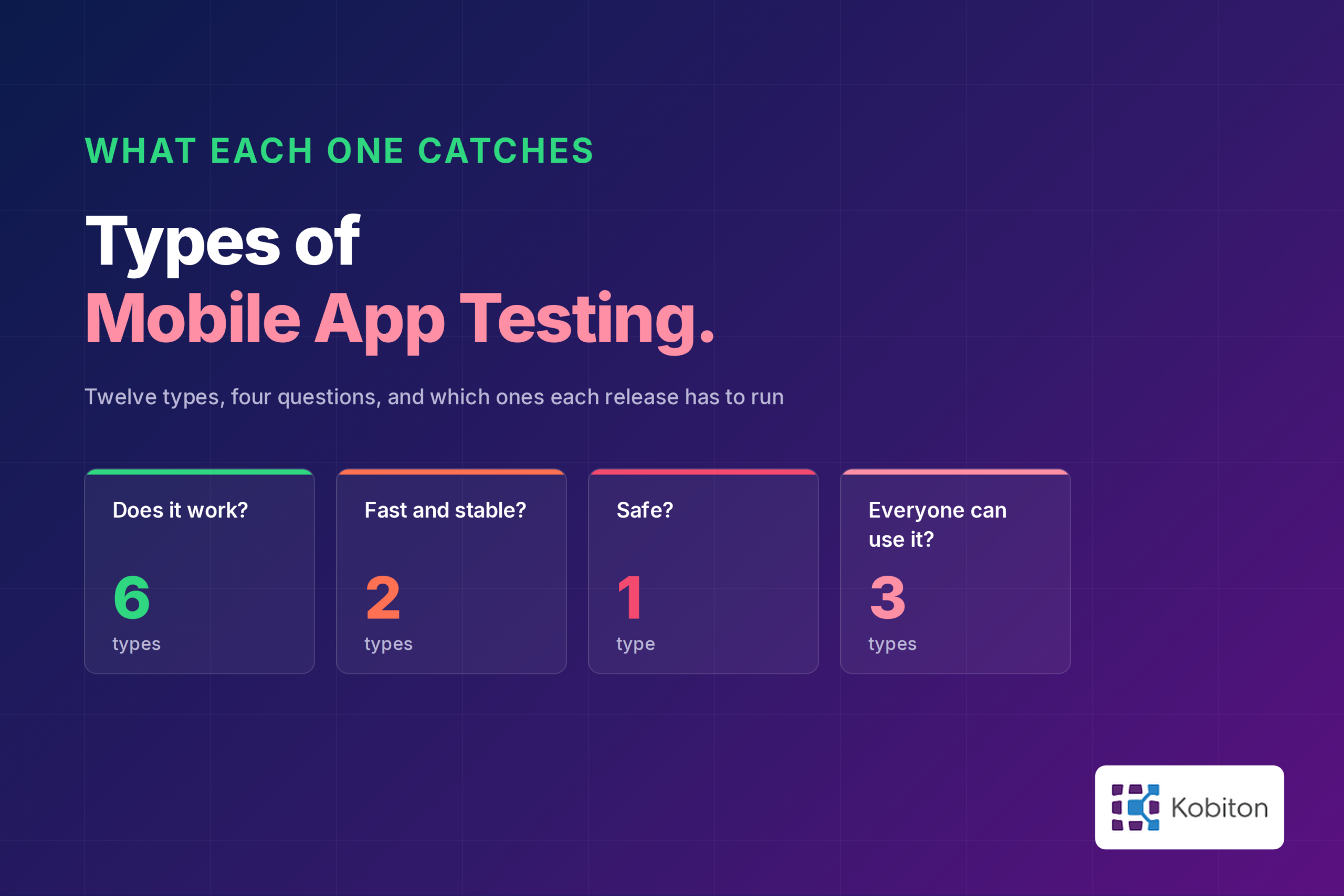
This guide answers both. It groups twelve mobile app testing types by the question each one answers: Does it work? Is it fast and stable under real conditions? Is it safe? Can everyone actually use it? For each type you get what it catches, where it has to run, and an example. Then it separates three things that get listed as types but aren’t, and closes with which types to run when something changes. Throughout, the example is a banking app with a biometric login and a transfer flow. It replaces our 2023 list of the types of mobile application testing.
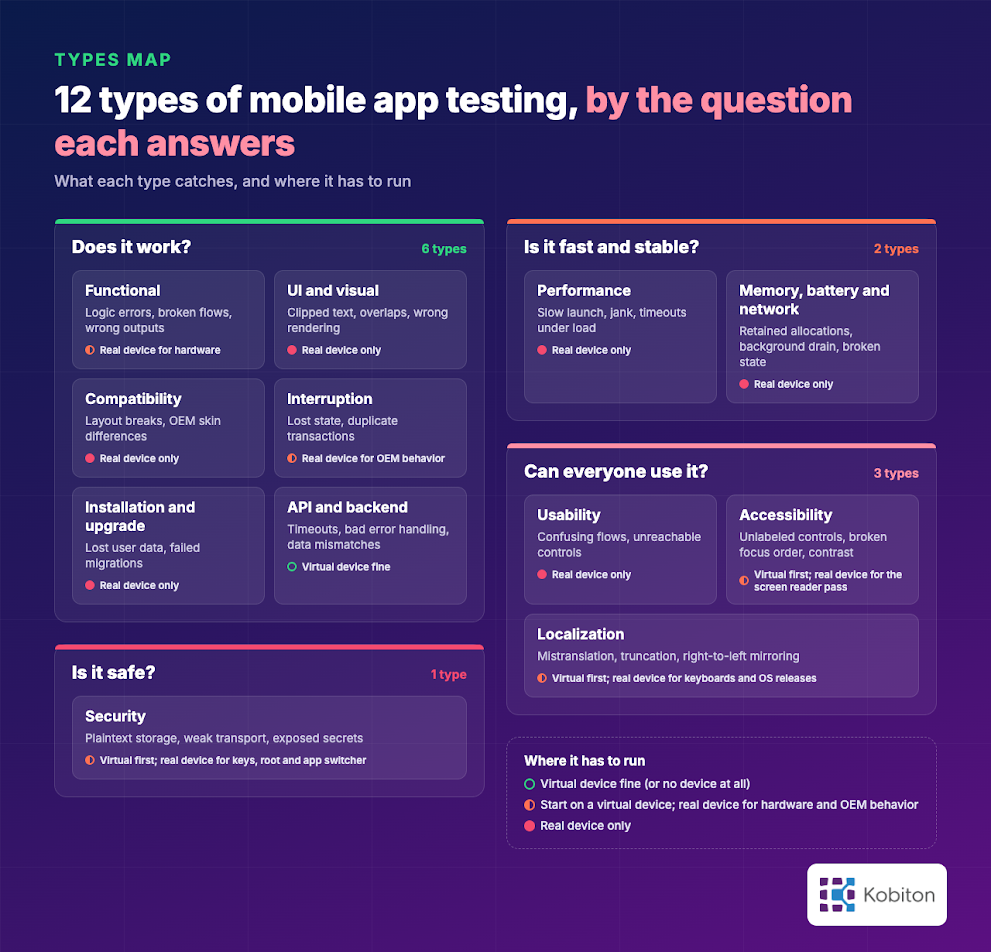
The types of mobile app testing at a glance
Here are the types of mobile testing in one view, organized by the question each one answers. ‘Where it has to run’ says whether an emulator or simulator gives you a trustworthy result, or whether the behavior under test comes from hardware, a device maker’s (OEM) build or a real radio.
| Type | The question it answers | What it catches | Where it has to run | Manual or automated |
|---|---|---|---|---|
| Functional | Does each feature do what the spec says? | Logic errors, broken flows, wrong outputs | Emulator for pure logic; real device for camera, biometrics, permissions, keyboard | Both; automate the stable flows |
| UI and visual | Does the screen look right, not just pass? | Clipped text, overlaps, wrong rendering, dark-mode and OEM differences | Real device: rendering differences are the point | Automated diffs with human review, or a visual testing tool such as Applitools |
| Compatibility | Does it keep working across devices, OS versions and screens? | Layout breaks, OS-specific behavior, OEM skin differences | Real device: OEM builds and OS point releases are the variable | Automated across a device list; manual for OEM quirks |
| Interruption | Does it survive a call, a notification, a dropped network? | Lost state, duplicate transactions, crash on resume | Start on a virtual device for notifications and backgrounding; real device for calls, OEM background limits and real radios | Manual first, then automate the money flows |
| Installation and upgrade | Does it install, upgrade in place and uninstall cleanly? | Lost user data on upgrade, failed migrations, permission regressions | Real device across oldest and newest OS | Both; automate migration and data-preservation checks |
| API and backend | Do the services behind the app keep their contract? | Timeouts, bad error handling, data mismatches, auth gaps | No device needed | Automated |
| Performance | Does it meet its budgets on mid-range hardware and slow networks? | Slow launch, jank, timeouts under load, crashes under stress | Real device: CPU, GPU and the radio are what you measure | Both; the metrics come from any session, manual or automated, and a person reads them |
| Memory, battery and network | Does it leak, drain or fail over a long session? | Retained allocations, background drain, broken state after process death | Real device: memory pressure, thermal and power are hardware | Both; a manual session shows memory, CPU, network and battery live; automate the long runs |
| Security | Can data and sessions be stolen or tampered with? | Plaintext storage, weak transport, exposed secrets, session flaws | Start on a virtual device; real device for hardware-backed keys, root detection and the app-switcher snapshot | Scanners plus manual pen testing |
| Usability | Can real people finish real tasks? | Confusing flows, unreachable controls, bad error recovery | Real device in the hand | Manual only |
| Accessibility | Can people using assistive tech finish the same tasks? | Unlabeled controls, broken focus order, contrast, screen reader failures | Real device for the final screen reader walkthrough | Both in one session: automated validations flag labels, contrast and touch targets while a person drives the screen reader |
| Localization | Does it work in other languages, currencies and layouts? | Mistranslation, truncation, right-to-left (RTL) mirroring, format and parsing failures | Virtual device set to the locale for formats and layout; real device for OEM keyboards and OS point releases | Native-speaker review plus automated string and layout checks |
Does it work?
Functional testing
Functional testing checks that each feature does what the spec says: the login succeeds with valid credentials and fails cleanly with bad ones, the transfer moves the right amount, the form rejects the wrong input. It is the first type every team runs. Pure logic can start on an emulator. Anything that touches the camera, biometrics, permissions or the OS keyboard needs a real device, because that is where the behavior comes from. A functional suite that passes on one phone has proven one configuration; compatibility testing is where it proves the rest. The full method, including what to test, lives in our mobile functional testing guide.
For the banking app, that means the transfer moves the right amount between the right accounts, and a transfer over the daily limit is rejected with the right message.
UI and visual testing
UI and visual testing checks that the screen looks right, not just that the test passed. A functional assertion confirms the button exists and the tap worked. It does not notice that the label is clipped, the modal sits behind the keyboard, or a dark-mode color made the text unreadable. Visual comparison catches that by diffing screenshots against a known-good baseline across your device list, with a person reviewing what the diff flags, or with a visual testing tool such as Applitools doing the comparison and the triage. Kobiton integrates with Applitools Eyes directly. It runs on real devices because rendering differences between OEM skins, OS versions and screen densities are the point. Our guides on mobile UI testing and on visual testing versus functional testing cover where each one earns its place.
The banking app’s transfer confirmation screen must match its baseline on every device in the list, with no clipped amount and no overlap between the receipt and the bottom nav, in light and dark mode.
Compatibility testing
Compatibility testing asks whether the features that passed functional testing keep passing across the devices, OS versions and screen sizes your users actually have. Production bugs in this class are not logic errors. They are a layout that breaks at one screen size, a permission prompt that behaves differently on one Android skin, an API that an older iOS version handles differently. It needs real devices for a specific reason: OEM skins and OS point releases are the variable, and an emulator runs the reference build of Android. The device list comes from your analytics, not from a market-share chart. Our mobile compatibility testing guide covers how to build that list and turn it into coverage.
In the banking app, the biometric prompt renders and responds on Face ID, Touch ID and three Android OEMs’ fingerprint implementations, and the confirmation screen does not clip on the smallest listed device.
Interruption testing
Interruption testing checks what happens to the app when the phone does something else mid-task. The app should pause, hold its state, and resume where the user left off. The common failures are a reset flow, a duplicated transaction, or a crash on resume.
- Incoming call, answered and declined, during a form or a payment
- SMS and push notifications arriving mid-flow, including tapping through to another app and coming back
- Network loss and recovery, and a Wi-Fi to cellular switch partway through a request
- Low battery warning and charger plug and unplug
- Screen lock, device rotation, and the app being backgrounded then restored after the OS reclaimed its memory
- An OS update or app update landing while the user has unsaved state
Run the flows that write data (sign-in, payment, anything that cannot safely happen twice) against each interruption on both platforms. An Android emulator can script a call or a network drop, and that is a fine place to start; the iOS Simulator can exercise notifications and backgrounding but cannot place a cellular call, so start that case on a real iPhone. What it cannot do is reproduce how a specific OEM’s battery manager kills background apps or how a real radio drops and reconnects, so the pass on real devices is the one that counts.
In the banking app, a call arrives after the user taps Confirm and before the receipt renders. The transfer happens exactly once. If the app could not confirm the outcome, it shows a pending state, not a receipt, until the server answers.
Installation and upgrade testing
Installation testing covers the first thing a user does and the thing most suites never check: install from the store, launch, grant permissions, and later upgrade in place without losing data or settings. Upgrade testing is the half that bites, and it is the app’s own job: the app owns its data migrations, so test them. Install each older version still in use (your analytics tell you which), create real user state on it (an account, saved items, a half-finished flow), upgrade to the release candidate, and confirm the state survives and the migration ran. Then test a fresh install and a reinstall after uninstall as separate cases, because the OS may keep some data between them. Run it across your oldest and newest supported OS versions on real devices, since the OS handles the install path.
For the banking app, take a user on each of the two versions still in use, with a saved payee list: they upgrade in place and still have the payees, and biometric enrollment does not need to be redone. A fresh install and a reinstall are tested separately.
API and backend testing
The app is a client. Most of what it does is call services, and a lot of what users report as app bugs are those services misbehaving: a slow endpoint the app waits on forever, an error response the app does not know how to show, a field renamed in a backend deploy that the app still expects. API testing checks the contract directly, without the UI in the way. API and backend testing is a discipline of its own, with its own tooling and owners; it is on this list because no mobile release passes without it.
It is the one type on this list that does not need a device. Run it in continuous integration (CI) against every backend change: response correctness, every documented failure code, timeouts, and the security basics. Those are authentication and authorization on protected endpoints, expired-token handling, and nothing sensitive in a URL. For anything that moves money or writes data, test the retry rules too. A timeout means the outcome is unknown, so a retry must carry an idempotency key and the server must treat a repeat as the same request, not a second one. Then test the app’s handling of those same failures on a real device with the network throttled, which is where API testing hands off to interruption and performance testing. Where it sits in the overall suite is covered in our mobile test pyramid guide.
Say the banking app’s transfer endpoint times out. The app shows a pending state, retries with the same idempotency key, and the server treats the retry as the same transfer.
Is it fast and stable under real conditions?
Performance testing
Performance testing checks whether the app meets the budgets you set on the hardware and networks your users have: launch time, scroll smoothness, response time on a congested network, behavior under load from the backend side. Set the budget first (two seconds to a usable screen on a mid-range device, say), then judge against it. The honest test runs on a mid-range device on a throttled connection, not a flagship on office Wi-Fi, because CPU, GPU and the radio are what you are measuring. Mobile performance testing splits into subtypes (load, stress, endurance, spike) and our mobile performance testing guide walks through each and when to run it.
The banking app reaches a usable screen in under two seconds on a mid-range Android phone, and the statement list scrolls without visible stutter on throttled 3G.
Memory, battery and network conditions
These are three checks that a standard load test never runs, and they only mean anything on real hardware:
- Memory over time. Run the main flows for an hour or more on your lowest-memory supported device and watch retained allocations. Growth that never settles is the leak; a bounded cache that fills and holds is not. Then kill the process while it is in the background, which Android does to healthy apps all the time (iOS does it too, with less warning), and confirm the app restores its state cleanly. ‘It survived in the background’ is not a pass; ‘it came back where the user left it’ is.
- Battery and thermal. Measure drain during a realistic session and in the background, under controlled conditions: not charging, fixed brightness, known background apps. A device that heats up can throttle its CPU, so set a performance budget and check it again twenty minutes in. An emulator does not throttle or drain, and a device cloud only measures this if it exposes power and thermal data.
- Sustained network conditions. Run the critical flows on throttled 3G, with packet loss and high latency, for the whole session rather than for one request. The failures are timeouts without a retry, a spinner that never resolves, and a request that silently went through twice. A dropped or switched network mid-request is an interruption test, above.
A manual session on a device cloud shows memory, CPU, network and battery drain in real time, which is how you find the problem the first time. The long, repetitive runs that confirm it is fixed belong in automation on a real-device cloud rather than on someone’s desk. Our guides on measuring mobile app performance and on mobile app crash testing cover the tooling.
In the banking app, over a two-hour statement-browsing session on a 3 GB device, retained memory settles within its budget after warm-up; when the OS kills the app in the background, it reopens on the same statement. Drain over the session stays inside the budget on a device that is not charging.
Is it safe?
Security testing
Security testing checks that data at rest, data in transit, authentication and session handling hold up against someone trying to break them. For a mobile app that means more than the API: local storage, the keychain or keystore, certificate pinning, what the app leaks into logs and screenshots, and how it behaves on a rooted or jailbroken device. Most of it can start on a virtual device. Three checks need a real one: hardware-backed key storage, the app-switcher snapshot as the OS actually renders it, and your root and jailbreak detection, which is only tested by running the app on a rooted or jailbroken device. In regulated industries this is the type with an auditor on the other end. Our mobile app security testing guide covers the threat model and what to test at each layer.
The banking app’s session token is not stored in plaintext and does not appear in logs; the balance screen is hidden from the app switcher snapshot; a session that expired while the app was backgrounded asks for sign-in before showing the balance again.
Can everyone actually use it?
Usability testing
Usability testing asks whether real people can complete real tasks without help: find the thing, finish the flow, recover from a mistake. It cannot be automated, because the thing under test is a person’s judgment, and it has to run on a real device in the hand because thumb reach, one-handed use and a keyboard covering half the screen are the findings. Our mobile usability testing guide covers how to run sessions that produce decisions.
The banking app passes when a first-time user can add a payee and send money without reading help, one-handed.
Accessibility testing
Accessibility testing asks whether someone using VoiceOver, TalkBack, switch control, larger text or higher contrast can finish the same tasks as everyone else. Automated checks catch the mechanical failures: missing labels, low contrast, touch targets too small. They cannot tell you whether a person can actually complete the flow. That takes someone driving the screen reader through it on a real device: focus order, whether a custom control announces its state, whether a modal traps focus, whether the app is usable at 200% text. You do not need the phone in your hand for this. On a device cloud you can drive VoiceOver or TalkBack on a remote real device with keyboard controls, hear the announcements, and have the automated validations captured in the same session.
It is a real-device test for a plain reason: the screen reader is part of the OS. VoiceOver on the iOS Simulator is missing or limited depending on your Xcode version, and TalkBack on an Android emulator has to be installed separately and may not match the version that ships on the phone. Treat it as a type in its own right, because it has its own standard (the Web Content Accessibility Guidelines, WCAG, mapped to mobile), its own tooling and its own regulatory deadlines in the US and the EU. Our mobile accessibility testing guides cover iOS vs Android differences, what automation catches and misses, and a best-practices checklist.
In the banking app, a VoiceOver user can complete the same transfer, with the amount field, the confirm button and the result all announced correctly.
Localization testing
Localization testing starts with translation and cultural review: a native speaker reads every string in context, and someone checks that imagery, colors and examples fit the market. That is the first half and most guides stop there. The second half is confirming the app still works when the locale changes. Dates, currencies and number formats render correctly and parse correctly on the way back in, which depends on your code as much as the OS. Strings that run longer in German or Finnish do not truncate or break the layout. Right-to-left languages mirror the interface and not just the text. Any flow that depends on a region (payments, address formats, legal copy) behaves for that region.
Start the second half on a virtual device set to the target locale, which runs the OS formatters, then finish on real devices, because the keyboard, the OEM build and the OS point release are what change the result.
Run the same transfer in a German locale: the banking app shows the amount as 1.234,56 EUR, accepts it typed that way, shows the date in day-month order, and the confirmation copy does not truncate.
Three things that get called types but aren’t
Many lists of mobile testing types, including the one this guide replaces, include three items that are not types at all. They are decisions about where and how you run every type above. A fourth group of words is also not a list of types: unit, integration and end-to-end describe test scope; smoke is a small build check; regression reruns the relevant checks after a change. Any of them can apply to any type in this guide. Separating them matters, because treating them as types is how teams end up with ‘real device testing’ as a checkbox instead of a default.
Real-device testing is where, not what
Every row in the at-a-glance table has a ‘where it has to run’ entry because the device is the variable you do not control. Be precise about what an emulator can and cannot do. An Android emulator can fake an incoming call, a slow network and a low battery, and it fakes them the same way every time, which makes it a good place to start interruption and functional work. The iOS Simulator fakes less: no telephony, no battery state.
What it cannot do: overheat and throttle, run out of memory the way a 3 GB phone does, render through a manufacturer’s skin, drop and reconnect like a real radio, or run the shipped screen reader. Those are the mechanisms behind compatibility, UI and visual, performance, memory, accessibility and the final pass on interruption, which is why those types are listed as real-device work. Installation and usability are real-device work for a different reason: the OS owns the install path, and thumb reach is the finding. Real-device testing is not a separate activity. It is the condition under which those types produce a result you can trust. The hub guide makes the full case.
Manual vs automated is how, not what
Manual testing is how you run usability, exploratory passes and the first look at any new flow, and it is where the layout, typing and back-navigation bugs surface that no suite was written to catch yet. The same manual session on a real device gives you the performance metrics and the accessibility findings; manual does not mean unmeasured. Automation is how you run anything repeatable with a clear expected result that is worth maintaining: regression, compatibility across a device list, long performance sessions, visual diffs. Some types sit in between: compatibility and visual testing run automated and still need a person to review what the diff found. AI-assisted tooling now turns a manual session into a repeatable script and repairs it when the UI drifts. None of that changes what you are testing. The same functional check can be manual on Monday and automated by Friday.
Continuous testing is when, not what
Continuous testing means the types above run in the pipeline on a cadence instead of in a phase before release. Not everything runs on every build. The fast, deterministic types (functional regression, API, visual diffs) run on every commit. The broader ones (compatibility across the device list, performance budgets, installation and upgrade) run on every release candidate. The long and the human ones (memory and battery sessions, accessibility walkthroughs, usability, exploratory) run on a schedule alongside. Our continuous testing guide covers the pipeline design.
Which types does your app need?
Which ones, and in what order, depends on what the app does, who uses it and how mature your testing is. Start with the baseline every app runs. Then add emphasis based on what the app does and how mature your testing is. Where a regulator or an app store sets a requirement, that requirement wins over anything below.
The baseline every release runs
- Functional on the critical paths, success and failure cases, on a device list that matches your users
- Compatibility across that device list
- Interruption on every flow that writes data or moves money
- Installation and upgrade from the versions still in use
- API and backend contract checks, automated in CI where available
- A performance budget checked on a mid-range device
- Security regression on the authentication, sensitive-storage and transport controls your app uses
Emphasis by what the app does
| If your app is… | Add emphasis on | Why |
|---|---|---|
| Transactional (banking, payments, commerce) | Security, API retry and idempotency rules, accessibility | Money moves, so outcomes must be exact and the app is a legal front door |
| Content and media (streaming, news, social) | Performance, memory and battery, UI and visual | Sessions are long and the experience is the product |
| Utility and enterprise (field tools, internal apps) | Compatibility across the managed fleet, sustained network conditions, installation and upgrade | The fleet is fixed and often old, and connectivity is the field |
| Regulated (health, finance, government) | Security, accessibility, localization, with evidence retained per release | Someone will ask for proof, and language-access rules apply in some markets |
Treat this as a starting order, not a prescription. Your analytics and your incident history outrank it.
By where your testing is today
Kobiton’s Mobile Testing Maturity Model defines four levels. Maturity changes how coverage scales, not when a risk first matters, so the baseline above applies at every level. Here is which types each level adds and how they run.
- Level 1, Manual Testing: the baseline by hand, on a few real devices that match your users, plus a usability pass. API checks are the one exception and run in CI even here. The win at this level is the device list, not more types.
- Level 2, Automated Testing: functional regression and API in CI, compatibility across a maintained device list, installation and upgrade on every release candidate. Interruption on the money flows, by hand.
- Level 3, Automated Testing at Scale: compatibility, performance budgets, visual diffs and interruption automated across a representative device matrix on a device cloud. Memory and battery sessions, accessibility and localization on a cadence.
- Level 4, DevOps and Mobile Testing: the fast types on every commit, the broad types on every release candidate, the long and human types scheduled, all embedded in CI/CD (continuous integration and continuous delivery). Manual effort moves to exploratory and usability work.
If you are not sure which level you are at, the hub has a sixty-second self-check, and the Mobile Maturity Assessment gives you a full report and a six-month plan. Once you know which types to run, our mobile app testing strategy guide turns that into a plan.
Which types to run when something changes
The types are a vocabulary. The decision you actually make is per release: something changed, which checks does that trigger, and what has to be true before you ship. Here is the trigger list for the common changes, with the pass criterion for each, using the banking app as the example. Every row sits on top of the baseline above; “Run these” is what the change adds.
| What changed | Run these | What has to be true before you ship |
|---|---|---|
| A new feature or flow (a new payee type, say) | Functional on the new flow, UI and visual on its screens, interruption if it writes data, security if it touches authentication, sensitive data or permissions, accessibility walkthrough, usability if it is customer-facing | The flow completes on the device list; a call mid-flow does not duplicate the write; a screen reader user can finish it; a first-time user can finish it without help |
| A UI refresh or design-system change | UI and visual diffs across the device list, compatibility on screen sizes, accessibility (labels and focus order are what refreshes break), localization layout checks | No clipped or overlapping elements on any listed device; every control still announces and focus order still follows the screen; no truncation in the longest-string locale on the list; RTL layouts mirror controls, not just text |
| A software development kit (SDK), framework or dependency update | Full functional regression, installation and upgrade, memory session (SDK updates are where leaks arrive), security scan for the new dependency | Regression green on real devices; upgrade from the versions in use keeps state; retained memory still settles within budget; no new findings in the dependency scan |
| A new iOS or Android version | Compatibility on the new OS and the one before it, installation and upgrade on the new OS, interruption (background behavior changes most releases), accessibility (screen readers change with the OS) | The baseline passes on the new OS on real hardware; permission prompts and background resume behave; VoiceOver and TalkBack flows still complete |
| A backend or API change | API contract tests in CI for every app version still supported in production, functional on the flows that call the changed endpoints, security on any changed authentication or data endpoint, interruption and sustained-network on those flows, performance if payload size or latency changed | Every supported app version handles the successful responses and the documented errors; a timeout leaves the app in a pending state with a safe retry; response budgets still met on throttled 3G |
| A new market or language | Localization (both halves), compatibility on devices common in that market, performance on that market’s typical network, accessibility in the target language | Native-speaker review done; formats parse and render; RTL mirrors controls and navigation; a screen reader user can complete the changed flows in that language; the top devices in that market are on the list and pass the baseline |
| A new device shows up in your analytics (a flagship launch, a fleet refresh) | Compatibility, UI and visual, and the performance budget on that device; interruption if its OEM is new to the list | The baseline passes on it; it is added to the device list before the next release |
| Nothing changed: it is a scheduled release | The baseline, plus whichever long and human types are due on the cadence | Baseline green; the scheduled long run (memory, battery) and the scheduled walkthrough (accessibility, exploratory) are inside their window |
Two rules make this work. First, ‘what has to be true’ is written down before the run, as a budget or a pass criterion, so nobody argues about the result afterwards. Second, every row ends on real devices for the types that need them, because the trigger list is only as good as the hardware it runs on. Pick the rows that match your next release, write the pass criteria down, and you have a test plan instead of a glossary.
Types of mobile testing FAQ
How many types of mobile testing are there?
It depends on how you slice it. There is no standard count; the lists you will find run from eight to sixteen. This guide covers twelve types of mobile testing, grouped by the question each one answers: does it work, is it fast and stable, is it safe, and can everyone use it. Real-device, manual and continuous testing are often listed as types, but they describe where, how and when you test rather than what you are checking.
What is the difference between functional and non-functional mobile app testing?
Functional testing checks that features do what they are supposed to do. Non-functional testing checks how well the app does it under real conditions: performance, security, usability, accessibility and localization fall on that side. Compatibility sits between the two, because it reruns the functional checks across devices. This guide groups by the risk each type catches rather than by that split, but the split is what most people mean when they ask.
Which types of mobile testing should be automated?
Anything repeatable with a clear expected result that is worth maintaining: functional regression, API, compatibility across a device list, performance and memory runs, visual diffs, and the mechanical part of accessibility. A manual session on a real device still gives you the performance metrics and the accessibility findings the first time; automation is how you get them again on every build. Compatibility and visual testing still need a person to review what the automation found. Usability stays manual because the thing under test is a person’s judgment. Interruption and exploratory testing start manual and get automated for the flows that matter.
Which types of mobile testing need real devices?
The ones where the behavior comes from hardware, an OEM build or a real radio, or where the finding is the hand holding the phone: compatibility, UI and visual, installation and upgrade, performance, memory and battery, usability, accessibility, and the final pass on interruption. API testing needs no device. Functional and interruption work can start on an emulator, which fakes a slow network, and on Android a call or a low battery, the same way every time, and moves to real devices for anything that touches the camera, biometrics, permissions, thermal limits or the shipped screen reader.