
As mobile release cycles continue to shorten, QA teams rely heavily on Mobile App Automation Tests to validate app performance across different devices, OS versions, and network conditions.
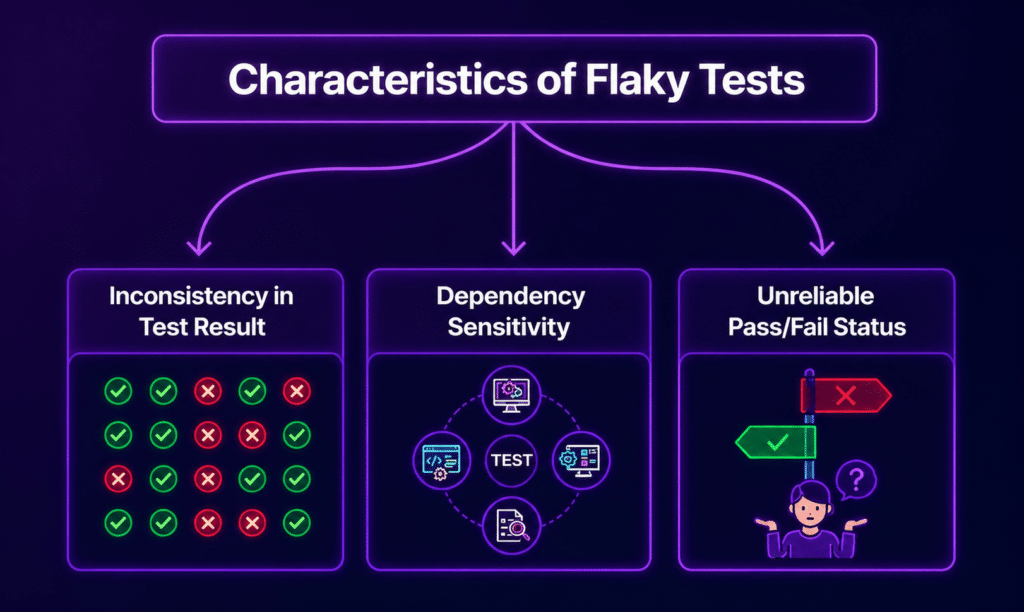
However, one persistent challenge that continues to slow down progress is the occurrence of flaky tests that sometimes pass and sometimes fail, despite no code changes.
This inconsistency in results undermines trust in automation pipelines and hampers the overall speed of delivery.
What Are Flaky Tests in Mobile Automation?
Flaky tests are automated test cases that produce inconsistent results under the same conditions. In mobile testing, these failures might manifest in several ways:
- A test passes locally but fails in the continuous integration (CI) environment.
- A login flow works on one device but fails on another.
- A UI element appears late, causing random failures.
- Network-dependent steps behave erratically.
Flakiness indicates underlying instability in the test design, environment, or app behavior.
Why flaky tests cost more in mobile than anywhere else
Flakiness is common at any scale. Google’s testing team reported that almost 16 percent of its tests showed some level of flakiness. On mobile, each flaky failure is more expensive than its web equivalent, for four reasons.
- Reruns are slow. A mobile UI suite on real devices often takes tens of minutes, so ‘just rerun it’ costs a meaningful slice of an engineer’s day rather than a few seconds.
- Escaped bugs are slow to fix. When a flaky test trains the team to ignore a failure that was actually a regression, the fix cannot be redeployed in minutes. It has to be rebuilt, re-signed, pass App Store and Google Play review, and then wait for users to update.
- Device pools are shared and finite. Every rerun occupies a real device that another job is waiting for, so flakiness slows the whole pipeline, not just the failing test.
- Trust is lost before it is measured. Once engineers expect a red build to go green on retry, they stop investigating first failures. At that point a real defect and a flaky test look identical.
The rest of this article is about getting that trust back: finding the cause, fixing it, and measuring that it stays fixed.
Why Mobile App Automation Tests Become Flaky
Mobile ecosystems are inherently more variable than web or backend systems. Here are the key causes of flaky tests:
1. Device Fragmentation
Differences in screen sizes, OS versions, and hardware capabilities can impact how UI elements are rendered and interact with the app.
2. Timing and Synchronization Issues
Mobile apps rely on factors like animations, API responses, and background threads. If automation steps run before the UI is fully ready, tests may fail inconsistently.
3. Unstable Element Locators
Using weak selectors, such as dynamic IDs or XPath expressions tied to the layout, can lead to frequent test failures, especially when minor UI changes occur.
4. Network Variability
Mobile apps depend on network calls, and test flakiness can appear when:
- API responses are slow.
- The network switches between Wi-Fi and mobile data.
- Backend latency fluctuates.
5. Test Data Conflicts
Using shared or reused test data can result in issues such as:
- Duplicate user errors.
- Unexpected state changes.
- Inconsistent environment setups.
6. Parallel Execution Conflicts
Running tests in parallel can lead to:
- Shared session interference.
- Overwritten test data.
- Race conditions.
7. Inconsistent Test Environments
Differences in environments between local machines, CI pipelines, and device clouds can cause test results to vary.
8. Third-Party Service Dependencies
Services like login providers, payment gateways, or analytics tools may experience:
- Request throttling.
- Slow responses.
- Intermittent failures.
9. App Animation and Rendering Delays
Mobile UI transitions can introduce:
- Delayed element visibility.
- Partial rendering states.
- Gesture timing issues.
10. Locale, Timezone and Date Assumptions
Mobile apps format dates, currencies, numbers and copy from the device’s locale and clock. Tests that assert exact visible strings or compute expected dates from the test machine’s clock can fail when:
- A device in the pool uses a different language or region, so ‘1,234.50’ renders as ‘1.234,50’.
- The CI machine and the device sit in different timezones, so ‘today’ differs between them near midnight.
- The calendar moves past a hard-coded date, a month boundary or a daylight-saving change.
Fix it by pinning locale and language per session (the UiAutomator2 and XCUITest drivers both expose language and locale capabilities). Set the device timezone as part of pool setup, and derive expected dates from the device’s clock rather than the runner’s. Where the copy itself is not what you are testing, assert on behaviour or on an identifier rather than on formatted text.
Mobile-Specific Challenges That Increase Flakiness
Unlike web automation, Mobile App Automation Tests face unique challenges, such as:
- App switching between background and foreground.
- Device interruptions like incoming calls or notifications.
- Battery-saving restrictions.
- OS-level permission dialogs.
- Gesture-based interactions (e.g., swipes, pinches, scrolling).
These behaviors are difficult to fully control in automated tests.
Difficult does not mean uncontrollable. Each of these has a standard handling, and two more belong on the list.
OS permission dialogs. Grant them up front rather than scripting a tap on ‘Allow’. The UiAutomator2 driver’s autoGrantPermissions capability grants declared Android permissions at install; the XCUITest driver’s autoAcceptAlerts and autoDismissAlerts handle iOS system alerts. Where a flow depends on the user denying a permission, test that path explicitly with the capability off.
Interruptions — calls, notifications, low-battery warnings. Put test devices in Do Not Disturb, remove accounts that generate notifications, and keep them charged. For the rare case where you need to test the interruption itself, trigger it deliberately (a scheduled local notification, a simulated incoming call) rather than hoping it happens.
Background/foreground switching. Use the driver’s own background command with a fixed duration rather than a home-button gesture followed by a relaunch, and re-wait for the screen’s anchor element on return — the app may restore to a different state than it left.
Gestures. Compute swipe and scroll coordinates from the current element bounds and screen size, never from hard-coded pixels; a gesture that works at one resolution will miss at another. Prefer the driver’s scroll-to-element helpers where they exist.
WebView context switching (missing from the list). Hybrid apps run payment, login and content screens in a WebView. A test that stays in the native context cannot see web elements and fails with ‘element not found’ only on those screens. Switch context when the WebView is ready — poll the available contexts until the WEBVIEW entry appears — act, then switch back to NATIVE_APP. On Android this also requires a chromedriver that matches the device’s WebView version, which is a frequent and invisible cause of failures after a Chrome update.
The soft keyboard (missing from the list). When the keyboard opens it covers the lower part of the screen and shifts or hides elements, so a tap that worked before a text field was focused fails after it. Dismiss the keyboard explicitly after typing, and never assert layout while it is open.
How to Fix Flaky Mobile Automation Tests
1. Replace Static Waits with Smart Synchronization
Avoid using fixed delays like sleep(). Instead, opt for:
- Explicit waits.
- UI readiness checks.
- Element visibility conditions.
The reason explicit waits still flake for many teams is that they wait for the wrong condition. An element can be present in the view hierarchy before it is visible, visible before it is enabled, and enabled before the animation that moved it has finished. Wait for the condition your next action actually depends on.
| Your next action | Wait for this condition | Not this one |
|---|---|---|
| Tap a button | Element is displayed and enabled | Element is present in the page source |
| Read a value from the screen | Element text is non-empty, or matches an expected pattern | Element is displayed (it may still show a placeholder) |
| Assert a screen loaded | A unique element on that screen is displayed and the loading indicator is gone | The previous screen’s element has disappeared |
| Interact after a navigation | The UI is idle — no running animation or transition | A fixed number of seconds have passed |
| Assert after a network call | The rendered data, not the request, has arrived (list has rows, total is shown) | The spinner element is not found (it may not have appeared yet) |
Three practical rules follow from that:
Wait on a positive condition. ‘Spinner is gone’ is fragile because the check can run before the spinner appears. ‘Results list has at least one row’ cannot pass early.
Scope the timeout to the step. A single global implicit wait of 30 seconds hides slow steps and makes every genuine failure take 30 seconds to report. Use shorter explicit waits per step and let slow steps be visibly slow.
Let the driver handle idleness where it can. On Android, Appium’s UiAutomator2 driver waits for the UI to be idle before each action, governed by the waitForIdleTimeout setting; the XCUITest driver has an equivalent. If your app has a permanently animating element — a progress indicator, a ticker — the driver can wait the full timeout on every action. Lower the timeout, or disable the animation in test builds, rather than removing the wait.
What this looks like in code
The examples below use the Appium Java client. The same conditions exist in the Python, JavaScript and C# clients under similar names. Each pair shows a pattern that flakes, followed by the version that waits for the condition the next action depends on.
// Flaky: sleeps a fixed time, then hopes the button is ready
Thread.sleep(2000);
driver.findElement(AppiumBy.accessibilityId("submit_button")).click();

// Flaky: implicit waits only wait for presence, not for clickability
driver.manage().timeouts().implicitlyWait(Duration.ofSeconds(30));
driver.findElement(AppiumBy.accessibilityId("submit_button")).click();

// Stable: wait for the condition the tap actually needs
WebDriverWait wait = new WebDriverWait(driver, Duration.ofSeconds(10));
wait.until(ExpectedConditions.elementToBeClickable(
AppiumBy.accessibilityId("submit_button"))).click();For the rows in the table where no standard condition fits, write a custom one. A custom condition is a function that returns a truthy value when the app is ready.
// Read a value only once it is no longer a placeholder
String total = wait.until(d -> {
    String t = d.findElement(AppiumBy.accessibilityId("order_total")).getText();
    return t.matches("\\$\\d+\\.\\d{2}") ? t : null;
});

// Assert after a network call: wait for rendered rows, not for the spinner to vanish
wait.until(d -> d.findElements(AppiumBy.accessibilityId("result_row")).size() > 0);

// Interact after an animation: proceed only when the element's bounds
// match between two consecutive polls (the wait polls every 500 ms by default)
Rectangle[] last = { null };
wait.until(d -> {
    Rectangle now = d.findElement(AppiumBy.accessibilityId("sheet")).getRect();
    boolean settled = now.equals(last[0]);
    last[0] = now;
    return settled;
});If you mix explicit waits with a global implicit wait, set the implicit wait to zero. When both are active, each poll of an explicit wait can block for the full implicit timeout. The result is long, unpredictable delays, which are exactly what you are trying to remove.
Animations deserve their own treatment. The cleanest fix is to turn them off on the test device: on Android, set the window, transition and animator duration scales to 0 in Developer Options (or via adb settings), and on iOS build a test configuration that disables UIView animations. Where that is not possible, wait for the animated element to reach its final position before interacting: compare its bounds across two consecutive reads and proceed only when they match.
If you use Espresso or XCUITest
Native frameworks synchronise differently from Appium, and their flakiness comes from the gaps in that synchronisation.
Espresso waits automatically for the main thread’s message queue to be idle and for AsyncTasks to finish. It does not know about your own background work, such as a coroutine, an RxJava chain or a network client running on its own executor. When the test acts while that work is still running, it flakes. Register an IdlingResource for that work so Espresso knows when the app is busy.
// In the app: increment when work starts, decrement when it ends
val idling = CountingIdlingResource("network")

// In the test
@Before fun register() { IdlingRegistry.getInstance().register(idling) }
@After fun unregister() { IdlingRegistry.getInstance().unregister(idling) }XCUITest’s waitForExistence(timeout:) returns as soon as the element is in the accessibility hierarchy. That can be before it is on screen or able to receive a tap, which is the same ‘present is not ready’ trap described in the table above. For taps, wait on isHittable instead.
let button = app.buttons["submit_button"]
let ready = expectation(for: NSPredicate(format: "isHittable == true"),
                        evaluatedWith: button)
wait(for: [ready], timeout: 10)
button.tap()Never replace either mechanism with sleep(). It fails the same way in native frameworks as it does in Appium.
2. Strengthen Locator Strategy
Focus on:
- Accessibility IDs.
- Resource IDs.
- Stable automation identifiers.
Steer clear of fragile XPath expressions that depend on layout structure.
Not all stable locators are equally stable, and the right one depends on the platform. Use this order, and move down it only when the option above is not available on the element.
| Locator strategy | Platform | Stability | Use it when |
|---|---|---|---|
| Accessibility ID | Android and iOS | Excellent | First choice on iOS (maps to accessibilityIdentifier). On Android it maps to content-desc, so use it only where that text is a stable, non-localised value (see below) |
| Resource ID | Android | Excellent | The element has a developer-assigned android:id; the preferred test hook on Android |
| iOS predicate string | iOS | Good | No accessibility ID; match on stable attributes such as name and type |
| iOS class chain | iOS | Moderate | You need a short hierarchical lookup; far faster than XPath on iOS |
| UiAutomator selector | Android | Good | You need to combine attributes or scroll an element into view |
| XPath on a stable attribute | Both | Poor | Last resort, kept attribute-based |
| XPath with an index or deep path | Both | Very poor | Never in a gating suite |
java

driver.findElement(AppiumBy.accessibilityId("submit_button"));
driver.findElement(AppiumBy.id("com.example.app:id/submit_button"));
driver.findElement(AppiumBy.iOSNsPredicateString(
    "type == 'XCUIElementTypeButton' AND name == 'submit_button'"));
driver.findElement(AppiumBy.iOSClassChain(
    "**/XCUIElementTypeCell[name == 'order_row']"));
Get identifiers added to the app
The most durable fix for locator flakiness happens in the app code, not the test code. Ask developers to add a test identifier to every control your tests touch.
// iOS (Swift): not read aloud by VoiceOver, safe to use as a test ID
submitButton.accessibilityIdentifier = "submit_button"<!-- Android (XML): a stable resource ID -->
<Button android:id="@+id/submit_button" ... />// React Native
<Button testID="submit_button" title="Submit" />Keep test identifiers separate from accessibility labels. On iOS, accessibilityIdentifier exists for this purpose and is never spoken. On Android, Appium’s accessibility ID maps to content-desc, which TalkBack reads aloud. If you put ‘submit_button’ there, screen-reader users hear it. Worse, when someone later fixes the label for accessibility or localises it, your locator breaks. On Android, prefer resource IDs for test-only hooks, and reserve content-desc for genuine accessibility text. With React Native, confirm how testID maps to native attributes in your version before you rely on it.
Finally, treat identifiers as part of the UI contract. When a pull request changes a testable control, the identifier and the affected tests should change in the same pull request. That single review rule removes the ‘failure started after a new build’ row of the triage table at its source.
3. Isolate Test Data
Increase test stability by:
- Generating fresh data for each test run.
- Cleaning up after execution.
- Avoiding shared accounts.
On mobile, test data is only half the state. The other half lives on the device: an existing login session, a permission granted last run, items left in a cart, a cached API response. Each test should declare the state it starts from rather than inherit whatever the previous test left.
| Starting state | Use it for | How to get there |
|---|---|---|
| Fresh install | Onboarding, first-run permissions, consent flows | Reinstall the app before the session |
| Logged out, data cleared | Login and sign-up flows | Clear app data at session start |
| Logged in, seeded account | Most feature tests | Create the account through an API, then inject the session or log in |
| Specific app state | Deep features such as checkout with a full cart | Seed through an API or deep link rather than through earlier UI steps |
In Appium, the noReset and fullReset capabilities decide how much state survives between sessions. fullReset reinstalls the app, and noReset keeps its data. The default behaviour differs between the UiAutomator2 and XCUITest drivers, so check each driver’s documentation rather than assuming. Then set both capabilities explicitly in every configuration, so a change in defaults cannot silently change your test results.
For backend data, generate a unique identity per test, create it through an API rather than the UI, and remove it afterwards.
@BeforeEach
void createUser() {
    testUser = api.createUser("qa+" + UUID.randomUUID() + "@example.com");
}

@AfterEach
void deleteUser() {
    api.deleteUser(testUser.getId());
}Seeding state through an API rather than through earlier UI steps keeps each test short and independent. It also means a failure in a setup screen no longer cascades into every test that passes through it.
4. Control External Dependencies
Reduce the unpredictability of external services by:
- Mocking APIs.
- Using service virtualization.
- Isolating third-party calls in test environments.
5. Run Tests on Real Devices
Emulators often fail to replicate real-world behavior accurately. Platforms like Kobiton allow teams to run tests on actual devices, ensuring consistency across OS versions and hardware types.
Real devices remove one kind of randomness and can add another. If your CI job requests ‘any available device’ from the pool, consecutive runs of the same test can land on a flagship and a budget phone, two Android skins, or two OS versions — and the test looks flaky when the device assignment is what changed. Three rules keep real-device execution deterministic:
Pin the gating suite to a fixed device matrix. Choose it from your production analytics: the handful of models and OS versions that cover most of your users, plus your oldest supported OS and your lowest-spec supported hardware. Run the same test on the same named devices every build; broaden coverage in a separate, non-gating job.
Pin the OS version, not just the model. Permission dialogs, background-process limits and WebView versions change between Android releases and between iOS point releases. A pool that silently updates a device’s OS will produce a failure that no code change explains.
Reset device state between runs. Uninstall the app, clear data and reset permissions before each session, and keep manufacturer settings (battery optimisation, animation scales, auto-rotate, default keyboard) identical across the pool. A device cloud that manages this for you is doing more for stability than the hardware itself.
When a failure does track a specific model or skin, treat it as real information rather than noise: compare the element hierarchy on the passing and failing devices. Manufacturer customisations frequently move or re-wrap elements, which is a locator problem to fix in the test, or occasionally a layout bug to fix in the app.
6. Stabilize Network Conditions
Introduce tools like:
- Network throttling.
- Offline simulation.
- Latency simulation.
These measures help simulate real-world mobile usage patterns.
7. Improve CI Pipeline Stability
Key improvements to CI pipelines include:
- Dedicated test environments.
- Resource locking during parallel runs.
- Retry logic for known unstable endpoints.
8. Reduce Over-Reliance on Retries
Retries can mask real issues. Use them only for:
- Known intermittent network calls.
- Infrastructure delays.
Avoid using retries as a default fix for instability.
9. Add Rich Debugging Signals
Enable debugging signals to capture:
- Screenshots of test failures.
- Device logs.
- Video recordings.
- Network logs.
These signals help reduce the time spent identifying root causes.
Artifacts tell you what the screen looked like. Metadata tells you whether two runs are comparable at all. Record both on every run, passing and failing, so you always have a clean run to compare against.
| Capture | Why it matters |
|---|---|
| App build number and signing variant | Rules out ‘we were debugging the wrong build’, a common cause of wasted investigations |
| Device model, OS version and screen size | Required for the device-pattern row of the flaky-or-bug table |
| Page source (element hierarchy) at failure | Lets you diff the hierarchy against the last passing run, as the triage table recommends |
| Failed step and its duration | Distinguishes a test action failing from an assertion failing |
| Install state and permission state | Shows whether the run started from the state the test assumed |
| Test account or data identifier | Links the failure to shared-data collisions |
| Appium server log | Shows timeouts, stale-element retries and driver errors that the client exception hides |
Add timing logs around the waits you suspect. If the same wait completes in 300 ms on most runs and 9 seconds on the failing ones, you have found the step to fix, and the cause is usually network or device load rather than the locator.
long start = System.currentTimeMillis();
wait.until(ExpectedConditions.visibilityOfElementLocated(locator));
log.info("{} ready after {} ms", locator, System.currentTimeMillis() - start);10. Standardize Test Architecture
Adopt common patterns like:
- Page Object Model (POM).
- Screen Object Model (SOM) for mobile.
- Reusable helper layers.
This reduces duplication and enhances maintainability.
Best Practices for Stable Mobile App Automation Tests
- Keep tests independent.
- Avoid shared global states.
- Use deterministic test data.
- Run tests on real device grids.
- Maintain consistent CI environments.
- Review flaky tests weekly.
- Tag and isolate unstable tests instead of ignoring them.
Stop new flaky tests at the door
The cheapest flaky test to fix is the one that never merges. Hold every new or changed test to the same evidence bar the quarantine workflow uses for releasing a test.
- Run it repeatedly before merge. Run the new test several times in a row in CI against the gating device pool. Twenty consecutive passes matches the release-from-quarantine bar used later in this article.
- Review it against a short checklist. Look for no sleeps, explicit waits on the right condition, ID-based locators, its own data created and cleaned up, and no dependence on test order.
- Treat a rising flaky rate as a regression. A pull request that adds instability to the suite should be handled like one that adds a bug.
Flaky Test or Real Bug? Decide Before You Fix Anything
Not every random failure is a flaky test. Some intermittent failures are the app itself behaving inconsistently — a race condition in a background sync, a cache that is sometimes stale, a layout that only breaks when a notification arrives. Treating those as test problems hides real defects. Before applying any of the fixes above, run this check.
- Re-run the same test on the same device, OS version and app build, five to ten times, with no other changes. If it fails every time, it is not flaky — it is a consistent failure and should be triaged as a bug or a broken test, not a stability issue.
- Look at the failing step, not the failing assertion. If the step that failed is a test action (find element, tap, wait), suspect the test. If the step that failed is an assertion on app state (wrong balance, missing item, wrong screen) after every action succeeded, suspect the app.
- Check whether the failure reproduces manually. Repeat the flow by hand on the same device under the same conditions. A failure you can reproduce manually is a bug, however intermittent.
- Check whether it correlates with something outside the test. Time of day, a specific device in the pool, a backend deploy, a third-party outage. Correlation with infrastructure points at the environment; correlation with app state points at the app.
- Only then classify it. Mark it flaky and route it to the fixes in this article, or mark it a defect and route it to the product backlog — and record which one you chose, so the next person who sees the failure does not start from zero.
A useful rule: a flaky test is one where the app did the right thing and the test reported the wrong thing. If you cannot say with confidence that the app did the right thing, you are not looking at a flaky test yet.
| Signal | Points to the test | Points to the app |
|---|---|---|
| Where it fails | On a find, tap, swipe or wait step | On an assertion after the actions all succeeded |
| Reproducible by hand | No | Yes, even if only sometimes |
| Changes with waits | Adding a correct explicit wait makes it pass | Still fails with generous waits |
| Device pattern | Fails on a random mix of devices | Fails on a specific model, OS version or screen size |
| Logs | Element-not-found, stale element, timeout | App exceptions, ANRs, crashes, wrong data returned |
Debugging Strategy for Flaky Tests
To troubleshoot flaky tests, follow this structured approach:
- Reproduce failure on the same device and OS.
- Check logs and screenshots.
- Compare timing issues.
- Validate locator stability.
- Inspect network and API responses.
- Run the test in isolation.
- Confirm environment parity.
Match the failure signature to its likely cause
Most flaky failures leave a recognisable fingerprint in the logs and screenshots. Use the table below to go from what you can see to what is probably wrong, then jump to the matching fix above.
| What you see in the failure | Most likely cause | First thing to try | Section to read |
|---|---|---|---|
| Element not found or not interactable, but the screenshot shows it on screen | Timing / synchronization — the tap fired before the element was ready | Replace any fixed sleep on that step with an explicit wait on the element’s visibility or clickability | Fix 1 — Smart Synchronization |
| Element not found, screenshot shows a spinner, skeleton or blank view | Slow API response or network variability | Wait on a post-load condition (data rendered, spinner gone), not on the element alone; check API latency in the network log | Fix 1 and Fix 6 — Network Conditions |
| Element not found and the screenshot looks correct, failure started after a new build | Unstable locator — an XPath or dynamic ID changed with the layout | Switch the locator to an accessibility ID or resource ID; diff the page source against the last passing run | Fix 2 — Locator Strategy |
| Passes on one device model or OS version, fails on another, every time | Device fragmentation — layout, element hierarchy or OS behaviour differs | Reproduce on the failing device; compare the element tree between devices; add a device-conditional step if the difference is real | Cause 1 and Fix 5 — Real Devices |
| Passes locally, fails in CI, same build | Environment inconsistency — different device pool, app build, OS version or capabilities | Diff the CI capabilities and device assignment against local; pin the device and OS in CI | Cause 7 and Fix 7 — CI Pipeline Stability |
| Fails only when the suite runs in parallel, passes in isolation | Shared test data or shared session state | Run the test alone to confirm; give it its own user and data; check for a shared account or token | Fix 3 — Isolate Test Data |
| Login, payment or analytics step times out intermittently | Third-party service dependency | Mock or virtualise the service in the test environment; if it must be live, retry only that call with a cap | Fix 4 — External Dependencies |
| Tap lands on the wrong element or nothing, screenshot shows a transition mid-frame | Animation or rendering delay | Wait for the animation to finish or disable animations on the test device | Cause 9 and Fix 1 |
| Test fails after an OS dialog, notification or keyboard appears | Mobile-specific interruption | Handle permission dialogs through driver capabilities; dismiss the keyboard before asserting layout | Mobile-Specific Challenges |
How to Detect and Quarantine Flaky Tests Without Losing Coverage
Fixing flaky tests takes time. Quarantine is what keeps them from blocking releases in the meantime, without letting them disappear. The workflow has four stages.
- Detect. Run a nightly stability job that executes the full suite — or a sample of it — several times against the same build on the same device pool. Any test with a mixed pass/fail record across those runs is a flakiness candidate. For a faster signal on a single test, run it ten times on one device; three or more failures with no code change confirms it.
- Tag and quarantine. Move the confirmed test to a quarantine group (a tag, a separate suite or a CI job) that still runs on every build but does not gate the merge or the release. Record the date, the failure signature and an owner. The test keeps producing data; it just stops producing false alarms.
- Fix with a deadline. Give each quarantined test a time limit — two sprints is common. Use the triage table above to match the failure signature to a cause. If the test cannot be stabilised in that window, it is either testing something the automation cannot test reliably (move it to manual or exploratory coverage) or it is not valuable enough to keep (delete it, deliberately).
- Release from quarantine on evidence, not on a hunch. A test returns to the gating suite only after a consecutive run of clean passes on the stability job — twenty is a reasonable bar — on the same device pool it will gate on.
Two guard-rails stop quarantine turning into a graveyard: cap the size of the quarantine group, and show its size and age on the same dashboard as the flaky rate. A quarantine that only ever grows is a suite that is quietly losing coverage.
Metrics to Track Flakiness
Track the following metrics to monitor and control test stability over time:
- Flaky test rate (%).
- Retry frequency.
- Test failure distribution.
- Device-specific failure patterns.
- CI vs. local mismatch rate.
How to calculate each metric, and what the numbers mean
| Metric | How to calculate it | Healthy | Investigate | Suite is not trusted |
|---|---|---|---|---|
| Flaky test rate | Tests that both passed and failed on the same build ÷ total tests run, over a rolling window of builds | Under 5% | 5–15% | Over 15% |
| Retry rescue rate | Runs that passed only on retry ÷ total runs. A rising number means retries are hiding instability, not fixing it | Under 2% | 2–5% | Over 5% |
| Failure concentration | Share of all failures produced by the top 10 failing tests. High concentration is good news — a small fix list | Over 70% | 40–70% | Under 40% (failures are spread everywhere) |
| Device-specific failure rate | Failures per device model ÷ runs on that device, compared with the pool average | Within 2× of pool average | 2–4× pool average | Over 4× — remove or replace the device |
| CI vs. local mismatch rate | Tests that pass locally but fail in CI on the same build ÷ tests run in both | Under 2% | 2–10% | Over 10% — the environments are not equivalent |
Treat the bands as starting points rather than standards: a 20-test smoke suite and a 2,000-test regression suite will tolerate different numbers. What matters is that each metric has a definition everyone on the team computes the same way, and a threshold that triggers an action — a quarantine, a device swap or an environment audit — instead of a shrug.
One metric worth adding to the dashboard that is not about tests at all: time spent maintaining tests as a share of total automation time. When that share passes roughly a third, flakiness is no longer a test-by-test problem; it is a sign that the locator strategy, the synchronisation approach or the device setup needs to change wholesale.
Quick Checklist for Stable Mobile Automation
- No hard sleeps in test flows.
- Stable locator strategy in place.
- Independent test data setup.
- Real device execution enabled.
- Logs and screenshots captured.
- CI environment matches the test baseline.
- External services mocked where possible.
Frequently Asked Questions
Why do my mobile automation tests pass locally but fail in CI?
Almost always because the two environments are not the same: CI is running on a different device model or OS version, a different app build or signing configuration, with different Appium capabilities, or on a shared device pool while your local run had a device to itself. Diff the capabilities and device assignment first, then the app build, then the network path to your backend. If all four match and the test still diverges, the test has a timing dependency that a slower CI machine exposes.
Should I retry flaky tests automatically?
Retry sparingly and visibly. A single retry on steps that call a genuinely unreliable external service is reasonable. A blanket retry on every test hides the instability you need to fix and inflates run time. If you do retry, report ‘passed on retry’ separately from ‘passed’, and track that number — a rising retry rescue rate is a flaky suite wearing a mask.
What is an acceptable flaky test rate for a mobile suite?
Under 5 percent of tests showing mixed results on the same build is where stable teams tend to sit. Between 5 and 15 percent the suite still provides a signal but needs active work. Above 15 percent, engineers stop trusting failures and start ignoring them, which is worse than having no suite at all.
Are real devices less flaky than emulators?
They are more representative, not automatically more stable. Emulators remove hardware variability but miss real network, battery, thermal, notification and manufacturer-skin behaviour, so tests that pass on an emulator can fail on users’ phones. Real devices reproduce that behaviour, which exposes real problems — but if the device pool is not pinned and reset between runs, it also introduces its own randomness. Use emulators for fast early feedback and a pinned real-device matrix for the runs that gate a release.
How do I know whether a random failure is a flaky test or a real bug?
Re-run the same test on the same device and build several times. If it fails on a test action (find, tap, wait), suspect the test; if every action succeeds and an assertion on app state fails, suspect the app. Then try to reproduce the flow by hand — a failure you can reproduce manually is a bug, however intermittent.
Does using XPath always cause flaky tests?
Not always, but XPath tied to layout position (indexes, deep parent chains) breaks on any UI change and often resolves differently across devices and OS versions. XPath that matches on a stable attribute is fine when no accessibility ID or resource ID exists. Prefer IDs; use XPath as a fallback, and keep it attribute-based rather than positional.
Can self-healing or AI-based locators eliminate flaky tests?
They remove one cause, not all of them. Self-healing locators and visual element matching stop a test failing when an ID or hierarchy changes, which addresses the locator row of the triage table. They do nothing for timing, test data, device-state or environment flakiness, which together account for most flaky failures. Use Appium self-healing to cut locator maintenance, and keep the synchronisation, isolation and device-pinning practices in this article for everything else.
Is Appium inherently flaky?
No. Appium sits on top of each platform’s own automation layer — Google’s UiAutomator2 on Android and Apple’s XCUITest on iOS — so it is not a less stable foundation in itself. Most Appium flakiness comes from the test code and environment: fixed sleeps, global implicit waits, positional XPath, shared data and unpinned devices. Teams that fix those see Appium suites as stable as native ones, at the cost of somewhat slower execution.
What is the most common cause of flaky tests?
Timing. In the most widely cited study of flaky test fixes, Luo and colleagues analysed 201 fixes across 51 open-source projects; among the fixes they could classify by root cause, asynchronous waiting was the largest category, at about 45 percent. Mobile adds device and environment causes that study did not measure, but timing remains the first thing to check.
Conclusion
Flaky behavior in Mobile App Automation Tests rarely stems from a single issue. It usually results from a combination of timing gaps, device diversity, unstable data, and environment inconsistency.
By adopting a structured approach that combines strong test design, real device execution, and stable infrastructure, teams can significantly reduce randomness and improve confidence in automation results over time.