Nov 4, 2026
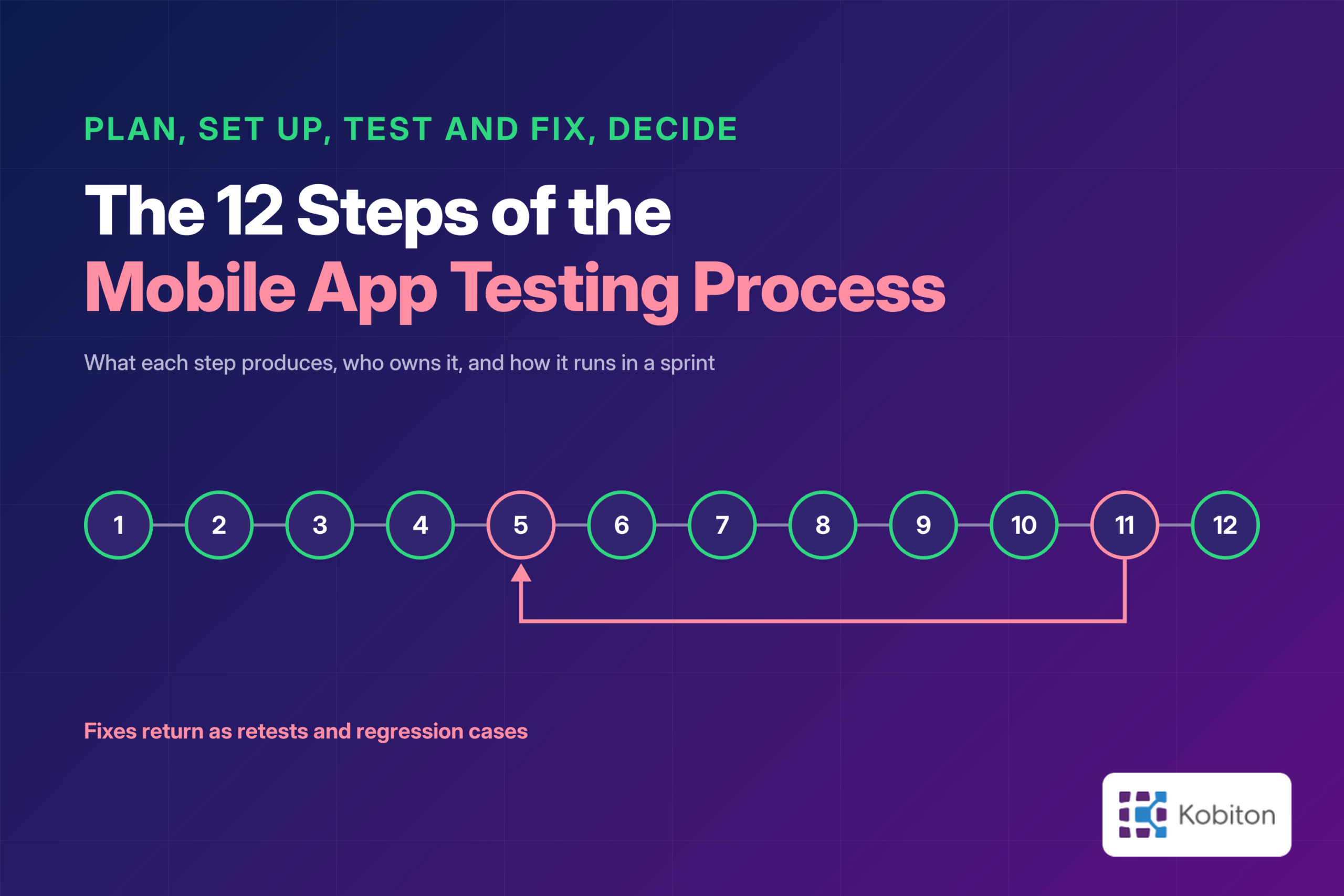
The 12 Steps of the Mobile App Testing Process
Stephen Penn
Read More
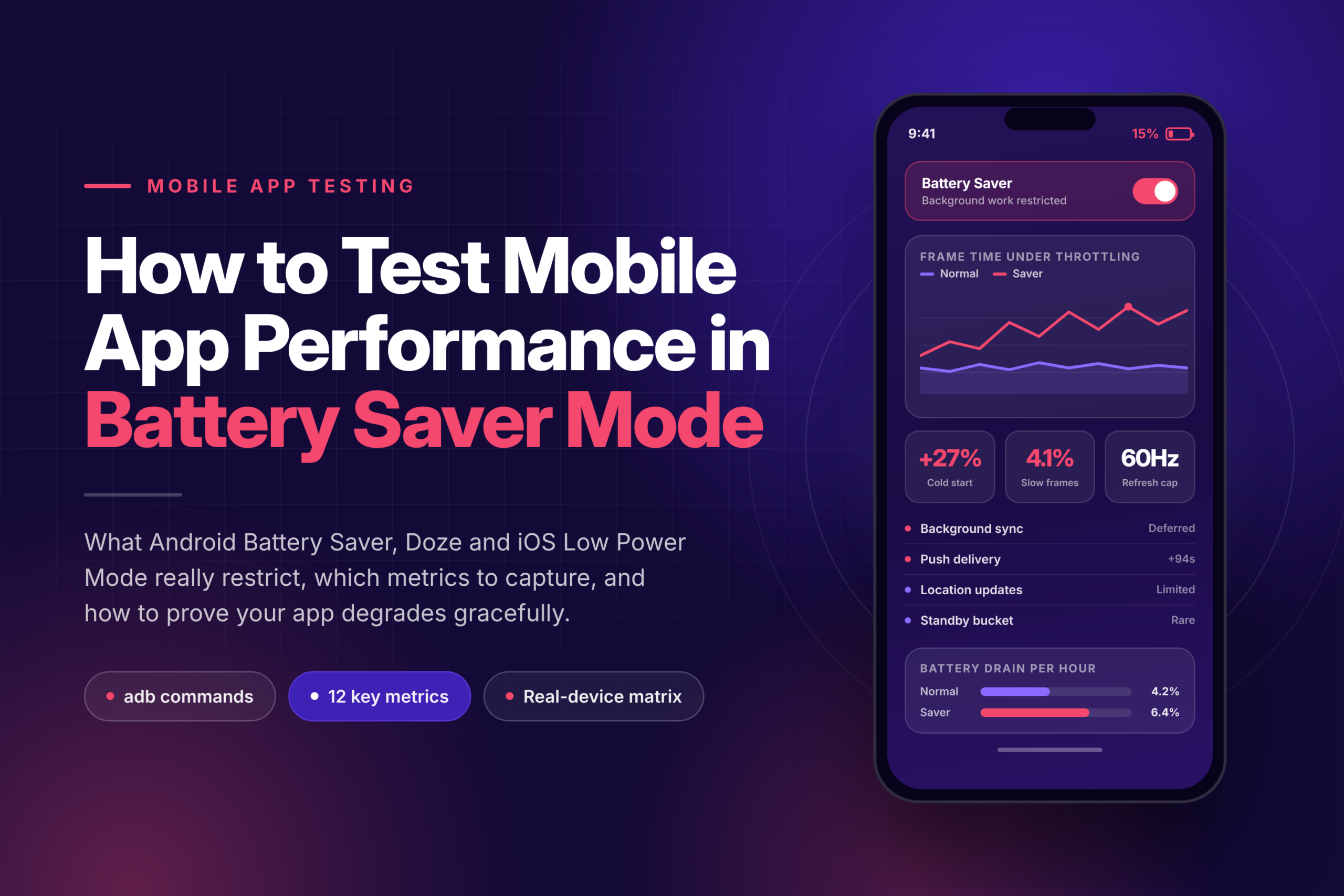
Your app will spend a real share of its life on phones with Battery Saver or Low Power Mode switched on, yet most test plans never check it. People turn these modes on when the battery runs low, on long trips, at festivals, during the commute, or simply out of habit. Many Android devices prompt users to turn on Battery Saver at 15% or 20% charge, and iOS offers Low Power Mode at 20%, so a large slice of your users reach this state every single day.
The catch is that battery saver mode does far more than dim the screen. It throttles the CPU, defers background work, limits network access, pauses sync and changes how the operating system treats your app once it leaves the foreground. An app that runs perfectly on a fully charged test device can miss notifications, lose location tracks, stall halfway through uploads or crash on resume as soon as those limits kick in.
This guide walks you through how to test mobile app performance in battery saver mode on Android and iOS, step by step. You will learn what each platform actually restricts, which metrics to capture, how to trigger power saving states on demand with adb and device settings, which scenarios to cover, how to automate the checks in CI, and how to fix the problems you are most likely to find.
Battery saver is not a single feature. It is a bundle of OS restrictions, and Android and iOS bundle them differently. Once you know exactly what gets restricted, you know what to test.
On Android, what users think of as “battery saver” behavior actually comes from four mechanisms that often overlap:
OEM skins add another layer on top. Samsung’s Power Saving and Maximum Power Saving modes, along with the battery managers on Xiaomi, OPPO, vivo, Huawei and OnePlus devices, are often far more aggressive than stock Android and may kill background services outright. Behavior that looks fine on a Pixel can fail completely on these devices, which is why testing on a single Pixel is never enough.
iOS Low Power Mode is simpler from a tester’s point of view: one switch and one set of system wide limits. When it is on, iOS typically:
Apps can check ProcessInfo.processInfo.isLowPowerModeEnabled and observe the NSProcessInfoPowerStateDidChange notification. Low Power Mode also switches itself off once the battery charges past roughly 80%, which matters a lot if your test devices sit on chargers between runs.
| Area | Android Battery Saver | iOS Low Power Mode |
| How it is turned on | Settings, quick settings tile, schedule or adb | Settings, Control Center or a Shortcuts automation |
| Background work | Deferred; jobs and alarms restricted; stricter still with Doze and low standby buckets | Background App Refresh paused or reduced |
| Network | Background network limited; suspended entirely in Doze | Background fetch reduced; 5G limited |
| CPU and GPU | Throttled on many devices | Throttled |
| Display | Reduced effects; dark theme on Android 10 and later | 60 Hz cap, reduced animations, 30 second Auto Lock |
| Location | Background location may be limited or disabled | Background updates arrive less often |
| App level API | PowerManager.isPowerSaveMode() | isLowPowerModeEnabled |
| Fragmentation | High, because OEM battery managers vary widely | Low, because behavior is consistent across devices |
Battery saver bugs reach users at the worst possible moment: when their phone is nearly dead and they need the app to simply work. That timing makes these bugs far more damaging to trust, ratings and retention than their frequency would suggest.
In short, testing in battery saver mode protects two things at once. It confirms that your app degrades gracefully when the OS restricts it, and it confirms that your app is not the one draining the battery in the first place.
Measure every metric twice: once in normal mode and once in battery saver mode, on the same device and the same build. The difference between the two runs is the real test result, not the absolute numbers on their own. If you are still choosing tooling, our guide on which tool is best for mobile performance testing compares the main options.
| Metric | What it tells you | How to capture it | Example pass criterion |
| Battery drain rate (% per hour or mAh) | Whether your app is a power hog in either mode | dumpsys batterystats, Battery Historian, Android Studio Power Profiler, Xcode Energy gauge, MetricKit | No more than X% drain per hour of active use, against your own baseline |
| CPU usage (%) | How much work the app does in the foreground, in the background and while idle | Android Studio CPU Profiler, Xcode Instruments Time Profiler, device metrics from your test platform | Close to zero CPU when backgrounded and idle |
| Memory (MB) | Leaks and memory pressure that lead the OS to kill the app | Android Studio Memory Profiler, Instruments Allocations and Leaks | No growth across repeated runs of the same flow |
| Cold and warm start time (ms) | How CPU throttling affects launch | adb shell am start -W, Xcode launch metrics, MetricKit | Within 20 to 30% of normal mode time |
| Frame rate and jank (% slow or frozen frames) | UI smoothness under CPU and GPU limits | adb shell dumpsys gfxinfo <pkg>, Instruments Animation Hitches | Slow frames stay below your normal mode threshold |
| Network requests and data (count, KB) | Chatty background traffic and failed syncs | Proxy or network capture, Network Profiler, Instruments Network | Background requests are batched, with no retry storms |
| Wake locks and wakeups (count, duration) | Whether the app keeps the device awake | Battery Historian, dumpsys power, Android vitals | No partial wake locks held in the background |
| Background task completion (%) | Whether jobs, syncs and uploads eventually finish | App logs, WorkManager and BGTaskScheduler logs | Critical work completes once restrictions lift |
| Notification delivery latency (s) | Whether pushes arrive, and how late | Timestamped test pushes compared against receipt logs | High priority messages arrive promptly; others within an agreed window |
| Location update interval and accuracy | Tracking quality under power limits | App logs, mock routes | Track continuity matches what your product promises |
| Crash and ANR rate | Stability under process death and throttling | Crashlytics, Android vitals, Xcode Organizer | No new crashes or ANRs compared with normal mode |
| Thermal state | Whether heat is adding its own throttling on top | ProcessInfo.thermalState, dumpsys thermalservice | App reduces its workload at serious or critical thermal states |
Set your thresholds as a change from the normal mode baseline rather than as fixed numbers. A cold start that is 25% slower in battery saver mode may be perfectly acceptable. A cold start that is 300% slower, or a sync that never completes at all, is a bug worth filing. Agree on these thresholds with product owners up front so that a failed check leads to a clear decision instead of a debate.
Battery saver testing has to happen on real devices. Emulators and simulators do not reproduce real CPU throttling, thermal behavior, radio power states or OEM battery managers, and the iOS Simulator does not support Low Power Mode at all. For a wider view, see which features can only be tested accurately on real devices.
Manually: go to Settings > Battery > Battery Saver (the wording varies by OEM), or use the Battery Saver tile in quick settings.
With adb, so tests are repeatable: Battery Saver will not stay on while the device reports that it is charging, so simulate unplugging first.
# Pretend the device is unplugged and at low charge
adb shell dumpsys battery unplug
adb shell dumpsys battery set level 15

# Turn Battery Saver on / off
adb shell settings put global low_power 1
adb shell settings put global low_power 0

# Verify state
adb shell settings get global low_power
adb shell dumpsys power | grep -i "mLowPowerModeEnabled\|mBatterySaverEnabled"

# Restore real battery reporting when done
adb shell dumpsys battery resetTrigger the related power states as well, since real users hit them constantly:
# Force Doze (deep idle); screen should be off
adb shell dumpsys deviceidle force-idle
adb shell dumpsys deviceidle unforce

# Put your app into App Standby / a specific bucket (Android 9+)
adb shell am set-inactive com.your.app true
adb shell am set-standby-bucket com.your.app rare      # active | working_set | frequent | rare | restricted
adb shell am get-standby-bucket com.your.app

# Reset battery stats before a measurement run
adb shell dumpsys batterystats --resetOEM modes such as Samsung Maximum Power Saving or Xiaomi’s battery saver usually have no reliable adb switch. Turn them on manually in Settings and record exactly which mode and which options were used, so the run can be reproduced later.
Manually: go to Settings > Battery > Low Power Mode, or add the Low Power Mode control to Control Center. There is no public API or XCUITest call to toggle it from inside a test, so plan for one of these approaches:
Remember that Low Power Mode turns itself off once the battery charges past about 80%, so devices kept on chargers can quietly drop out of the mode partway through a run. Have each test check the state at the start (through isLowPowerModeEnabled, exposed on a debug screen or in a log) rather than assuming it is still on.
A fair comparison changes one thing only: the power mode. Keep everything else fixed.
The method is a controlled comparison. You establish a baseline, apply each power saving state, repeat the same flows and compare the results. These eight steps take you from planning to a defect report a developer can act on.
Use this checklist as a starting test suite and tick items off for each device and mode. Then add scenarios that are specific to the core value of your app.
Automate the parts that are deterministic: switching modes on Android, running the same journeys, collecting metrics and diffing them against a baseline. Keep long soaks and OEM mode checks as scheduled or manual runs, because they are slow and depend on device settings that scripts cannot always reach. For the bigger picture, see our guide to mobile performance testing in CI/CD pipelines.
Appium’s UiAutomator2 driver can run adb shell commands through mobile: shell, as long as the server is started with the adb_shell insecure feature enabled (for example, appium –allow-insecure=adb_shell, or the equivalent setting on your device cloud). That lets a single test toggle Battery Saver, run a flow and restore the device afterwards:
def shell(driver, cmd, *args):
    return driver.execute_script("mobile: shell", {"command": cmd, "args": list(args)})

def enable_battery_saver(driver):
    shell(driver, "dumpsys", "battery", "unplug")
    shell(driver, "settings", "put", "global", "low_power", "1")
    assert shell(driver, "settings", "get", "global", "low_power").strip() == "1"

def restore_power_state(driver):
    shell(driver, "settings", "put", "global", "low_power", "0")
    shell(driver, "dumpsys", "battery", "reset")

def test_feed_refresh_in_battery_saver(driver):
    enable_battery_saver(driver)
    try:
        driver.background_app(60)          # send app to background for 60 s
        # ...assert feed refresh, notification receipt, sync state...
    finally:
restore_power_state(driver)The same pattern works for dumpsys deviceidle force-idle and am set-standby-bucket. Always restore the device state in a finally block, so that one failed test does not leave a shared device stuck in battery saver and quietly skew every test that runs after it.
For instrumented tests, run the adb commands from your CI script before and after the suite, or call UiDevice.executeShellCommand() from UI Automator inside the test itself. Pair this with Jetpack Macrobenchmark to capture startup and frame timing in both modes, since Macrobenchmark gives you stable, repeatable numbers that are easy to compare across builds.
Because Low Power Mode cannot be toggled from a test, structure iOS automation around device state rather than test code:
Pair a real device platform for running tests with platform profilers for finding root causes. The table below maps each tool to the question it answers best.
| Tool | Platform | Best for |
| Battery Historian (with adb bugreport) | Android | A timeline of wake locks, jobs, alarms, network and radio activity during a run |
| dumpsys batterystats, dumpsys power, dumpsys deviceidle | Android | Quick command line checks of power state and per app usage |
| Android Studio Power Profiler and CPU, Memory and Network profilers | Android | Live CPU, memory and network data, plus measured power rails on supported devices |
| Jetpack Macrobenchmark | Android | Repeatable startup and frame timing benchmarks in CI |
| Android vitals (Play Console) | Android | Field data on wake locks, wakeups, ANRs and crashes at scale |
| Xcode Instruments (Energy Log, Time Profiler, Allocations, Network, Animation Hitches) | iOS | Root causing CPU, energy, memory and UI issues on device |
| Xcode debug Energy gauge | iOS | A quick energy impact reading while running from Xcode |
| MetricKit and Xcode Organizer | iOS | Field metrics for launch, hangs, CPU, disk writes and energy from real users |
| Firebase Performance Monitoring and Crashlytics | Both | Production traces, network timing and crashes broken down by device |
| Real device cloud such as Kobiton | Both | Running the full device matrix at scale, with logs, video and device metrics for every session |
When you analyze results, look for patterns rather than single numbers. Typical warning signs include background CPU spikes that line up with timers, wake locks that never release, bursts of requests right after Doze maintenance windows, and frame drops on specific screens that appear only in battery saver mode.
Most battery saver defects fall into a handful of recurring patterns. Here is what you will typically see, why it happens and the usual fix, so you can hand developers a likely cause along with the bug report.
| Symptom | Likely cause | Fix |
| Push notifications arrive late or not at all | Normal priority FCM messages deferred in Doze or low standby buckets; APNs background pushes throttled | Use high priority FCM only for time sensitive, user visible messages; send visible alerts rather than silent pushes for important events; fetch fresh data when the app opens |
| Background sync never completes | Custom services or timers killed; jobs deferred | Move the work to WorkManager on Android, or BGTaskScheduler and background URLSession on iOS, with constraints and retries |
| Uploads restart from zero | No resumable transfer; process killed partway through the upload | Use resumable or chunked uploads and background transfer services |
| Location track has gaps | Background location limited; polling too often | Use activity based or significant change updates, a foreground service with a notification for active tracking on Android, and explain the limits to users |
| Restart loop or lost state on resume | Weak state restoration after process death or headless to UI transitions | Persist state, use SavedStateHandle and state restoration APIs, and test process death explicitly |
| Janky UI and slow start | Heavy main thread work exposed by CPU throttling | Defer non critical initialization, lazy load, move work off the main thread and cut unnecessary rendering |
| Requests time out | Fixed short timeouts combined with a slower CPU and network | Use adaptive timeouts, retries with exponential backoff and clear offline states |
| Retry storm after restrictions lift | Every deferred job fires at the same moment | Add jitter, deduplicate jobs and batch network calls |
| App drains battery even in battery saver | Polling loops, held wake locks, off screen rendering | Replace polling with push or event triggers, release wake locks and pause work when nothing is visible |
| Alarms or reminders fire late | Inexact alarms batched by the OS | Use exact alarms only where the use case qualifies and the permission is granted; otherwise set clear user expectations |
The best battery saver test results come from apps that are designed to expect restriction. Share these practices with your development team so that the fixes become defaults rather than one off patches.
Battery saver testing only produces results you can trust when it runs on real hardware across many device models, and that is exactly where an in house device lab becomes a bottleneck. Buying, configuring and maintaining a Pixel, several Samsungs, a few aggressive OEM devices and a range of iPhones is slow and expensive. Kobiton’s real device testing platform removes that bottleneck.
Editor’s note: confirm current feature names and links (device settings controls, performance metrics, adb and shell access per plan) with the Kobiton product team before publishing, and add a product screenshot or short GIF of a session here.
Often, yes. Both Android Battery Saver and iOS Low Power Mode can reduce CPU and GPU performance, limit background activity and cap display refresh rates. As a result, heavy screens, app launches and background tasks can run more slowly or be deferred until restrictions lift.
No. The iOS Simulator does not reproduce Low Power Mode behavior or real power throttling. Use physical iPhones, either in your own lab or on a real device cloud.
Run adb shell dumpsys battery unplug, then adb shell settings put global low_power 1. Turn it off with low_power 0, and restore normal battery reporting with adb shell dumpsys battery reset.
Battery Saver is a mode that the user or a schedule turns on, and it applies even while the screen is on. Doze activates automatically when the device is unplugged, stationary and has its screen off; it suspends network access and defers work into maintenance windows. Your app will meet both, so test both.
Not through a public API. Set the mode on the device beforehand, through device settings, a Shortcuts automation or your device cloud’s controls, and have each test confirm the state when it starts.
Run short functional checks on every build, and 30 to 60 minute background soaks before releases. Run longer soaks for tracking and media apps, where drain builds up over hours. Start each run at the same battery level and temperature so results stay comparable.
A stock Pixel for baseline behavior, a Samsung device because it represents the largest share of Android users, and at least one device from an OEM known for aggressive battery management, such as Xiaomi, OPPO or vivo. Weight the final list by your own user analytics.
Testing mobile app performance in battery saver mode comes down to one discipline: run the same journeys on the same real devices, with and without power restrictions, and treat the difference as a test result. Know what Android Battery Saver, Doze, standby buckets, OEM battery managers and iOS Low Power Mode each restrict. Capture a clear baseline, test the transitions as well as the steady states, and automate the repeatable parts in CI.
Do that consistently, and your app keeps its notifications, syncs, tracking and UI working when users need them most, without becoming the app that drains their battery.