Nov 11, 2026
Top tools for automated mobile accessibility testing on real devices
Kobiton Team
Read More
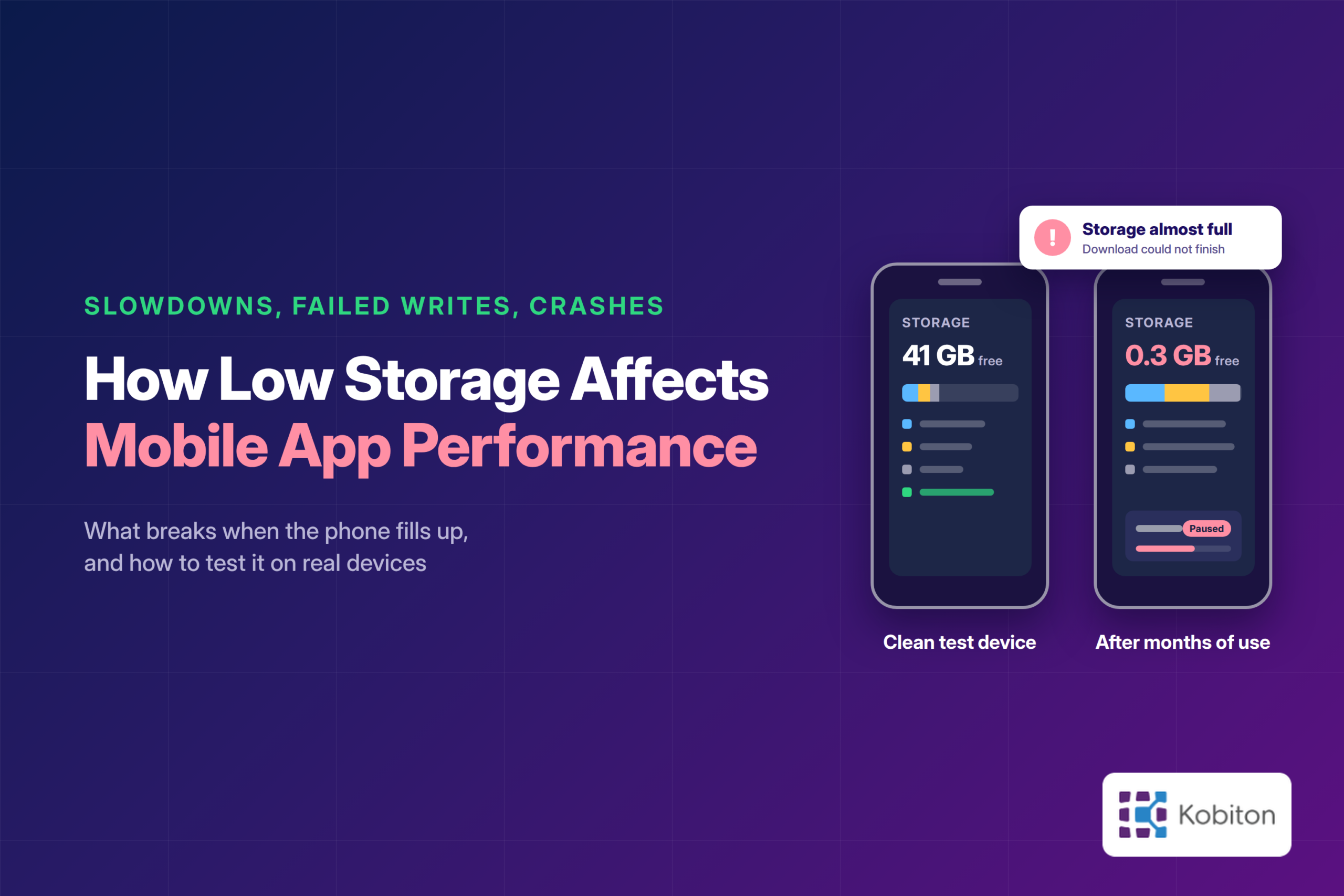
An app can run flawlessly on a brand new phone and then struggle on the exact same model after a few months of everyday use. Screens take longer to load, downloads fail halfway through, and features that worked yesterday suddenly behave unpredictably.
The cause isn’t always the app’s code or a weak network connection. Sometimes the device is simply running out of storage.
Low storage is easy to miss during development because test devices tend to stay clean. They get reset often, carry only the apps under test, and rarely hold years of personal files. Real users live very differently. Their phones fill up with photos, 4K videos, voice notes, downloaded documents, long chat histories, and data from dozens of other apps. When free space runs short, an app may struggle to save information, update its local database, or create the temporary files it depends on for routine tasks.
Understanding how low storage affects mobile app performance helps developers and QA teams catch these problems early, before they show up in app store reviews and support tickets.
Every smartphone has a fixed amount of internal storage, and everything on the device competes for it: the operating system, installed apps, user files, system updates, and temporary data.
As free space shrinks, apps can start having trouble with tasks that normally happen quietly in the background. A shopping app caches product images so pages load quickly. A banking app writes temporary transaction data while a payment is processed. A messaging app downloads attachments to the device before displaying them. Each of these actions needs a little room on disk, and when that room isn’t available, the operation can fail or require extra cleanup and recovery work.
The operating system reacts to storage pressure too. Both Android and iOS may clear cached files when space runs critically low, and both start warning users that storage is almost full. Those system actions can change how an app behaves even when the app itself hasn’t changed at all.
It’s also worth separating storage from RAM, since the two are often confused. RAM holds the data an app is actively using right now, while internal storage keeps files and information over the long term. A phone with little free storage doesn’t necessarily have too little RAM, although both conditions can hurt performance in different ways. Memory pressure usually leads to apps being closed in the background, while storage pressure tends to cause failed writes, missing cache data, and stalled file operations.
The actual impact depends on the operating system version, the device’s storage hardware, and how carefully the app manages its files.
Opening an app involves much more than showing its home screen. Behind the scenes, the app may read configuration files, restore a saved session, open and initialize a local database, and prepare cached images or other resources.
When storage is nearly full, these operations can become less predictable. Flash storage generally performs best when it has free space for internal housekeeping, so an app that relies heavily on temporary files or repeated disk writes may see longer startup times, especially while the operating system is also working to reclaim space.
That said, low storage doesn’t automatically slow down every app. Before blaming storage, confirm that disk activity is actually responsible for the delay. Comparing cold start times on the same device under normal and low storage conditions is a simple way to see whether a real difference exists.
Picture a traveler downloading an offline map the night before a trip. The download starts normally, but halfway through, the phone runs out of space. What happens next says a lot about the app.
A properly designed app explains the problem in plain language, keeps any data that was already saved, and lets the user try again once space has been freed. Ideally, it resumes the download from where it stopped instead of starting over.
A poorly designed app might freeze, silently restart the download from zero, or show a vague message like “Something went wrong” that leaves the user guessing.
The same risks apply to document uploads, video downloads, photo and video editing, file exports, and offline content syncing. Any feature that writes data to the device belongs in your storage test plan.
Caching lets an app avoid downloading or processing the same information over and over. It’s one of the most effective ways to make an app feel fast.
But cached data takes up space, and that space isn’t guaranteed. When a device runs low on storage, the operating system may delete cached files to recover capacity. On Android, the system can remove files from an app’s cache directory when space is needed, and iOS can purge an app’s Caches folder under similar conditions. Apps need to be ready to rebuild that data on demand.
If an app assumes its cached files will always be there, users may see broken or missing images, repeated downloads that eat into their data plan, or sudden loading delays on screens that used to open instantly.
Poor cache management can also cause the opposite problem. An app that never trims its cache can quietly grow to occupy gigabytes of space, making the storage shortage worse and sometimes pushing users to uninstall it entirely.
The goal isn’t to eliminate caching. It’s to use storage efficiently, set sensible size limits, and recover gracefully when cached resources disappear.
Many mobile apps store preferences, messages, account details, and offline activity in a local database, most often SQLite, whether directly or through frameworks such as Room on Android and Core Data on iOS.
These databases often need extra space to update records, maintain journal files, and complete transactions. SQLite, for example, writes changes to a rollback journal or WAL file before committing them to the main database. If the device can’t provide that space, the operation fails, and SQLite reports a “database or disk is full” error.
For apps that handle sensitive or critical business information, the consequences go well beyond a slow screen.
Imagine a field service technician recording inspection results while working offline at a remote site. If those records fail to save because the device is out of space, the app must say so clearly. The worst outcome is an app that appears to save successfully when nothing was actually written, because the technician won’t find out until the data is already gone.
Testing should confirm that failed writes don’t corrupt existing records, that incomplete transactions roll back cleanly, and that users can recover safely.
Low storage can contribute to app instability, particularly when the code doesn’t handle file system errors properly.
For example, an app might try to create a temporary file, receive an insufficient space error (such as an IOException reading “No space left on device” on Android, or NSFileWriteOutOfSpaceError on iOS), and crash because no one planned for that condition. In other cases, aggressive retry logic keeps the interface busy while the same operation fails again and again, leaving the user staring at a frozen screen.
Still, not every freeze or crash on a nearly full phone is caused by storage. High CPU usage, memory pressure, network problems, and ordinary application bugs can all produce similar symptoms. That’s why QA teams need diagnostic evidence, such as crash logs, error codes, and performance data, rather than assumptions.
Emulators and simulators are useful early in development, but physical devices give a far more realistic picture when you’re investigating storage related performance problems.
Real phones differ in storage hardware and speed, operating system versions, manufacturer customizations, installed apps, and accumulated user data. Virtual devices rarely reproduce those conditions. The iOS Simulator, for instance, writes to your Mac’s drive, so it never feels the storage pressure a real iPhone does. A test that passes on a clean virtual device may behave very differently on a physical phone with only a few hundred megabytes free.
Using real device testing lets teams observe how an app actually behaves on the Android and iOS hardware their users carry every day.
Reliable results also depend on isolating storage from unrelated device conditions. Testing on a nearly full phone that also has a degraded battery and several apps running in the background makes it hard to tell which factor caused a slowdown. Change one variable at a time and keep everything else as consistent as possible. A controlled comparison produces evidence your team can actually act on.
Low storage testing doesn’t require an elaborate setup. Start with one important user journey and run it under different storage conditions.
Begin with a supported physical device that has plenty of free storage.
Install the app and complete the activities that matter most to your users, such as signing in, loading the dashboard, downloading content, and saving information.
Record the results using consistent measurements: app startup time, screen response time, file operation success, and any crashes or errors. Run each scenario several times and use the median rather than a single result, since individual runs naturally vary. A documented baseline gives every later comparison a meaningful reference point.
Next, create a controlled low storage condition on a dedicated test device.
Use disposable test files or supported device management methods to reduce available capacity without touching personal data or operating system files. On Android, a common approach is to create large placeholder files through adb, which can be removed with a single command once testing is finished.
Avoid assuming that a specific percentage of free space means the same level of pressure on every device. Ten percent free on a 512 GB phone is roughly 51 GB, which is plenty for most apps, while ten percent free on a 64 GB phone is only about 6 GB. Record the exact available capacity and note the point at which the app starts behaving unusually.
For safety and repeatability, don’t fill the device completely, and never use production devices that hold important data. A completely full device can cause the operating system itself to behave erratically, which makes your results much harder to interpret.
Run the same workflows you used for the baseline.
Pay close attention to anything that creates, modifies, or downloads files. Check whether users can save an edited photo, download an attachment, sync offline records, or complete a transaction.
Also test what happens when storage runs out during an operation, not just before it begins. Starting a large download when the device has enough space to begin but not enough to finish is a reliable way to trigger this. Failures in the middle of an operation often expose recovery problems that ordinary functional tests miss.
Compare the results from your normal storage and low storage sessions.
Useful measurements include:
The most valuable finding isn’t simply that the app got slower. It’s identifying which operation changed and why.
For example, if opening a document takes longer only after cached files have been cleared, the delay is probably caused by cache rebuilding rather than reduced storage capacity itself. That distinction points developers toward a very different fix.
Freeing up storage shouldn’t leave an otherwise healthy app in a broken state.
Once you restore available capacity, repeat the activities that failed. Check that downloads can restart, databases remain consistent, and previously saved user data is still accessible.
Also confirm that users received clear, understandable messages when an operation couldn’t continue, ideally with guidance on what to do next, such as freeing space or trying again.
Recovery behavior matters most for apps that support offline work, financial transactions, or large media files, where a single failed write can mean lost work or lost money.
Before you mark an app ready for release, run through these practical checks.
| Test Scenario | Expected Behavior |
| Launch with limited storage | App opens normally or shows a clear, recoverable error |
| Download a large file | Insufficient space is handled without corrupting existing files |
| Save data to a local database | Failed writes are reported and existing data stays intact |
| Remove temporary cache files | App recreates the data it needs whenever possible |
| Interrupt an offline sync | Pending data is preserved and retry behavior is predictable |
| Free storage after a failed operation | User can resume normal activities without reinstalling |
| Repeat tests on different devices | Issues specific to each device are documented |
These scenarios fit naturally into a broader mobile app performance testing checklist.
Investigating low storage issues takes more than confirming that an app opens. QA teams need to see what happens during the affected workflow and gather enough information to reproduce the problem reliably.
Kobiton’s Mobile Performance Testing capabilities help teams analyze app responsiveness on real devices, including CPU usage, memory consumption, network activity, and other performance indicators at the device level.
Teams can use supported real device sessions on Kobiton to compare app behavior under controlled conditions and investigate problems using performance metrics and diagnostic information.
Storage preparation and verification of available disk space should be handled separately, using the appropriate device or platform tools. Kobiton’s documented performance capabilities should not be read as automatically creating low storage conditions.
By pairing real device testing with native storage diagnostics for each platform, teams can determine whether an issue stems from limited storage, inefficient file handling, or a different application problem altogether.
The most reliable way to avoid storage failures is to build good storage management into the app from the very beginning.
Manage temporary files carefully. Delete downloads, duplicate files, and stale cached resources as soon as they’re no longer needed, and set size limits on caches so they can’t grow unchecked.
Check available capacity before large operations. If the app needs significant space to download or generate content, confirm that space is available first. On Android, StorageManager provides methods such as getAllocatableBytes and allocateBytes for this purpose, while iOS reports usable space through the volumeAvailableCapacityForImportantUsage resource value.
Handle storage failures gracefully. Catch insufficient space errors and show users a helpful message that explains what happened and what to do next, instead of crashing or freezing.
Protect important data. Database operations, offline records, and files created by users should stay consistent even when a write can’t be completed. Using transactions, and writing to a temporary file before replacing the original, keeps a failed save from damaging existing data.
Test recovery, not just failure. A good experience means users can pick up where they left off once the storage problem is resolved.
Monitor storage growth between releases. Track how much space your app’s data and cache occupy after each version ships. Unexpected growth can eventually hurt users, even if the app performs well at first.
These practices work best alongside regular mobile app performance measurement across all of your supported devices.
Low storage doesn’t affect every mobile app the same way. Some apps keep working normally, while others slow down, fail downloads, run into database errors, or crash without warning.
What really matters is how your app responds when space runs short.
Testing these situations on real devices helps teams find problems before users do. It also shows whether the app can protect important data, explain failures clearly, and recover once enough space becomes available again.
With Kobiton’s real device testing capabilities and the right platform storage diagnostics, teams can investigate storage related performance problems using repeatable workflows and measurable evidence.
Want a clearer picture of how your app performs on actual devices?
Learn more about Kobiton’s Mobile Performance Testing capabilities and see how real device insights can strengthen your mobile testing strategy.