Mobile gamers expect the same smooth experience whether they are using a high-end smartphone or an older tablet. They want responsive controls, stable performance, and visuals that feel polished.
The challenge is that mobile devices vary widely in hardware, operating systems, screen sizes, and performance capabilities. These differences can quickly turn into quality issues if they are not handled properly.
This guide explains what device compatibility means in mobile game testing, why it matters, how to plan for it effectively, and which tools can support your testing workflow.
What is Device Compatibility in Mobile Game Testing
Device compatibility refers to how well a mobile game performs across different devices. This includes variations in hardware, screen resolution, operating systems, memory, GPU performance, input methods such as touch and gyroscope, and even network conditions.
In practice, compatibility goes beyond simply launching the game. It covers how well the game plays, how the interface adjusts to different screens, how stable the performance is, and how the game behaves under real-world conditions.
Why Game Compatibility Is Not App Compatibility
Most compatibility testing advice was written for standard apps, and it does not transfer cleanly. A form field either accepts input or it does not. A game has to accept input, respond within a window the player can feel, and keep doing both while the device heats up. Three differences change what compatibility testing has to look for.
Games render to a canvas, not to native controls. A standard app is built from buttons, lists, and text fields that automation tools can find individually through the accessibility tree. A game built in Unity, Unreal, Godot, or a custom engine draws its entire interface onto a single surface. A tool inspecting that screen sees one surface view, not a button called Play. This is why a compatibility pass on a game usually needs a human watching the screen or a tool that works from the rendered image rather than the element tree.
Timing is functional, not cosmetic. A delay of a couple of hundred milliseconds in a banking app is a minor annoyance. In a game, the same delay changes the outcome. The player swipes to dodge, the character moves late, and the round is lost. Nobody files that as a performance regression. They decide the game is broken. That makes input latency and frame stability functional requirements, and it makes them compatibility requirements too, because both vary by device.
The device is part of the product. Refresh rate, GPU headroom, memory pressure, thermal limits, and touch sampling rate all differ between handsets, and all of them are visible to the player. The same build can feel smooth on a current flagship and sluggish on a mid-range Android two years old. The code is identical. The experience is not.
The practical consequence is that a game can pass every functional check on every device in your matrix and still be unplayable on some of them. Compatibility testing for games has to measure how the game behaves, not just whether it runs.
Why Compatibility Matters for Mobile Games
Mobile users are highly fragmented. Players may be using:
- Older Android devices with limited RAM
- Large screen tablets
- iPhones with notch or Dynamic Island layouts
- Foldable devices with unique screen ratios
If a game performs poorly on commonly used devices, the impact is immediate. Ratings drop, users stop playing, revenue declines, and marketing efforts become less effective.
A consistent experience across devices is directly tied to retention and long-term growth.
Key Compatibility Factors in Mobile Game Testing
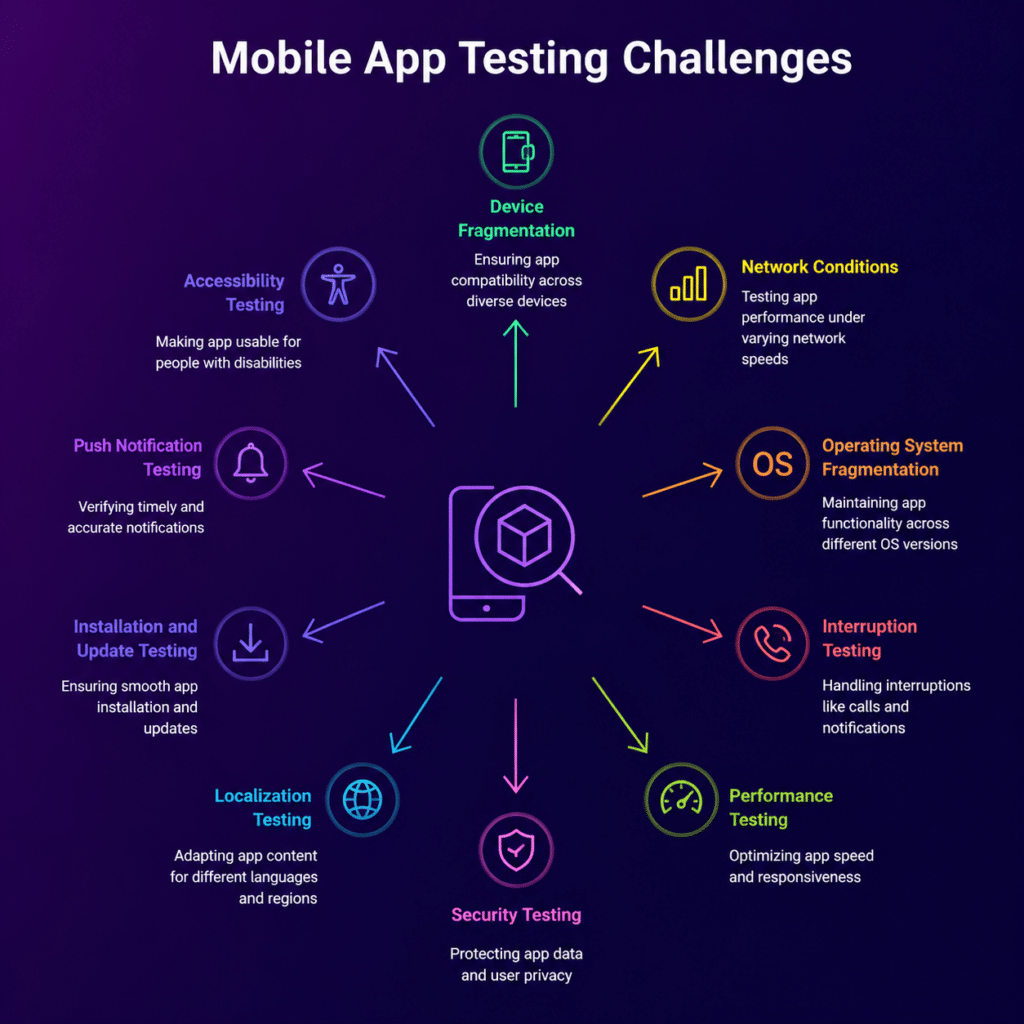
1. Operating System Variants
Android devices run on many different OS versions at the same time, which creates fragmentation. On the other hand, iOS users tend to adopt updates quickly.
These differences affect APIs, permissions, and runtime behavior.
Tips
- Build a test matrix based on real OS usage data
- Test both older stable versions and the latest releases
Vendor layers count as separate variants. Android version number is only half the picture. Most large manufacturers ship their own system layer on top of it Samsung’s One UI, Xiaomi’s HyperOS, Oppo’s ColorOS and others and those layers change behaviour your game depends on.
• Background process and memory management differ, which decides whether a backgrounded session resumes or restarts.
• Battery optimisation can throttle or suspend a game the OS considers idle, including during a loading screen.
• Permission prompts and system dialogs appear at different moments and can land mid-gameplay.
• Default refresh-rate and performance-mode settings vary, which changes the frame rate your game actually gets.
Two handsets on the same Android release from different manufacturers are two entries in the matrix, not one.
2. Hardware Diversity
Devices vary in CPU power, GPU capability, memory, and sensors.
Test scenarios should include:
- Low RAM devices with 2 to 3 GB
- Mid-range devices with limited GPU power
- High-end devices with high refresh rate displays
Focus on frame drops, crashes, texture loading issues, and memory leaks across different hardware levels.
3. Display Resolution and Aspect Ratios
Games must adjust properly to different screen types, such as:
- Standard widescreen displays
- Ultra-wide screens
- Notched devices
- Foldable devices
Common issues include:
- UI elements being clipped or misaligned
- HUD overlaps important areas
- Incorrect scaling of gameplay elements
4. Network Conditions
Network behavior is closely tied to device performance because of differences in modems and OS level networking.
Test under:
- Slow 3G connections
- Unstable 4G and 5G networks
- WiFi fluctuations
- Offline scenarios
5. Input, Sensor, and Audio Capabilities
Games use more of the device than most apps do, and each capability behaves slightly differently across hardware. Which of these matter depends on the game, so treat the list as a filter rather than a checklist to run in full.
| Capability | What to test across devices | When it is critical |
| Touch response | Whether the input lands where the player aimed and how quickly it registers, not just that an event fired | Every game |
| Multi-touch | Two-thumb control, pinch, and gesture chains where one finger must not be dropped | Action, shooter, MOBA, racing |
| Audio | Whether sound cues fire on time and stay in sync with the animation across audio routes and headphone states | Rhythm, audio-cued combat, anything with a timing tell |
| Haptics | That vibration fires on the intended events and stays quiet otherwise, including when the player has disabled it | Games using vibration as feedback rather than decoration |
| Bluetooth controllers | Detection, button mapping, mid-game disconnect and reconnect, and Android versus iOS differences | Any game that advertises controller support |
| GPS and location | Location changes, signal loss, permission denial, and dead zones | Location-based games |
| Accelerometer and gyroscope | Tilt and motion control accuracy, and orientation lock behaviour | Motion-controlled games; test lightly elsewhere |
| Camera | Permissions, activation, overlay alignment, and the deny and interrupt cases | AR titles |
| Microphone | Permissions, input capture, audio-route changes, and failure states | Voice chat and voice commands |
Two of these are worth calling out because teams routinely skip them. Audio is feedback, not polish: if a collision sound trails the collision, players read the game as broken even when the visuals are correct. And haptics are hard to verify remotely, because a tester looking at a streamed screen cannot feel the phone so if vibration carries meaning in your game, you need either a device in hand or a platform that surfaces haptic events some other way.
6. Sustained Performance and Thermal Behavior
Most compatibility passes check that a game starts. Games fail later than that. A build can hold frame rate for the first few minutes, then degrade as the chassis warms, memory use climbs, and the session grows more complex — and the point at which it degrades depends on the device.
Build at least one long-session scenario into the matrix rather than testing launch behaviour only:
• Play for a sustained period, not a single level — twenty minutes or more is where memory leaks and thermal throttling start to show.
• Repeat level loads in sequence, which is where asset and memory handling accumulate problems.
• Background and resume the app, and take an interruption such as a call or a notification mid-session.
• Switch between Wi-Fi and cellular while the game is running.
• Run once under battery-saver or low-power conditions, which changes CPU and GPU ceilings on most devices.
Compare the frame rate at minute twenty against the frame rate at minute one on each performance tier. A flagship that holds steady and a mid-range device that loses a third of its frames are the same build behaving as two different games.
How Compatibility Priorities Shift by Game Genre
Every mobile game benefits from broad device coverage, but not equally, and not on the same axes. The more a game depends on timing, sensory feedback, or specific hardware, the less an emulator and a short device list will tell you.
| Genre | Where compatibility risk concentrates | What to weight the matrix toward |
| Competitive multiplayer | Input latency, frame stability under crowded scenes, network handoffs | Mid-range hardware and real network conditions; a bug here decides matches |
| Racing and action | Sustained rendering, touch responsiveness, motion sensors | Performance tiers, because the scene never holds still and problems surface fast |
| Rhythm and audio-first | Audio-to-input sync across audio routes and hardware | Audio path coverage; timing drift makes these games unplayable rather than annoying |
| Location-based | GPS accuracy, permission states, signal loss, network switching | Real devices in real conditions; controlled environments hide exactly these failures |
| Controller-based | Detection, mapping, disconnect and reconnect, platform differences | Both input surfaces, on both operating systems |
| Casual and hyper-casual | Load time and stability on low-end hardware | Low-RAM and older devices, where this audience concentrates and churns fastest |
| Live-service and gacha | Regression on every content patch across the existing matrix | Repeatable automated coverage rather than breadth, run per release |
If your game sits in more than one row, take the stricter requirement. A rhythm game with controller support inherits both sets of risk.
Best Practices for Building a Compatibility Test Strategy
1. Define Your Device Test Matrix
Group devices based on:
- Market share across Android and iOS
- Target regions
- Performance tiers
- Screen sizes and resolutions
Keep this matrix updated regularly using analytics and user feedback.
A useful starting shape is the top 20 to 30 devices by your own install data, growing toward 50 or more for a large title. Build the list from what your players hold, not from a generic popular-devices list, then check it covers each of these axes:
| Axis | What to cover | Why it belongs in the matrix |
| Chipset family | Snapdragon, MediaTek, Exynos, and Apple silicon | GPU driver behaviour and thermal limits differ by family, and rendering bugs often track a chipset rather than a brand |
| Memory tier | A low tier around 3 to 4 GB, a mid tier, and a high tier | Texture loading, asset streaming, and background-kill behaviour break first on low-memory hardware |
| Aspect ratio | Standard widescreen, tall 20:9 and above, notched and cutout screens, foldables | Safe areas and HUD placement are where layout bugs concentrate |
| OS version | The current release plus the two or three before it, on both platforms | Android fragments across versions; iOS moves fast but leaves a tail on older hardware |
| Device age | Current-generation plus handsets two to three years old | Older hardware is where much of a real player base sits, and where performance problems appear first |
| Manufacturer | Two or three devices from each major maker your players use | Touch layers, refresh-rate handling, and Android skins vary by OEM |
Coverage is not the longest list, it is the right one. A matrix made entirely of current flagships looks broad and skips exactly the hardware where things break.
2. Prioritize Devices Based on Real Usage
Use data to identify:
- Devices with the highest user activity
- OS version distribution
- Regional device trends
This allows you to focus testing efforts where they matter most.
3. Combine Real and Virtual Devices
A balanced approach works best:
- Real devices provide accurate performance and hardware behavior
- Emulators and simulators help with quick iteration and automation
Platforms like Kobiton give teams access to real devices in the cloud, making it easier to test across a wide range of hardware without maintaining a physical lab.
Where the line sits matters more than the split. Emulators reproduce the software environment well and the physical one poorly, so they can answer questions about logic and layout but not about behaviour under load.
• An emulator can confirm that the game launches, that a level loads, that UI scales to a given resolution and aspect ratio, that a permission prompt appears, and that a scripted flow completes.
• An emulator cannot confirm sustained frame rate, real GPU rendering behaviour, thermal throttling, battery drain, touch sampling and input latency, audio and haptic timing, or how the game handles a real interruption such as an incoming call or a Wi-Fi-to-cellular handoff.
The failure pattern is consistent: a puzzle game looks clean in the emulator and clips its HUD on a handset with an unusual aspect ratio; a racer passes every functional check and feels sluggish on a three-year-old device; a multiplayer title is stable in the lab until the phone switches networks mid-match. Emulators were never the mistake. Treating a green emulator run as release evidence is.
4. Automate Where It Makes Sense
Automation is ideal for repetitive checks, such as:
- App launch and load time validation
- UI scaling across resolutions
- Basic user interaction flows
Manual testing should focus on gameplay experience, edge cases, and usability issues.
5. Monitor Performance Continuously
Track key metrics like:
- Frame rate stability
- App launch time
- Memory usage
- Crash frequency
Run baseline tests early and compare results across devices to catch issues sooner.
How you read these metrics matters as much as collecting them. Two habits turn general monitoring into compatibility monitoring.
Segment by device tier and OS version, never blended. A 99% crash-free session rate across the whole install base can still mean 90% on one budget chipset. The blended number will look healthy for as long as the affected group is small, which is exactly the period in which you could still fix it cheaply. Apply the same split to ANR rate on Android, which is easy to miss in QA because the app eventually recovers.
Track frame stability, not average frame rate. The useful figure is the share of frames rendered inside your target budget. A game averaging 50 fps that spends a third of its frames below 30 during combat feels far worse than the average implies, and that gap almost always tracks a specific set of devices.
Median load time is worth splitting the same way cold start to playable, and level-to-level transitions, tracked separately, because a slow first load and a slow transition point at different causes.
Tools for Device Compatibility in Mobile Game Testing
1. Cloud Device Labs
Cloud platforms provide access to real devices hosted remotely.
Benefits include:
- No need to maintain physical devices
- Access to a wide range of OS versions and device types
Teams often use solutions like Kobiton to run manual tests, perform regression checks, and validate behavior on popular devices.
2. Automation Frameworks
Automation tools help run tests quickly across multiple devices.
Common use cases:
- UI testing across different screen sizes
- Integration with CI pipelines
- Automated log collection
These frameworks help maintain consistency across builds.
3. Performance Monitoring and Crash Reporting
Performance tools help compare behavior across device groups.
Key metrics include:
- Frame rate drops
- Thermal throttling
- Memory usage on lower-end devices
- Crash reports linked to specific devices
4. Which Tool Answers Which Compatibility Question
No single tool covers the full compatibility surface, which is why most teams run a small stack rather than one platform. Matching the tool to the question avoids paying for overlap.
| Question | Tool category | Examples |
| Does it run, and how does it behave, on the devices players hold? | Real device cloud | Kobiton and comparable device clouds |
| Do the menus, store, and account flows still work after this build? | UI automation around the canvas | Appium, Espresso, XCUITest |
| Can I automate something inside the game itself? | Engine instrumentation | AltTester for Unity; engine-native test frameworks |
| What is the frame rate, memory use, and thermal profile per device? | Performance profiling | GameBench, PerfDog, Unity Profiler, Xcode Instruments |
| Which devices are crashing after release? | Crash and vitals reporting | Platform vitals dashboards and crash reporting SDKs |
One limitation is worth stating plainly, because it catches teams out: standard UI automation tools can drive the native layer around a game — permission dialogs, login screens, store sheets — but cannot see elements rendered inside the engine canvas. Anything happening inside the game needs either engine instrumentation or a human.
What to Look for in a Real-Device Platform for Games
Device clouds solved access: teams can reach hardware they do not own and cover more of the matrix without a procurement cycle. For a game, access alone is not enough. If the session is laggy, the stream is choppy, or the tester cannot make a two-thumb gesture, they cannot honestly judge how the game plays and worse, they cannot tell whether a problem they see is the game or the test environment.
Four criteria separate a platform you can test a game on from one you can only test an app on.
• Low-latency interaction. The tester needs to see the result of an action fast enough to keep playing on instinct. Do not take a number from a datasheet put your own testers on your own build remotely and watch whether they trust what they feel.
• A stream that holds its frame rate. A degraded, low-frame-rate stream hides exactly the rendering and animation defects the session exists to find. A settings screen and a boss fight are not the same ask.
• Real touch, including multi-touch. Taps and swipes are the floor. If your game needs two simultaneous controls or a timed gesture chain, a platform that cannot reproduce them cannot test your gameplay at all.
• Audio and peripheral support where the game needs it. Audio out, microphone, and controller support matter for some genres and not others check against the capability table earlier in this article rather than against a generic feature list.
One further consideration applies to studios rather than to apps: unreleased builds, upcoming events, new characters, and monetisation experiments are confidential, so where the testing happens can be a release-security question as much as a performance one. On-premise or private deployment options matter for teams that need real hardware without pre-launch content leaving their own environment.
Where Compatibility Testing Fits in the QA Workflow
Compatibility testing should be part of every stage of development.
Recommended phases:
Pre Alpha
Run early tests on key devices to confirm basic stability
Alpha and Beta
Expand device coverage and focus on UI issues and performance edge cases
Release Candidate
Run the full test matrix with both automated and manual testing
Post Release
Monitor live data and fix device-specific issues quickly
Common Compatibility Challenges and How to Handle Them
UI Misalignment
Use flexible layouts and test on extreme screen sizes
Memory Issues on Low-End Devices
Optimize assets and scale textures dynamically
Input Delays
Test across devices with different touch response rates
Network Related Bugs
Simulate unstable connections and handle failures smoothly
Checklist for Device Compatibility Testing
| Category | What to test | Why it matters |
| Installation | Install, update, and uninstall across OS versions and vendor layers | Update paths break more often than clean installs and affect existing players |
| Launch and resume | Cold start, resume from background, and recovery after an interruption | Backgrounding behaviour varies by OEM and is a common source of lost progress |
| Layout | Scaling, safe areas, HUD placement on notched, tall, and foldable screens | Clipped or overlapping UI is immediately visible and immediately reviewed |
| Touch and gestures | Tap accuracy and delay, swipe precision, multi-touch, orientation behaviour | Controls are gameplay, not navigation — a dropped input costs the round |
| Frame rate | Sustained frame stability during intensive scenes, not just average | Players feel frame-time spikes long before they read an average |
| Sustained performance | Memory, battery, and thermal behaviour over a long session | Degradation appears late and appears sooner on cheaper hardware |
| Sensors and peripherals | Gyroscope, orientation lock, controllers, audio output, haptics | Each varies by device and is invisible to an emulator |
| Networking | Offline, slow and unstable connections, mid-session Wi-Fi to cellular handoff | Mobile players move through changing network conditions constantly |
| Interruptions | Calls, notifications, permission prompts, and screen lock during play | These arrive at the worst moment and are where session recovery fails |
Frequently Asked Questions
How many devices should you test a mobile game on?
Start with the top 20 to 30 devices from your own install data and grow toward 50 or more for a large title. The number matters less than the spread: cover chipset families, memory tiers, aspect ratios including foldables, and both current and two-to-three-year-old hardware. A short list built from real player data beats a long one built from a generic popularity ranking.
Can you test mobile game compatibility on emulators instead of real devices?
Partly. Emulators are useful early and can confirm that a game launches, loads, and scales its UI to a given resolution. They cannot reproduce sustained frame rate, GPU rendering behaviour, thermal throttling, battery drain, touch latency, or audio and haptic timing — which is most of what compatibility testing for a game is trying to find. Use emulators for iteration and real devices for release evidence.
Why can’t standard automation tools test inside a mobile game?
Games render their interface through an engine onto a single canvas rather than as native controls, so an inspection tool sees one surface view instead of individual buttons. Standard automation can still drive the native layer around the game — permission dialogs, login screens, store sheets — but anything inside the canvas needs engine instrumentation or a human tester.
What is the difference between compatibility testing and performance testing for games?
Compatibility testing asks whether the game behaves correctly across different devices and configurations. Performance testing asks how well it runs. For games the two overlap heavily, because thermal ceilings, GPU headroom, and memory differ by device — which means the same performance test produces different results across your matrix, and those differences are compatibility findings.
When should compatibility testing start in mobile game development?
In pre-alpha, on a small set of key devices, and continuously after that. Waiting until the release candidate turns every device-specific finding into a late fix, and device-specific rendering or memory problems are among the most expensive kinds to fix late.
Conclusion
Device compatibility testing plays a key role in delivering a reliable mobile gaming experience across a wide range of devices.
With a structured approach, a mix of real and virtual testing, and the right tools, teams can reduce post-release issues, improve player retention, and maintain consistent performance across their mobile game testing process.