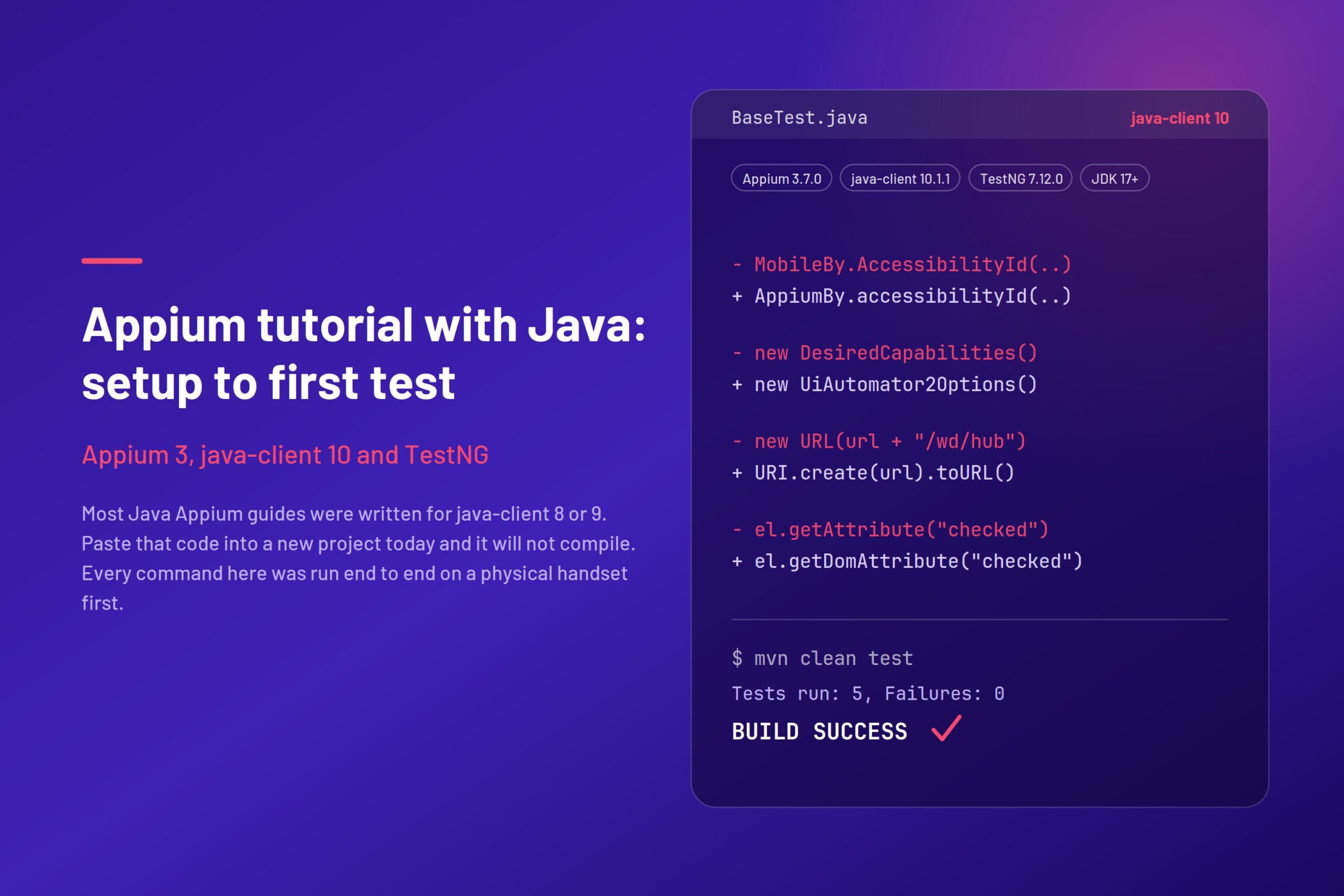
Most Appium Java tutorials you will find were written for java-client 8 or 9. Copy their code into a new project today and it will not compile. MobileBy is gone, DesiredCapabilities with MobileCapabilityType is gone, and launchApp() is gone.
This guide walks through a working Android test on the current stack: Appium 3, java-client 10, and TestNG. By the end you will have a project that compiles, a test that runs against a real device or emulator, and a structure you can grow into a suite.
Every command, version number, and line of code below was executed end to end on a physical handset before publishing. Where the run contradicted the documentation, the run wins, and those places are called out where they occur.
Disclosure: Kobiton is a real-device testing cloud. Everything below runs on a local setup with no account required; the cloud section at the end is optional.
What you’ll need
| Component | Version | Notes |
|---|---|---|
| Java JDK | 17+ | java-client 10 requires 11 minimum; 17 is the practical floor |
| Maven | 3.9+ | Gradle works too |
| Appium server | 3.7.0 | Install with npm i -g appium |
| uiautomator2 driver | 8.5.0 | appium driver install uiautomator2 |
| java-client | 10.1.1 | Pulls Selenium 4.48.0 transitively |
| TestNG | 7.12.0 | |
| maven-surefire-plugin | 3.5.6 | Current stable; 3.6.0-M1 is a milestone, skip it |
| Android SDK | platform-tools on PATH | For adb |
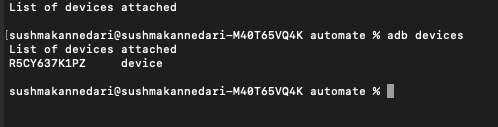
Verify the server side first:
appium -v                      # 3.7.0
appium driver list --installed # uiautomator2@8.5.0
adb devices # your device or emulator, listed as "device"If adb devices shows nothing, nothing below will work. Fix that first.
Step 1: Create the project
mvn archetype:generate \
  -DgroupId=com.example \
  -DartifactId=appium-java-starter \
  -DarchetypeArtifactId=maven-archetype-quickstart \
-DinteractiveMode=falseReplace the generated pom.xml with this:
<?xml version="1.0" encoding="UTF-8"?>
<project xmlns="http://maven.apache.org/POM/4.0.0"
         xmlns:xsi="http://www.w3.org/2001/XMLSchema-instance"
         xsi:schemaLocation="http://maven.apache.org/POM/4.0.0
                             http://maven.apache.org/xsd/maven-4.0.0.xsd">
  <modelVersion>4.0.0</modelVersion>

  <groupId>com.example</groupId>
  <artifactId>appium-java-starter</artifactId>
  <version>1.0-SNAPSHOT</version>

  <properties>
    <maven.compiler.release>17</maven.compiler.release>
    <project.build.sourceEncoding>UTF-8</project.build.sourceEncoding>
  </properties>

  <dependencies>
    <dependency>
      <groupId>io.appium</groupId>
      <artifactId>java-client</artifactId>
      <version>10.1.1</version>
      <scope>test</scope>
    </dependency>
    <dependency>
      <groupId>org.testng</groupId>
      <artifactId>testng</artifactId>
      <version>7.12.0</version>
      <scope>test</scope>
    </dependency>
  </dependencies>

  <build>
    <plugins>
      <plugin>
        <groupId>org.apache.maven.plugins</groupId>
        <artifactId>maven-surefire-plugin</artifactId>
        <version>3.5.6</version>
        <configuration>
          <suiteXmlFiles>
            <suiteXmlFile>testng.xml</suiteXmlFile>
          </suiteXmlFiles>
        </configuration>
      </plugin>
    </plugins>
  </build>
</project>Use maven.compiler.release, not source + target. The older pair is what most tutorials show, and on a modern JDK it earns you a warning on every build:
[WARNING] location of system modules is not set in conjunction with -source 17
  not setting the location of system modules may lead to class files that cannot run on JDK 17
--release 17 is recommended instead of -source 17 -target 17release sets the system module path too, so the bytecode is genuinely 17-compatible rather than merely 17-shaped. One property instead of two, and the warning goes away.
Do not add selenium-java as a separate dependency. java-client pulls the Selenium version it was built against, and declaring your own is the most common cause of NoSuchMethodError at runtime. To check what actually came in:
mvn dependency:tree | grep seleniumOn java-client 10.1.1 that resolves to Selenium 4.48.0:
[INFO] |  +- org.seleniumhq.selenium:selenium-api:jar:4.48.0:test
[INFO] |  +- org.seleniumhq.selenium:selenium-remote-driver:jar:4.48.0:test
[INFO] | +- org.seleniumhq.selenium:selenium-support:jar:4.48.0:testThe java-client release notes for 10.1.1 name 4.43.0, but Selenium ships inside a version range, so a fresh resolve today picks up 4.48.0. This is exactly why you run the command instead of trusting a number in a table, including the one in this article’s table, which was filled in from this output.
Step 2: Get a test app
Use Appium’s ApiDemos APK so your results match this guide:
mkdir -p apps
curl -L -o apps/ApiDemos-debug.apk \
https://github.com/appium/android-apidemos/releases/latest/download/ApiDemos-debug.apkThat lands a 6.2 MB debug APK. Nothing installs it by hand. The setApp() capability in the next step pushes it to the device on every session.
Step 3: Write the base class
Session setup and teardown belong in a base class from the first test, not the tenth. Create src/test/java/com/example/tests/BaseTest.java:
package com.example.tests;

import io.appium.java_client.android.AndroidDriver;
import io.appium.java_client.android.options.UiAutomator2Options;
import org.openqa.selenium.support.ui.WebDriverWait;
import org.testng.annotations.AfterMethod;
import org.testng.annotations.BeforeMethod;

import java.net.URI;
import java.time.Duration;

public class BaseTest {

    protected AndroidDriver driver;
    protected WebDriverWait wait;

    @BeforeMethod
    public void setUp() throws Exception {
        UiAutomator2Options options = new UiAutomator2Options()
                .setPlatformName("Android")
                .setAutomationName("UiAutomator2")
                .setDeviceName("Android Device")
                .setApp(System.getProperty("user.dir") + "/apps/ApiDemos-debug.apk")
                .setAppPackage("io.appium.android.apis")
                .setAppActivity(".ApiDemos")
                .setNewCommandTimeout(Duration.ofSeconds(120));

        driver = new AndroidDriver(
                URI.create("http://127.0.0.1:4723").toURL(), options);

        wait = new WebDriverWait(driver, Duration.ofSeconds(15));
    }

    @AfterMethod(alwaysRun = true)
    public void tearDown() {
        if (driver != null) {
            driver.quit();
        }
    }
}Four things in here are worth understanding rather than copying.
UiAutomator2Options replaces DesiredCapabilities. The old pattern, caps.setCapability(MobileCapabilityType.PLATFORM_NAME, “Android”), no longer compiles on java-client 10. Options classes are typed, so a misspelled capability is a compile error instead of a session failure. They also apply the appium: prefix for you, which Appium 3 requires.
The server URL has no /wd/hub. That path was removed in Appium 2. Old tutorials still include it, and it produces a confusing session error.
URI.create(…).toURL() instead of new URL(…). The URL string constructor is deprecated as of Java 20. Functionally identical, no deprecation warning.
alwaysRun = true on teardown. Without it, a failure in a @BeforeMethod skips tearDown() and leaves the session open, holding your device until it times out.
One note on setDeviceName(“Android Device”): UiAutomator2 largely ignores it and takes whatever single device adb reports. That is fine with one handset attached. The session that ran this article came back with appium:deviceUDID: R5CY637K1PZ regardless of the name given. With more than one device connected, add .setUdid(“…”) or the driver picks for you.
Step 4: Write the first test
Create src/test/java/com/example/tests/FirstTest.java:
package com.example.tests;

import io.appium.java_client.AppiumBy;
import org.openqa.selenium.WebElement;
import org.openqa.selenium.support.ui.ExpectedConditions;
import org.testng.annotations.Test;

import static org.testng.Assert.assertTrue;

public class FirstTest extends BaseTest {

    @Test
    public void opensAccessibilityMenu() {
        WebElement accessibility = wait.until(
                ExpectedConditions.elementToBeClickable(
                        AppiumBy.accessibilityId("Accessibility")));
        accessibility.click();

        WebElement item = wait.until(
                ExpectedConditions.visibilityOfElementLocated(
                        AppiumBy.xpath(
                            "//android.widget.TextView[@text='Custom View']")));

        assertTrue(item.isDisplayed(),
                "Expected the Accessibility list to render");
    }
}Every element lookup goes through wait. Appium gives you no implicit waiting, so a raw driver.findElement() races the UI. This is the single largest source of flaky Appium tests, and the habit is much easier to build on test one than to retrofit at test two hundred.
AppiumBy, not MobileBy. MobileBy was removed in java-client 10.
Note the locator preference: accessibilityId for the first element, XPath only for the second because that list item has no accessibility ID. Anchor XPath on attributes, never on position. Step 6 adds a third rung to that ladder, for the case where the visible text is not what you think it is.
Step 5: Add the suite file and run
Create testng.xml in the project root:
<!DOCTYPE suite SYSTEM "https://testng.org/testng-1.0.dtd">
<suite name="Appium Android Suite">
  <test name="Smoke">
    <classes>
      <class name="com.example.tests.FirstTest"/>
    </classes>
  </test>
</suite>Start the server in one terminal:
appiumRun the test in another:
mvn clean testYou should see the app install, launch, tap through to Accessibility, and pass:
[INFO] Tests run: 1, Failures: 0, Errors: 0, Skipped: 0
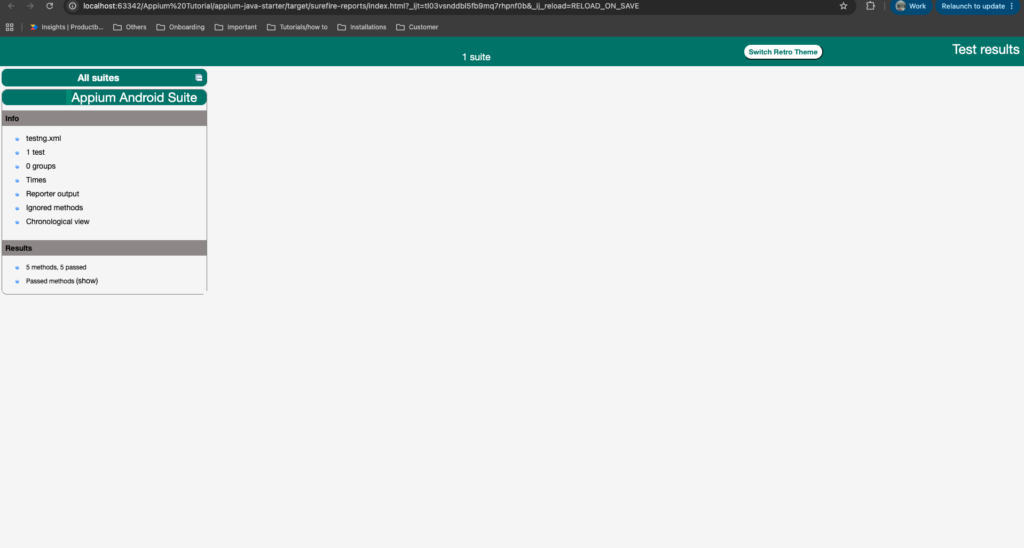
[INFO] BUILD SUCCESSReports land in target/surefire-reports/. Use index.html for the browsable version and emailable-report.html for pasting into a channel.
Step 6: Grow it into a suite
One passing test proves the plumbing. It does not prove you have a structure. Add a second class with four more flows, each exercising something the first one does not: scrolling, dialogs, state assertions, and navigation.
Create src/test/java/com/example/tests/ApiDemosTest.java:
package com.example.tests;

import io.appium.java_client.AppiumBy;
import org.openqa.selenium.WebElement;
import org.openqa.selenium.support.ui.ExpectedConditions;
import org.testng.annotations.Test;

import static org.testng.Assert.assertEquals;
import static org.testng.Assert.assertTrue;

public class ApiDemosTest extends BaseTest {

    @Test
    public void opensButtonsFromViews() {
        wait.until(ExpectedConditions.elementToBeClickable(
                AppiumBy.accessibilityId("Views"))).click();

        wait.until(ExpectedConditions.elementToBeClickable(
                AppiumBy.androidUIAutomator(
                        "new UiScrollable(new UiSelector().scrollable(true))"
                        + ".scrollIntoView(new UiSelector().text(\"Buttons\"))"))).click();

        // Resource ID, not text: the Material theme uppercases button labels to "NORMAL".
        WebElement normal = wait.until(ExpectedConditions.visibilityOfElementLocated(
                AppiumBy.id("io.appium.android.apis:id/button_normal")));

        assertTrue(normal.isDisplayed(), "Expected the Buttons screen to render");
    }

    @Test
    public void showsOkCancelAlertDialog() {
        wait.until(ExpectedConditions.elementToBeClickable(
                AppiumBy.accessibilityId("App"))).click();

        wait.until(ExpectedConditions.elementToBeClickable(
                AppiumBy.xpath("//android.widget.TextView[@text='Alert Dialogs']"))).click();

        wait.until(ExpectedConditions.elementToBeClickable(
                AppiumBy.id("io.appium.android.apis:id/two_buttons"))).click();

        WebElement ok = wait.until(ExpectedConditions.visibilityOfElementLocated(
                AppiumBy.id("android:id/button1")));

        assertTrue(ok.isDisplayed(), "Expected the OK/Cancel dialog to appear");
        ok.click();

        assertTrue(wait.until(ExpectedConditions.visibilityOfElementLocated(
                        AppiumBy.id("io.appium.android.apis:id/two_buttons")))
                .isDisplayed(), "Expected to return to the Alert Dialogs screen");
    }

    @Test
    public void togglesPreferenceCheckbox() {
        wait.until(ExpectedConditions.elementToBeClickable(
                AppiumBy.accessibilityId("Preference"))).click();

        wait.until(ExpectedConditions.elementToBeClickable(
                AppiumBy.xpath(
                        "//android.widget.TextView[@text='3. Preference dependencies']"))).click();

        WebElement checkbox = wait.until(ExpectedConditions.elementToBeClickable(
                AppiumBy.id("android:id/checkbox")));

        String before = checkbox.getDomAttribute("checked");
        checkbox.click();
        String after = wait.until(ExpectedConditions.elementToBeClickable(
                AppiumBy.id("android:id/checkbox"))).getDomAttribute("checked");

        assertEquals(after, String.valueOf(!Boolean.parseBoolean(before)),
                "Expected the WiFi checkbox state to flip on tap");
    }

    @Test
    public void returnsToMainMenuOnBack() {
        wait.until(ExpectedConditions.elementToBeClickable(
                AppiumBy.accessibilityId("App"))).click();

        wait.until(ExpectedConditions.visibilityOfElementLocated(
                AppiumBy.xpath("//android.widget.TextView[@text='Activity']")));

        driver.navigate().back();

        assertTrue(wait.until(ExpectedConditions.visibilityOfElementLocated(
                        AppiumBy.accessibilityId("Accessibility"))).isDisplayed(),
                "Expected back navigation to land on the ApiDemos main menu");
    }
}Three techniques here are worth lifting into your own suite.
Scroll with UiScrollable, not with swipe coordinates. AppiumBy.androidUIAutomator(“new UiScrollable(…).scrollIntoView(…)”) hands the scrolling to UiAutomator2 on the device, which stops when the element is found. Coordinate swipes are tuned to one screen size and break on the next.
Assert on state, not just on presence. togglesPreferenceCheckbox reads checked before the tap and compares against the negation afterwards. A test that only asserts the checkbox exists passes just as happily when the tap does nothing.
getDomAttribute(), not getAttribute(). The single getAttribute() was split in Selenium 4 and is deprecated. For Appium’s native attributes, getDomAttribute() is the direct replacement.
Register the new class in testng.xml:
<!DOCTYPE suite SYSTEM "https://testng.org/testng-1.0.dtd">
<suite name="Appium Android Suite">
  <test name="Smoke">
    <classes>
      <class name="com.example.tests.FirstTest"/>
      <class name="com.example.tests.ApiDemosTest"/>
    </classes>
  </test>
</suite>Then mvn clean test again. On the Galaxy S25 Ultra used for this article:
| Test | Flow | Time |
|---|---|---|
| FirstTest.opensAccessibilityMenu | Accessibility to Custom View | 5.2s |
| ApiDemosTest.opensButtonsFromViews | Views, scroll to Buttons, Normal | 6.0s |
| ApiDemosTest.showsOkCancelAlertDialog | App, Alert Dialogs, OK/Cancel, dismiss | 7.7s |
| ApiDemosTest.togglesPreferenceCheckbox | Preference, dependencies, checkbox flips | 6.9s |
| ApiDemosTest.returnsToMainMenuOnBack | App, back, main menu | 6.1s |
[INFO] Tests run: 5, Failures: 0, Errors: 0, Skipped: 0
[INFO] BUILD SUCCESS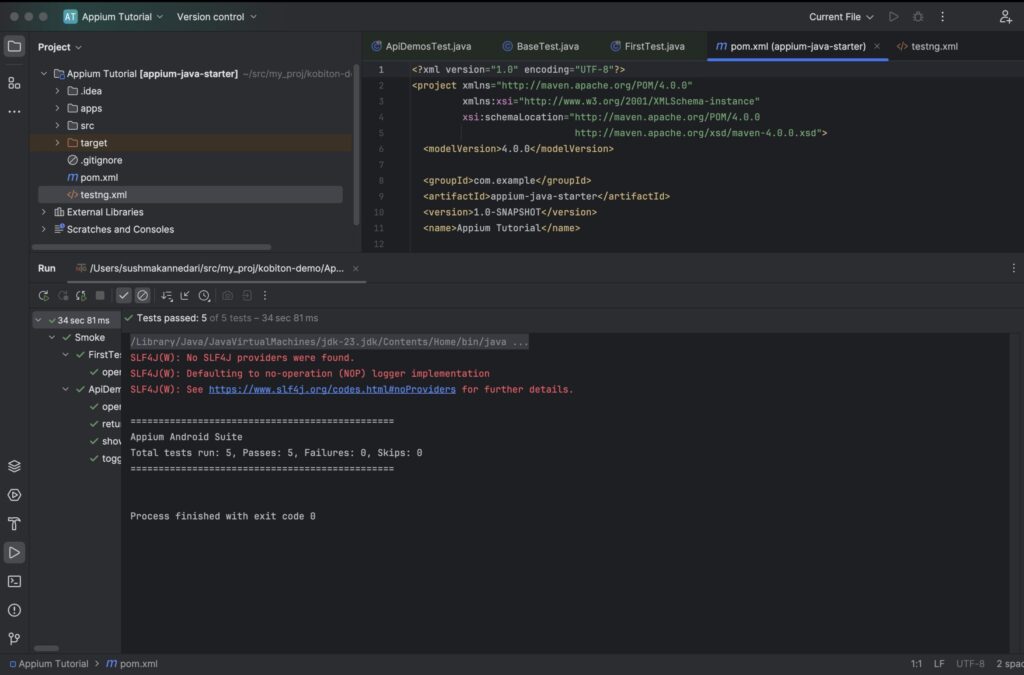
Roughly 33 seconds for five tests, and note where the time goes. @BeforeMethod means a fresh session and a fresh app install per test. That is the right default, because tests that share a session share each other’s bugs, but it is also the first thing to reconsider when a suite of five becomes a suite of two hundred. @BeforeClass per class, or a device pool running classes in parallel, are the two usual exits.
Common errors and what they mean
The ‘automationName’ capability is required — Appium 3 makes it mandatory. UiAutomator2Options sets it by default, so this usually means you built the options object some other way.
Invalid or unsupported WebDriver capability — a non-standard capability without the appium: prefix. Options classes handle this; raw DesiredCapabilities does not.
cannot find symbol: class MobileBy — you are on java-client 10 with pre-10 code. Use AppiumBy.
NoSuchMethodError from Selenium classes — a Selenium version conflict. Remove any explicit selenium-java dependency and let java-client bring its own.
Could not find a connected Android device — adb devices is empty, or the device shows as unauthorized. Accept the USB debugging prompt on the handset.
Session opens, then dies mid-test — newCommandTimeout expired during a long wait or a debugger pause. Raise it in the options block.
NoSuchElementException on a button whose text you can plainly see. This one cost two of the five tests above on their first run:
Expected condition failed: waiting for visibility of element found by
By.xpath: //android.widget.Button[@text='Normal'], but
NoSuchElementException: An element could not be located on the page
(tried for 15 seconds with 500 milliseconds interval)The button says “Normal” in the layout XML and in the source. On the device it is NORMAL, because the Material theme applies textAllCaps at render time and Appium matches what is rendered. Same story for OK CANCEL DIALOG WITH A MESSAGE.
Do not fix this by uppercasing the XPath. The casing follows the theme, so it changes when the theme does. Dump what the device actually exposes and locate on something stable:
adb shell uiautomator dump /sdcard/dump.xml
adb shell cat /sdcard/dump.xmlThat is where io.appium.android.apis:id/button_normal came from. Prefer resource IDs over visible text for anything the user taps. They survive theme changes, and they survive translation, which is the same bug with a bigger blast radius. The full ladder, best first: accessibility ID, resource ID, attribute-anchored XPath, and never position.
Migrating from an older tutorial
If you are adapting code from a pre-10 guide, these are the removals that will stop your build. The full list is in the java-client changelog.
| Removed in java-client 10 | Use instead |
|---|---|
| MobileBy | AppiumBy |
| DesiredCapabilities + MobileCapabilityType | UiAutomator2Options / XCUITestOptions |
| AndroidMobileCapabilityType | Driver options |
| IOSMobileCapabilityType | Driver options |
| MobileOptions | Driver options |
| launchApp(), resetApp(), closeApp() | Activity control / extension methods |
| WindowsBy | Removed entirely |
| Appium’s ByAll | Selenium’s ByAll |
One more comes from Selenium rather than Appium: getAttribute() is deprecated in Selenium 4 in favour of getDomAttribute() and getDomProperty(). It still compiles, but it will warn, and pre-10 tutorials use it everywhere.
The iOS equivalent
Same structure, different options class:
XCUITestOptions options = new XCUITestOptions()
        .setPlatformName("iOS")
        .setAutomationName("XCUITest")
        .setDeviceName("iPhone 16")
        .setPlatformVersion("18.0")
        .setApp(System.getProperty("user.dir") + "/apps/MyApp.app");

IOSDriver driver = new IOSDriver(
URI.create("http://127.0.0.1:4723").toURL(), options);Install the driver with appium driver install xcuitest. On iOS, prefer accessibility IDs and predicate strings over XPath, which is noticeably slower against the XCUITest hierarchy.
Where to go next
Two things turn this into a suite rather than a script: move locators into page objects so a UI change means editing one file, and parameterise the options block so the same test runs across devices instead of a hardcoded one.
The five tests above are already showing you why. Every one of them re-derives its way from the main menu, so the day ApiDemos renames a list item, you edit four files. A page object per screen makes that one file. And the textAllCaps bug is a locator problem that a page object would have contained to a single constant instead of scattering it across two test classes.
That second point is where local setups run out of road. One handset finds the bugs on one screen size. The suite above passes on a 1080×2340 flagship and says nothing at all about a 720p budget phone or a foldable mid-unfold. Kobiton runs the same java-client code across real iOS and Android devices. Change the server URL and add your credentials to the options block, and the suite you just built runs on hardware you do not own.
Related reading:
- How to Use Appium Inspector — find the locators this test needs
- How to triage Appium locator failures in ten minutes — when they break
- Appium Element Locator Strategies — the full locator reference