Aug 5, 2026
How to Use the Appium Inspector

Sushma Kannedari
Read More
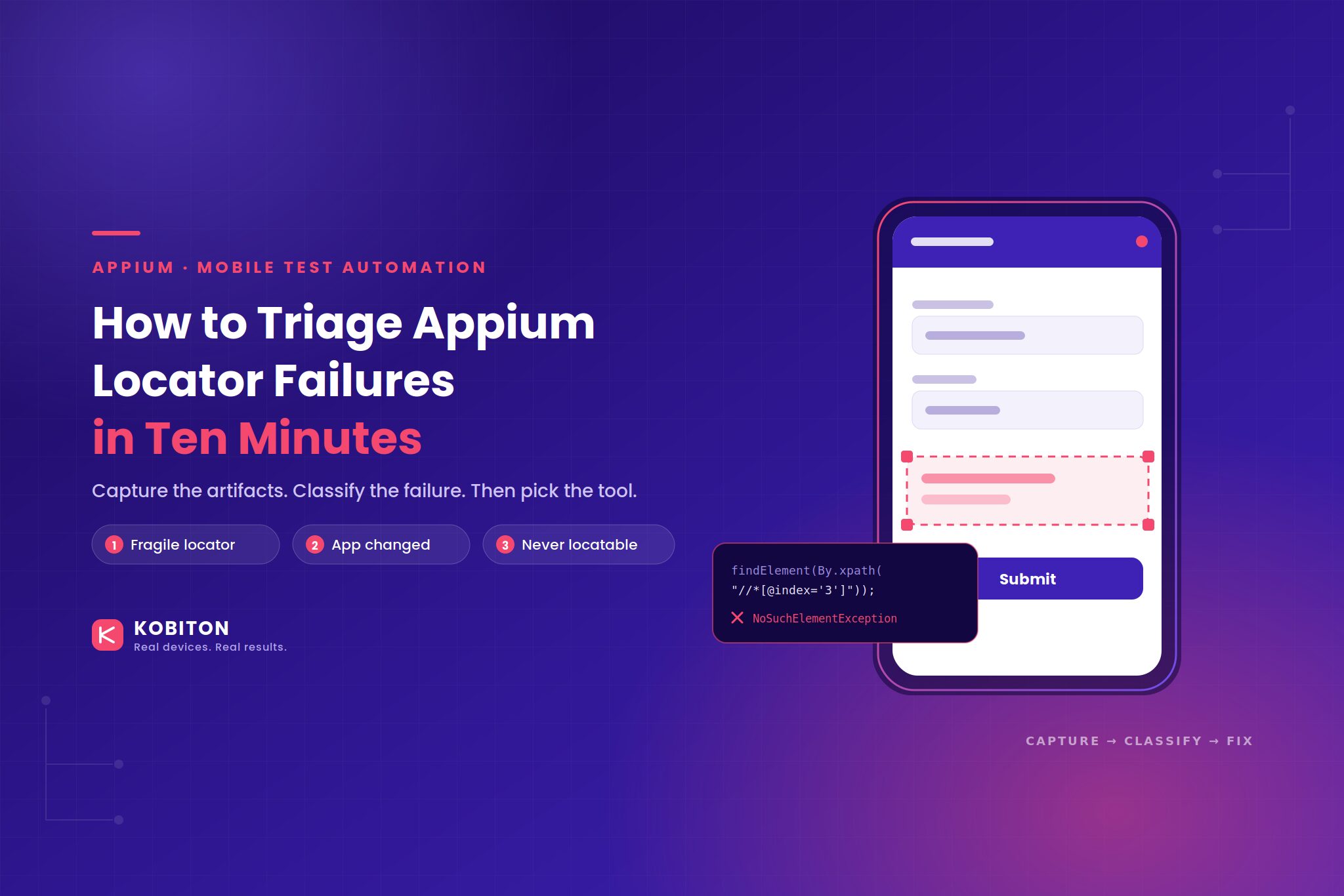
A test that passed last night failed this morning, and the element is right there in the screenshot.
Three things can cause that, and they need three different fixes:
Most wasted triage time comes from applying a category-one fix to a category-three problem. You rewrite the XPath, it passes on your machine, it fails again on a Pixel with a shorter viewport, and you are back where you started. Or you turn on self-healing for a screen that was never healthy and wonder why nothing heals.
This post covers the artifacts to capture, how to read them, the code for each locator strategy, when self-healing earns its place, and the point where the right call is to stop automating and file a testability bug. If you need the fundamentals on each locator type first, start with Appium Element Locator Strategies.
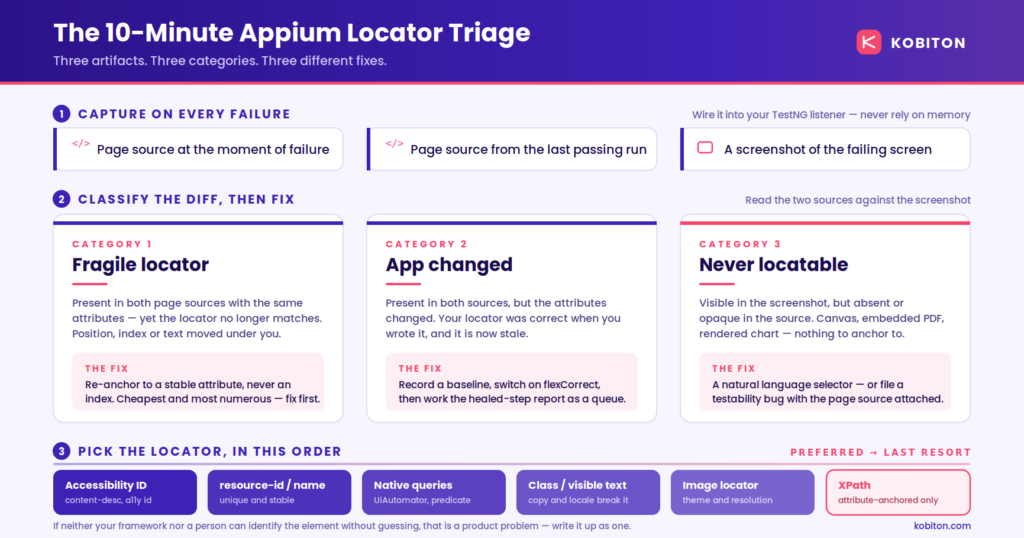
You need three things from the failing run: the page source at the moment of failure, the page source from the last passing run, and a screenshot. Capture only the exception and you are guessing.
Wire the capture into your listener so it happens on every failure without anyone remembering to do it.
// TestNG: dump page source and a screenshot on every failure.
public class ArtifactListener implements ITestListener {

  @Override
  public void onTestFailure(ITestResult result) {
    AppiumDriver driver = DriverFactory.get();
    String stamp = result.getName() + "-" + System.currentTimeMillis();
    try {
      Path dir = Files.createDirectories(Paths.get("artifacts"));
      Files.writeString(dir.resolve(stamp + ".xml"), driver.getPageSource());
      Files.write(dir.resolve(stamp + ".png"),
          driver.getScreenshotAs(OutputType.BYTES));
    } catch (IOException e) {
      throw new UncheckedIOException(e);
    }
  }
}Read the diff against the screenshot and classify:
| What the artifacts show | Category | What it means |
|---|---|---|
| Element present in both sources, same attributes, locator no longer matches | One | Fragile locator. Position, index, or text moved under you. |
| Element present in both sources, attributes changed | Two | App change. Your locator was correct and is now stale. |
| Element visible in the screenshot, absent or opaque in the source | Three | Never locatable. Nothing in the tree to anchor to. |
One more case is worth naming, because it looks like category three and is not: the element is in the tree on one snapshot and gone on the next, with no app change between them. That is an accessibility tree stability problem, usually during scroll or animation. The element is real. Your wait strategy is wrong. Add an explicit wait on a stable ancestor before you query the child, and re-snapshot rather than reusing a stale reference.
Ten minutes of this beats an hour of rewriting locators blind.
Once you have classified the failure, the strategy follows. The order has not changed, and Appium’s finding elements guide remains the upstream reference for syntax.
| Strategy | Use when | Cost |
|---|---|---|
| Accessibility ID | The element exposes content-desc or an accessibility identifier | Needs dev buy-in, which is worth asking for |
| resource-id / name | Unique and stable across builds | Build flavors and variants can change the package prefix |
| Class name, visible text | Few elements of that type on screen | Localization and copy changes break text matches |
| UiAutomator, iOS predicate, class chain | You want native querying and speed | Platform-specific, so you maintain two implementations |
| Image locator | Visual and consistent across devices | Resolution, theme, dark mode |
| XPath | Nothing above exists | Index-based paths break on any structural change |
The same list, in code:
// 1. Accessibility ID. Cross-platform, survives refactors.
driver.findElement(AppiumBy.accessibilityId("login_email_field"));

// 2. resource-id. Match on suffix if your flavors change the package prefix.
driver.findElement(AppiumBy.id("com.example.app:id/submit"));

// 3. UiAutomator. Native, fast, and handles scroll containment for you.
driver.findElement(AppiumBy.androidUIAutomator(
    "new UiScrollable(new UiSelector().scrollable(true))"
  + ".scrollIntoView(new UiSelector().resourceIdMatches(\".*submit\"))"));

// 4. iOS predicate. Attribute matching without hierarchy coupling.
driver.findElement(AppiumBy.iOSNsPredicateString(
    "type == 'XCUIElementTypeButton' AND name BEGINSWITH 'Submit'"));

// 5. iOS class chain. Use when you need hierarchy but want it bounded.
driver.findElement(AppiumBy.iOSClassChain(
    "**/XCUIElementTypeCell[label CONTAINS 'Invoice']/XCUIElementTypeButton"));

// 6. XPath. Last resort. Attribute-anchored, never index-anchored.
driver.findElement(AppiumBy.xpath("//android.widget.Button[@text='Submit']"));Category two is where self-healing pays for itself, so it is worth being precise about the mechanism.
Self-healing is reactive. It sits idle until a locator fails to resolve.
You record a baseline run while the test passes, and Kobiton captures element context from that run. On a later run, when a locator fails, Kobiton compares the current screen against that baseline, picks the closest match, and lets the step continue instead of failing the build. The substitution shows up in Session Explorer, where you replay the run, see which element it chose, and pull the corrected locator back into the script.
Two capabilities turn it on. kobiton:flexCorrect enables the healing.
// On subsequent runs, heal against that baseline.
caps.setCapability("kobiton:flexCorrect", true);
caps.setCapability("kobiton:baselineSessionId", 1234567);You can point a healed run at different device models and OS versions within the same platform, which is where it pays off hardest: one script, a wide device matrix, and layout differences that break locators device by device.
Two limits.
First, self-healing repairs locators that used to work. It needs a passing run to learn from. If an element never had a reliable locator, there is no healthy state to return to and nothing to compare against. That is category three, and no baseline will fix it.
Second, treat healed steps as a work queue. A suite that goes green because forty steps healed is telling you the app changed. Pull the report, update the scripts, re-baseline. Healing that nobody reads becomes a suite that passes while validating the wrong elements.
Kobiton’s Appium AI adds a natural language selector alongside your existing strategies. You describe the element the way a user would recognize it, Kobiton resolves it against the current screen, and the element comes back to your test to act on. Framework, assertions, CI/CD pipeline, and real-device execution stay exactly as they are.
It is built to sit next to conventional selectors in the same test, not to replace them. In WebdriverIO:
// Conventional selector, because the app exposes a stable ID.
const email = await driver.$('~login_email_field');
await email.setValue('qa@example.com');

// Natural language selector, because the signature field is canvas-rendered
// and the hierarchy exposes nothing usable.
const signature = await driver.find(
  "natural", "the signature box at the bottom of the agreement");
await signature.click();This feature is not for when you would rather not write XPath. It is for when there is no stable target at all: a value inside an embedded PDF statement, a data point on a rendered chart, a signature field on a canvas.
Does the element have a stable, unique attribute
(accessibility ID, resource-id)?
├─ Yes → Use it. Done.
└─ No → Does it have any semi-stable attribute
        (class, partial text, predictable structure)?
        ├─ Yes → Class, UiAutomator, predicate, or attribute-anchored
        │        XPath. Treat it as a fallback and expect maintenance.
        │        Enable flexCorrect if the script runs across a wide
        │        device matrix or the app updates faster than you patch.
        └─ No → Can you describe the element in plain language,
                unambiguously, on every run?
                ├─ Yes → Natural language selector.
└─ No → Stop automating. File a testability bug.That last branch is the one teams skip. If neither your framework nor a person can identify the element without guessing, you have found a product problem that happens to be surfacing in the test suite. Write it up as a product problem.
Everything above is additive. Suites that work do not need rewriting.
Keep your conventional locators wherever they still resolve. That is the point.
Capture the artifacts, classify the failure, then pick the tool. Fragile locators need better locators. Apps that change need self-healing plus a maintenance pass. Elements that were never in the tree need something else entirely, and that is the gap Appium AI was built for.
Want to try it on the screen your suite keeps skipping?
Book a demo