
Apr 16, 2018
How to Use Desired Capabilities to Select Device

Erin Bailey
Read More
Appium Options classes help us configure the Appium server and provide the criteria we wish to use for running our automation script. For example, we can request the environment (emulator or real device), specify which version of the operating system to run the test on, and more. Options classes are platform-specific (like UiAutomator2Options for Android and XCUITestOptions for iOS) and consist of key/value pairs encoded in JSON format. These options are sent to the Appium server by the Appium client when a new automation session is requested. With Appium Desired Capabilities, you can define these key/value pairs more precisely, improving flexibility in your test configuration.
In this article, we will take a deep dive into this feature. Previously, we introduced you to Appium Desired Capabilities (in earlier versions of Appium). In Appium 2.0, Options classes such as those imported using from appium.options.ios import xcuitestoptions have taken their place as a core capability of Appium, and we’ll explore how to use them effectively in your test automation scripts.
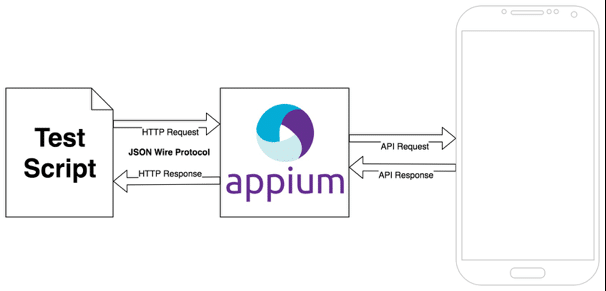
Figure-1:Appium Architecture.
In Appium 2.0, you no longer use the predefined library for DesiredCapabilities. Instead, you need to import specific options classes for each platform.
For Android:
import io.appium.java_client.android.options.UiAutomator2Options;
For iOS:
import io.appium.java_client.ios.options.XCUITestOptions;
Appium supports both Android and iOS, offering separate options classes for each platform. While there are distinct capabilities for Android and iOS, many capabilities remain common across both platforms. This allows for a more unified approach to mobile testing while still accommodating platform-specific requirements.
Android:
{
  "platformName": "Android",
  "deviceName": "9B151FFAZ004ZQ",
  "automationName": "UiAutomator2",
  "app": "path to your apk"
}IOS:
{
  "platformName": "iOS",
  "automationName": "XCUITest",
  "deviceName": "iPhone 16 Plus",
  "platformVersion": "18.0",
  "app": "path to TestApp.app",
  "bundleId": "your unique bundle ID",
  "noReset": true
}The above is the JSON representation. To use this in code, you can define the desired capabilities (for Android) as below:
UiAutomator2Options options = new UiAutomator2Options();
options.setPlatformName("Android");
options.setDeviceName("9B151FFAZ004ZQ");
options.setAppPackage("io.appium.android.apis");
options.setAppActivity("io.appium.android.apis.ApiDemos")In the above code snippet instead of defining capability name in a string you can use the Appium predefined interfaces such as MobileCapabilityType, IOSMobileCapabilityType and AndroidMobileCapabilityType to get capability names, so the above code snippet can be written in a better way:
UiAutomator2Options options = new UiAutomator2Options();
options.setCapability(MobileCapabilityType.PLATFORM_NAME, "Android");
options.setCapability(MobileCapabilityType.DEVICE_NAME, "9B151FFAZ004ZQ");
options.setCapability(AndroidMobileCapabilityType.APP_PACKAGE, "io.appium.android.apis");
options.setCapability(AndroidMobileCapabilityType.APP_ACTIVITY, "io.appium.android.apis.ApiDemos");One thing worth knowing before you write these out: instantiating an Options class already sets platformName and automationName for you. Each class exists for exactly one platform and driver combination, so both values are implied by your choice of class.
| Options class | platformName | automationName |
|---|---|---|
| UiAutomator2Options | Android | UiAutomator2 |
| EspressoOptions | Android | Espresso |
| XCUITestOptions | iOS | XCUITest |
| Mac2Options | Mac | Mac2 |
| WindowsOptions | Windows | Windows |
So the two lines below are redundant and can be dropped from any session built on UiAutomator2Options — the class has already set them:
options.setPlatformName(“Android”); options.setAutomationName(“UiAutomator2”);
They are harmless if you leave them in, and you will see them in a lot of existing suites carried over from Appium 1.x. But dropping them makes it obvious at a glance which driver a test targets, because the only place that decision now appears is the class name itself.
Why most capabilities need the appium: prefix
Appium follows the W3C WebDriver specification, which defines a small fixed set of standard capabilities and requires everything else to be namespaced with a vendor prefix. Appium’s prefix is appium:. Any capability outside the standard set has to carry it, or a strict server will reject the session before your test runs a single command.
| Capability | Prefix needed? | Why |
|---|---|---|
| platformName | No | Part of the W3C standard set |
| browserName | No | Part of the W3C standard set |
| automationName | Yes — appium:automationName | Appium-specific extension |
| deviceName | Yes — appium:deviceName | Appium-specific extension |
| app | Yes — appium:app | Appium-specific extension |
| udid | Yes — appium:udid | Appium-specific extension |
| bundleId | Yes — appium:bundleId | Appium-specific extension |
| appPackage / appActivity | Yes — appium:appPackage, appium:appActivity | Appium-specific extensions |
| noReset / fullReset | Yes — appium:noReset, appium:fullReset | Appium-specific extensions |
So the Android example from the previous section is written like this once the prefixes are applied:
{ "platformName": "Android", "appium:automationName": "UiAutomator2", "appium:deviceName": "9B151FFAZ004ZQ", "appium:app": "path to your apk" }If you are building capabilities through an Options class rather than raw JSON, you do not need to think about this at all — UiAutomator2Options and XCUITestOptions apply the correct prefix to each capability for you. The rule only bites when you hand-write JSON, which is exactly what you do in Appium Inspector, in a cloud provider’s session config, or in a language client that has no Options class.
We have many Appium desired capabilities at our disposal, depending on what we are trying to accomplish. However, there are specific capabilities we need to set based on what we are trying to test:
If you want to automate the Chrome browser on an Android device, then you need to use these Desired Capabilities.
UiAutomator2Options options = new UiAutomator2Options();
options.setPlatformName("Android");
options.setPlatformVersion("OS version of your test device/simulator");
options.setDeviceName("Name of your test device");
options.setBrowserName(MobileBrowserType.CHROME);
options.setAutomationName("UiAutomator2");XCUITestOptions options = new XCUITestOptions();
options.setPlatformName("iOS");
options.setPlatformVersion("OS version of your test device/simulator");
options.setDeviceName("iPhone 16 Plus");
options.setBrowserName(MobileBrowserType.SAFARI);
options.setAutomationName("XCUITest");
options.setUdid("UDID of your test device");
options.setNoReset(true);UiAutomator2Options options = new UiAutomator2Options();
options.setPlatformName("Android");
options.setPlatformVersion("OS version of your test device/simulator");
options.setApp("/path/to/.apk/file");
options.setDeviceName("Name of your test device");
options.setAutomationName("UiAutomator2");XCUITestOptions options = new XCUITestOptions();
options.setPlatformName("iOS");
options.setPlatformVersion("OS version of your test device/simulator");
options.setApp("/path/to/.app or .ipa/file");
options.setDeviceName("Name of your test device");
options.setAutomationName("XCUITest");There are many, many capabilities that Appium supports. We can categorize the capabilities into 3 parts:
The first three are defined by Appium itself and behave the same wherever you run. The fourth is not: cloud providers add their own capabilities on top for things Appium has no concept of, such as which project a session belongs to or how a device should be allocated from a shared pool. Those are covered later under “Selecting devices dynamically on a device cloud”.
While you clearly don’t need to memorize all of these, we do suggest you spend the time to familiarize yourself with these capabilities. As you use Appium more and more and continue to consult this list, you will eventually have a good sense of what capabilities are available to you..
| Capability | Description | Values |
|---|---|---|
| automationName | Which automation engine to use | UiAutomator2 or Espresso for Android, XCUITest for iOS. Set automatically when you use an Options class. (Drop Selendroid and the “Appium (default)” value — neither exists in Appium 2.x.) |
| platformName | Which mobile OS platform to use | iOS, Android |
| platformVersion | Mobile OS version | e.g., 7.1, 4.4 |
| deviceName | The kind of mobile device or emulator to use | iPhone Simulator, iPad Simulator, iPhone Retina 4-inch, Android Emulator, Galaxy S4, etc…. On iOS, this should be one of the valid devices returned by instruments with instruments -s devices. Not used internally on Android — provide udid instead to target a specific device. Still required on iOS, where it must match a valid device or simulator name. |
| app | The absolute local path or remote http URL to a .ipa file (IOS), .app folder (IOS Simulator) or .apk file (Android), or a .zip file containing one of these (for .app, the .app folder must be the root of the zip file). Appium will attempt to install this app binary on the appropriate device first. Note that this capability is not required for Android if you specify appPackage and appActivity capabilities (see below). Incompatible with browserName. | /abs/path/to/my.apk or https://myapp.com/app.ipa |
| browserName | Name of mobile web browser to automate. Should be an empty string if automating an app instead. | ‘Safari’ for iOS and ‘Chrome’, ‘Chromium’, or ‘Browser’ for Android |
| newCommandTimeout | How long (in seconds) Appium will wait for a new command from the client before assuming the client quit and ending the session | e.g. 60 |
| language | (Sim/Emu-only) Language to set for the simulator / emulator. On Android, available only on API levels 22 and below | e.g. fr |
| locale | (Sim/Emu-only) Locale to set for the simulator / emulator. | e.g. fr_CA |
| udid | Unique device identifier of the connected physical device | e.g. 1ae203187fc012g |
| orientation | (Sim/Emu-only) start in a certain orientation | LANDSCAPE or PORTRAIT |
| autoWebview | Move directly into Webview context. Default false | true, false |
| noReset | Don’t reset app state before this session. | true, false |
| fullReset | Perform a complete reset. | true, false |
| eventTimings | Enable or disable the reporting of the timings for various Appium-internal events (e.g., the start and end of each command, etc.). Defaults to false. To enable, use true. The timings are then reported as events property in response to querying the current session. | e.g., true |
| enablePerformanceLogging | (Web and webview only) Enable Chromedriver (on Android) or Safari’s (on iOS) performance logging (default false) | true, false |
| printPageSourceOnFindFailure | When a find operation fails, print the current page source. Defaults to false. | e.g., true |
These capabilities are available only on Android-based drivers (like UiAutomator2 for example).
| Capability | Description | Values |
|---|---|---|
| appActivity | Activity name for the Android activity you want to launch from your package. This often needs to be preceded by a . (e.g., .MainActivity instead of MainActivity). By default this capability is received from the package manifest (action: android.intent.action.MAIN , category: android.intent.category.LAUNCHER) | MainActivity, .Settings |
| appPackage | Java package of the Android app you want to run. By default this capability is received from the package manifest (@package attribute value) | com.example.android.myApp, com.android.settings |
| appWaitActivity | Activity name/names, comma separated, for the Android activity you want to wait for. By default the value of this capability is the same as for appActivity. You must set it to the very first focused application activity name in case it is different from the one which is set as appActivity if your capability has appActivity and appPackage. | SplashActivity, SplashActivity,OtherActivity, *, *.SplashActivity |
| appWaitPackage | Java package of the Androidapp you want to wait for. By default the value of this capability is the same as for appActivity | com.example.android.myApp, com.android.settings |
| appWaitDuration | Timeout in milliseconds used to wait for the appWaitActivity to launch (default 20000) | 30000 |
| deviceReadyTimeout | Timeout in seconds while waiting for device to become ready | 5 |
| androidCoverage | Fully qualified instrumentation class. Passed to -w in adb shell am instrument -e coverage true -w | com.my.Pkg/com.my.Pkg.instrumentation.MyInstrumentation |
| androidCoverageEndIntent | A broadcast action implemented by yourself which is used to dump coverage into the file system. Passed to -a in adb shell am broadcast -a | com.example.pkg.END_EMMA |
| androidDeviceReadyTimeout | Timeout in seconds used to wait for a device to become ready after booting | e.g., 30 |
| androidInstallTimeout | Timeout in milliseconds used to wait for an apk to install to the device. Defaults to 90000 | e.g., 90000 |
| androidInstallPath | The name of the directory on the device in which the apk will be pushed before install. Defaults to /data/local/tmp | e.g. /sdcard/Downloads/ |
| adbPort | Port used to connect to the ADB server (default 5037) | 5037 |
| systemPort | systemPort used to connect to appium-uiautomator2-server, default is 8200 in general and selects one port from 8200 to 8299. When you run tests in parallel, you must adjust the port to avoid conflicts. Read for more details. | e.g., 8201 |
| remoteAdbHost | Optional remote ADB server host | e.g.: 192.168.0.101 |
| androidDeviceSocket | Devtools socket name. Needed only when the tested app is a Chromium embedding browser. The socket is open by the browser and Chromedriver connects to it as a devtools client. | e.g., chrome_devtools_remote |
| avd | Name of avd to launch | e.g., api19 |
| avdLaunchTimeout | How long to wait in milliseconds for an avd to launch and connect to ADB (default 120000) | 300000 |
| avdReadyTimeout | How long to wait in milliseconds for an avd to finish its boot animations (default 120000) | 300000 |
| avdArgs | Additional emulator arguments used when launching an avd | e.g., -netfast |
| useKeystore | Use a custom keystore to sign apks, default false | true or false |
| keystorePath | Path to custom keystore, default ~/.android/debug.keystore | e.g., /path/to.keystore |
| keystorePassword | Password for custom keystore | e.g., foo |
| keyAlias | Alias for key | e.g., androiddebugkey |
| keyPassword | Password for key | e.g., foo |
| chromedriverExecutable | The absolute local path to webdriver executable (if Chromium embedder provides its own webdriver, it should be used instead of original chromedriver bundled with Appium) | /abs/path/to/webdriver |
| chromedriverExecutableDir | The absolute path to a directory to look for Chromedriver executables in, for automatic discovery of compatible Chromedrivers. Ignored if chromedriverUseSystemExecutableis true | /abs/path/to/chromedriver/directory |
| chromedriverChromeMappingFile | The absolute path to a file which maps Chromedriver versions to the minimum Chrome that it supports. Ignored if chromedriverUseSystemExecutableis true | /abs/path/to/mapping.json |
| chromedriverUseSystemExecutable | If true, bypasses automatic Chromedriver configuration and uses the version that comes downloaded with Appium. Ignored if chromedriverExecutable is set. Defaults to false | e.g., true |
| autoWebviewTimeout | Amount of time to wait for Webview context to become active, in ms. Defaults to 2000 | e.g. 4 |
| intentAction | Intent action which will be used to start activity (default android.intent.action.MAIN) | e.g.android.intent.action.MAIN, android.intent.action.VIEW |
| intentCategory | Intent category which will be used to start activity (default android.intent.category.LAUNCHER) | e.g. android.intent.category.LAUNCHER, android.intent.category.APP_CONTACTS |
| intentFlags | Flags that will be used to start activity (default 0x10200000) | e.g. 0x10200000 |
| optionalIntentArguments | Additional intent arguments that will be used to start activity. See Intent arguments | e.g. –esn <EXTRA_KEY>, –ez <EXTRA_KEY> <EXTRA_BOOLEAN_VALUE>, etc. |
| dontStopAppOnReset | Doesn’t stop the process of the app under test, before starting the app using adb. If the app under test is created by another anchor app, setting this false, allows the process of the anchor app to be still alive, during the start of the test app using adb. In other words, with dontStopAppOnReset set to true, we will not include the -Sflag in the adb shell am start call. With this capability omitted or set to false, we include the -S flag. Default false | true or false |
| unicodeKeyboard | Enable Unicode input, default false | true or false |
| resetKeyboard | Reset keyboard to its original state, after running Unicode tests with unicodeKeyboard capability. Ignored if used alone. Default false | true or false |
| noSign | Skip checking and signing of app with debug keys, will work only with UiAutomator and not with selendroid, default false | true or false |
| ignoreUnimportantViews | Calls the setCompressedLayoutHierarchy()uiautomator function. This capability can speed up test execution, since Accessibility commands will run faster ignoring some elements. The ignored elements will not be findable, which is why this capability has also been implemented as a toggle-able setting as well as a capability. Defaults to false | true or false |
| disableAndroidWatchers | Disables android watchers that watch for application not responding and application crash, this will reduce cpu usage on android device/emulator. This capability will work only with UiAutomator and not with selendroid, default false | true or false |
| chromeOptions | Allows passing chromeOptions capability for ChromeDriver. For more information see chromeOptions | chromeOptions:{args: [‘–disable-popup-blocking’]} |
| recreateChromeDriverSessions | Kill ChromeDriver session when moving to a non-ChromeDriver webview. Defaults to false | true or false |
| nativeWebScreenshot | In a web context, use native (adb) method for taking a screenshot, rather than proxying to ChromeDriver. Defaults to false | true or false |
| androidScreenshotPath | The name of the directory on the device in which the screenshot will be put. Defaults to /data/local/tmp | e.g. /sdcard/screenshots/ |
| autoGrantPermissions | Have Appium automatically determine which permissions your app requires and grant them to the app on install. Defaults to false. If noReset is true, this capability doesn’t work. | true or false |
| networkSpeed | Set the network speed emulation. Specify the maximum network upload and download speeds. Defaults to full | [‘full’,’gsm’, ‘edge’, ‘hscsd’, ‘gprs’, ‘umts’, ‘hsdpa’, ‘lte’, ‘evdo’]Check -netspeed option more info about speed emulation for avds |
| gpsEnabled | Toggle gps location provider for emulators before starting the session. By default the emulator will have this option enabled or not according to how it has been provisioned. | true or false |
| isHeadless | Set this capability to true to run the Emulator headless when the device display is not needed to be visible. false is the default value. isHeadless is also supported for iOS, check XCUITest-specific capabilities. | e.g., true |
| Uiautomator2 ServerLaunchTimeout | Timeout in milliseconds used to wait for an uiAutomator2 server to launch. Defaults to 20000 | e.g., 20000 |
| Uiautomator2 ServerInstallTimeout | Timeout in milliseconds used to wait for an uiAutomator2 server to be installed. Defaults to 20000 | e.g., 20000 |
| otherApps | App or list of apps (as a JSON array) to install prior to running tests | e.g., “/path/to/app.apk”, https://www.example.com/url/to/app.apk, [“/path/to/app-a.apk”, “/path/to/app-b.apk”] |
These capabilities are available on the XCUITest driver.” (The UIAutomation driver was removed, not merely deprecated — referencing it dates the table.)
| Capability | Description | Values |
|---|---|---|
| calendarFormat | (Sim-only) Calendar format to set for the iOS Simulator | e.g. gregorian |
| bundleId | Bundle ID of the app under test. Useful for starting an app on a real device or for using other caps which require the bundle ID during test startup. To run a test on a real device using the bundle ID, you may omit the ‘app’ capability, but you must provide ‘udid’. | e.g. io.appium.TestApp |
| udid | Unique device identifier of the connected physical device | e.g. 1ae203187fc012g |
| launchTimeout | Amount of time in ms to wait for instruments before assuming it hung and failing the session | e.g. 20000 |
| locationServicesEnabled | (Sim-only) Force location services to be either on or off. Default is to keep the current sim setting. | true or false |
| locationServicesAuthorized | (Sim-only) Set location services to be authorized or not authorized for app via plist, so that location services alert doesn’t pop up. Default is to keep the current sim setting. Note that if you use this setting you MUST also use the bundleId capability to send in your app’s bundle ID. | true or false |
| autoAcceptAlerts | Accept all iOS alerts automatically if they pop up. This includes privacy access permission alerts (e.g., location, contacts, photos). Default is false. Does not work on XCUITest-based tests. | true or false |
| autoDismissAlerts | Dismiss all iOS alerts automatically if they pop up. This includes privacy access permission alerts (e.g., location, contacts, photos). Default is false. Does not work on XCUITest-based tests. | true or false |
| nativeInstrumentsLib | Use native instruments lib (ie disable instruments-without-delay). | true or false |
| nativeWebTap | (Sim-only) Enable “real”, non-javascript-based web tabs in Safari. Default: false. Warning: depending on viewport size/ratio this might not accurately tap an element | true or false |
| safariInitialUrl | (Sim-only) (>= 8.1) Initial safari url, default is a local welcome page | e.g. https://www.github.com |
| safariAllowPopups | (Sim-only) Allow javascript to open new windows in Safari. Default keeps current sim setting | true or false |
| safariIgnoreFraudWarning | (Sim-only) Prevent Safari from showing a fraudulent website warning. Default keeps the current sim setting. | true or false |
| safariOpenLinksInBackground | (Sim-only) Whether Safari should allow links to open in new windows. Default keeps the current sim setting. | true or false |
| keepKeyChains | (Sim-only) Whether to keep keychains (Library/Keychains) when appium session is started/finished | true or false |
| localizableStringsDir | Where to look for localizable strings. Default en.lproj | en.lproj |
| processArguments | Arguments to pass to the AUT using instruments | e.g., -myflag |
| interKeyDelay | The delay, in ms, between keystrokes sent to an element when typing. | e.g., 100 |
| showIOSLog | Whether to show any logs captured from a device in the appium logs. Default false | true or false |
| sendKeyStrategy | strategy to use to type test into a test field. Simulator default: oneByOne. Real device default: grouped | oneByOne, grouped or setValue |
| screenshotWaitTimeout | Max timeout in sec to wait for a screenshot to be generated. default: 10 | e.g., 5 |
| waitForAppScript | The ios automation script used to determine if the app has been launched, by default the system waits for the page source not to be empty. The result must be a boolean | e.g. true;, target.elements().length > 0;, $.delay(5000); true; |
| webviewConnectRetries | Number of times to send connection messages to remote debugger, to get webview. Default: 8 | e.g., 12 |
| appName | The display name of the application under test. Used to automate backgrounding the app in iOS 9+. | e.g., UICatalog |
| customSSLCert | (Sim only) Add an SSL certificate to the IOS Simulator. | e.g.—–BEGIN CERTIFICATE—–MIIFWjCCBEKg…—–END CERTIFICATE—– |
| webkitResponseTimeout | (Real device only) Set the time, in ms, to wait for a response from WebKit in a Safari session. Defaults to 5000 | e.g., 10000 |
| remoteDebugProxy | (Sim only, <= 11.2) If set, Appium sends and receives remote debugging messages through a proxy on either the local port (Sim only, <= 11.2) or a proxy on this unix socket (Sim only >= 11.3) instead of communicating with the iOS remote debugger directly. | e.g. 12000 or “/tmp/my.proxy.socket” |
How to find the values your capabilities need
Knowing which capability to set is the easy half. Most of the time lost at this stage goes on tracking down the actual value for your app and your device.
| Value you need | Where to get it |
|---|---|
| Android device UDID | Run adb devices -l with the device connected. The first column is the UDID — the same value the examples above use for deviceName on a real device. |
| iOS device UDID | Xcode, under Window > Devices and Simulators. Physical devices and simulators are on separate tabs. |
| appPackage and appActivity | With the app open on the device, run adb shell dumpsys window | grep -i mCurrentFocus. The output gives you the package and the currently focused activity in package/activity form. Note that the activity you land on is often not the launch activity — see appWaitActivity below. |
| iOS bundleId | In Xcode it is the target’s Bundle Identifier. For an app you did not build, unzip the .ipa and read CFBundleIdentifier from Info.plist. |
| Available emulator names (avd) | Run emulator -list-avds. |
| Anything you cannot find another way | Start an Appium Inspector session with the minimum capabilities you do know and read the rest off the app hierarchy. |
In Mobile Application Automation, most of the execution time is spent on Application installation. Sometimes, you do not want to reinstall the application (like between tests). In this case, Appium has provided 2 capabilities named noReset and fullReset, which provides control over application installation where you can leverage the right combination of the two flags.
| noReset | fullReset | Result on IOS | Result on Android |
|---|---|---|---|
| true | true | Error: The ‘noReset’ and ‘fullReset’ capabilities are mutually exclusive and should not both be set to true | |
| true | false | Do not destroy or shut down the simulator after the test. Start tests running on whichever simulator is running, or device is plugged in. | Do not stop app, do not clear app data, and do not uninstall apk. |
| false | true | Uninstall app after real device test, destroy Simulator after sim test. | Stop app, clear app data and uninstall apk after test. |
| false | false | Shut down the simulator after the test. Do not destroy the simulator. Do not uninstall apps from real devices. | Stop and clear app data after the test. Do not uninstall apk |
NOTE: You can know more about Appium Capabilities on Official Appium Docs periodically: appium.
The following additional capabilities are reprinted with permission from Jonathan Lipps, Founding Principal of Cloud Grey, a mobile testing services company. Refer to footnote for the source link.
Every example so far names one exact device. That is fine while you are learning, and it is the right thing to do when you are chasing a defect that only reproduces on one handset. It stops working as soon as your tests run somewhere shared. The device you named will eventually be running someone else’s script, or be offline for maintenance, and your session fails on device allocation rather than on anything to do with your app.
The alternative is to describe the device you need rather than name it, and let the cloud allocate whichever free device matches. On Kobiton you do that by supplying a pattern instead of a literal value, using an asterisk as a trailing wildcard:
| Capability value | Matches | Use when |
|---|---|---|
| appium:deviceName = “iPhone 16*” | iPhone 16, iPhone 16 Plus, iPhone 16 Pro Max | Any device in a model family will do |
| appium:platformVersion = “18.*” | 18.0, 18.1, 18.2 | You care about the major OS version, not the point release |
| appium:deviceName = “Galaxy S24*” | Galaxy S24, Galaxy S24 Ultra | Testing a flagship Android family rather than one handset |
Written as an Options class, a test that will accept any free iPhone running some version of iOS 18 looks like this:
XCUITestOptions options = new XCUITestOptions(); options.setDeviceName(“iPhone*”); options.setPlatformVersion(“18.*”); options.setApp(“path to your .ipa file”);
The trade-off is worth being explicit about. The looser your pattern, the less likely your run is to queue behind a busy device — and the less you know about what it actually ran on. For regression suites that is usually the right trade. For a device-specific defect, or a layout check on one screen size, go back to naming the device.
Note that the XML returned in the different modes is … different. This means that XPath queries that worked in one mode will likely not work in the other. Make sure you don’t change this back and forth if you rely on XPath!
We suggest reviewing these capabilities and familiarizing yourself with them. It isn’t necessary to memorize them, but as you get more sophisticated testing needs, it will be good to keep coming back here to see which one will do the trick. We’ll be using various forms of these capabilities throughout these Appium articles, so you will start getting more familiar with them as we work through more examples.
Most capability problems surface as a session that never opens rather than a test that fails partway through, which is good news — it means the Appium server log holds the answer. Start the server at debug log level and read the first few hundred lines after the session request: the capabilities Appium actually received are printed there, and comparing them against what you thought you sent resolves a surprising share of cases on its own.
| Symptom | Likely cause | What to check |
|---|---|---|
| Session rejected immediately with an invalid-argument error | A non-standard capability sent without the appium: prefix | Every capability except platformName and browserName needs the prefix — see the section above |
| “Could not find a device” or the session hangs on allocation | deviceName or udid does not match a connected device, or the device is busy | Re-run adb devices -l; on a shared cloud, switch to a wildcard pattern rather than a literal name |
| App installs, then the session times out waiting | Appium is waiting on the launch activity while the app has moved to a different one | Set appWaitActivity to the activity the user actually lands on, and raise appWaitDuration if the app is slow to start |
| Session starts but the app is in an unexpected state | Leftover data from the previous run, or an over-aggressive reset | Check your noReset and fullReset combination against the reset strategies table above |
| Works on the simulator, fails on a real device | A capability that is simulator-only, or a signing problem on iOS | Capabilities marked Sim-only in the tables above are silently ignored on real devices; for iOS also check xcodeOrgId and xcodeSigningId |
| Worked last week, fails now with no code change | Appium or driver version drift | Confirm the Appium server and driver versions still match; a capability renamed or removed between driver releases fails as if it were a typo |
If the server log is not enough, the device log usually is — logcat on Android, the Xcode device console on iOS. That is where you see the app itself crashing on launch, which looks identical to a capability problem from the Appium side.
Once you have more than a handful of tests, capabilities stop being something you write and start being something you maintain. A few habits keep that manageable:
1. Build capabilities in one place, not per test. A single factory method that returns a configured UiAutomator2Options or XCUITestOptions instance means a driver upgrade or a changed app path is a one-line change rather than a find-and-replace.
2. Keep environment-specific values out of the code. App paths, device names and cloud credentials differ between a developer’s machine, CI, and a device cloud. Read them from environment variables or a config file so the same suite runs everywhere unmodified.
3. Never commit credentials. Cloud access keys belong in environment variables or your CI secret store — a capability set is exactly the kind of file that gets shared in a ticket without anyone thinking about it.
4. Version the capability set alongside the tests. When a suite starts failing after an upgrade, the ability to diff the capabilities against last week’s working set is often the fastest route to the cause.
5. Comment the non-obvious values. platformName needs no explanation; a raised appWaitDuration or a specific systemPort does. Write down why, or the next person will remove it and rediscover the problem.
6. Give each parallel session its own ports. systemPort on Android and wdaLocalPort on iOS must be unique per concurrent session — reusing them is the most common cause of tests that pass individually and fail in parallel.
7. Re-check the set when you upgrade Appium or a driver. Capabilities get renamed and removed between versions, and a stale one usually fails silently rather than warning you.
They are two ways of expressing the same thing. Desired Capabilities is the original term for the key/value pairs sent to the Appium server when a session is requested, and the server still receives exactly that. What changed in Appium 2.0 is how you build them: instead of a generic DesiredCapabilities object, you use a platform-specific Options class such as UiAutomator2Options or XCUITestOptions, which exposes a typed method per capability and applies the appium: prefix for you.
Not within a session — capabilities are read once, when the session is created, and the server acts on them before your first command runs. What you can do is build a different capability set per session, which is how a suite runs the same tests across several devices: parameterise the values, and create a new driver for each combination.
platformName and automationName, and both are set for you if you instantiate an Options class. Beyond that you need enough to identify the app — app, or appPackage and appActivity on Android, or bundleId on iOS — and, where more than one device could match, enough to identify the device.
Most are shared, but some only apply to one. Capabilities marked Sim/Emu-only in the tables above — language, locale, orientation and the location-services settings among them — are ignored on real devices. In the other direction, udid identifies a physical device, and avd names an emulator to launch.
Set noReset to true, which tells Appium to leave app data in place and skip reinstalling. Its counterpart fullReset does the opposite. The two cannot both be true, and the combinations behave differently on Android and iOS — the reset strategies table above sets out all four cases.
Most often a missing appium: prefix. Under the W3C WebDriver spec only a small standard set of capabilities can be sent unprefixed, and everything Appium adds on top has to be namespaced. A strict server rejects the whole session rather than ignoring the offending key.