Sep 15, 2017
How Video Capture Helps Mobile App Developers

Adam Creamer
Read More
A bug report that says “login failed on the Pixel” is an invitation to a Slack thread. The developer asks for logs. QA reruns the test. The failure doesn’t reproduce. Someone asks, “Is it my app, or your rig?” and a day disappears.
The fix is a failure evidence pipeline: every failed run automatically produces device logs, a screenshot, and a video, and those artifacts land in the ticket without anyone hunting for them. Here’s how to build one for Android, iOS, and hosted device clouds.
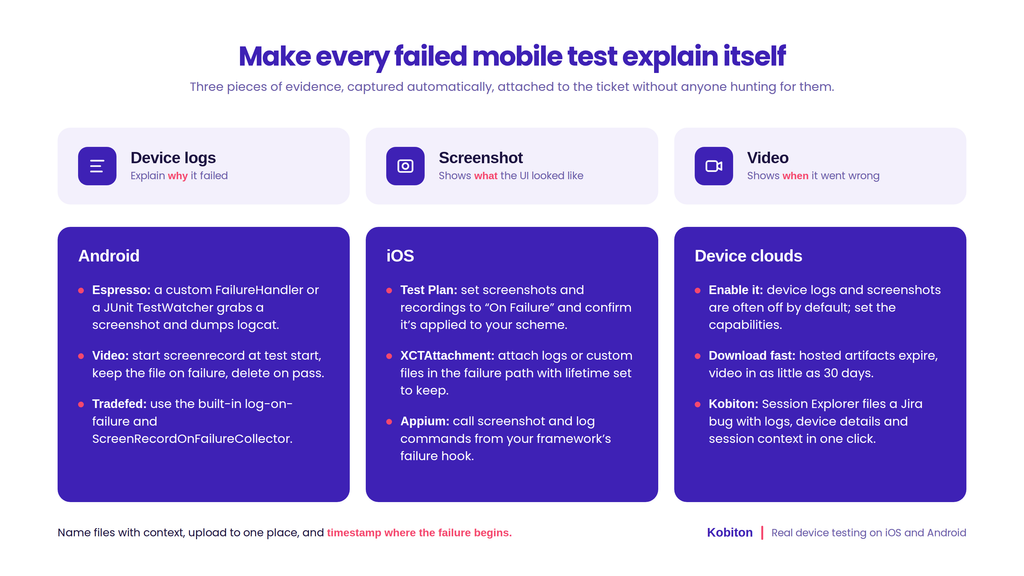
Decide what every failed test must produce. I use three items:
Logs explain why, the screenshot shows what, and the video shows when. A developer who gets all three rarely needs to ask a follow-up question. That is the whole point of the standard: fewer “can you rerun it?” messages and fewer arguments about whether the failure came from the app or the test environment.
For Espresso, you have two solid options. A custom FailureHandler runs when a view assertion or interaction fails, so it’s the right place to grab a screenshot and dump logcat. A JUnit TestWatcher with an overridden failed() method works for any failure in the test, including ones outside Espresso’s view matchers.
For UI Automator, call UiDevice.takeScreenshot() in your failure path and use executeShellCommand(“logcat -d”) to dump the log buffer. If you drive tests from a host with adb, adb logcat -d, adb exec-out screencap -p, and adb shell screenrecord cover the same ground.
Video needs a reality check. You can’t pull a recording from nowhere after a test fails. Start screenrecord when the test starts, then keep the file if the test fails and delete it if it passes. Note that screenrecord has a built-in time limit per file, so long tests need chunked recordings.
Don’t rebuild this plumbing if your CI uses Tradefed. The Android Open Source Project documents “log on failure” behavior, stating that debugging a test always needs a baseline set of logs, including Logcat and the Tradefed host log. It also ships a ScreenRecordOnFailureCollector that runs screenrecord while a test case executes and logs the recording when that case fails. Built-in collectors give you consistent output across every job, which beats a pile of one-off scripts.
For XCUITest, open your Test Plan and set screenshots and screen recordings to keep “On Failure.” Xcode then attaches them to failed tests and surfaces them in the test report. Check that the plan is applied to the right target and scheme. A misapplied plan is the most common reason nothing shows up.
For finer control, attach artifacts yourself with XCTAttachment, and set its lifetime to keep it. You can do this inside a test’s failure path to add a screenshot, a log excerpt, or a custom file. Both approaches give you artifacts in the result bundle that CI can export.
If you drive either platform with Appium, the same logic applies. Call the screenshot and log retrieval commands from your test framework’s failure hook (a pytest fixture, a TestNG listener, a JUnit extension), and use the driver’s screen recording commands, started at test start, for video.
Hosted platforms usually generate artifacts through capabilities. BrowserStack App Automate is a clear example for Espresso. Instrumentation logs are always on. Device logs are off by default and need deviceLogs. Network logs need networkLogs. Video is on by default and disabled with video: false. Screenshots require Spoon framework integration through enableSpoonFramework.
Retention is the catch. BrowserStack’s Espresso docs state that videos are kept for 30 days and other data for 60 days. Its XCUITest docs also say video is deleted after 30 days. If your bug triage takes longer than that, the evidence is gone, so download artifacts as part of the pipeline.
One more planning note: Firebase Test Lab’s documentation now carries a notice that the service shuts down on September 30, 2027. If your evidence pipeline depends on it, plan the migration now.
A simple rule for what to enable:
| Run type | Logs | Screenshots | Video |
|---|---|---|---|
| Per-commit CI | Device logs | On failure | Record, keep on failure |
| Nightly regression | Device and network logs | On failure | Record, keep on failure |
| Deep debugging | Everything | Everything | Everything |
Kobiton approaches this differently because the evidence lives with the real-device session. Session Explorer captures and surfaces issues from a test session, and its one-click Jira bug filing pre-populates logs, device details, and session context. It works with Appium, XCUITest, and Espresso, so the developer opens one ticket instead of five attachments.
Collection is half the job. Three habits finish it:
That timestamp matters more than it sounds. Nobody wants to watch four minutes of video to find the broken step.
Check these first:
Artifact automation isn’t a nice-to-have. It’s what stops triage from turning into detective work, and it moves your team’s time from proving innocence to fixing bugs.
Pull your last three bug reports and check each for logs, a screenshot, and a video. If any are missing, pick one suite, wire in the hooks above, and run a pilot for a week. Then count how many follow-up questions you didn’t get asked.