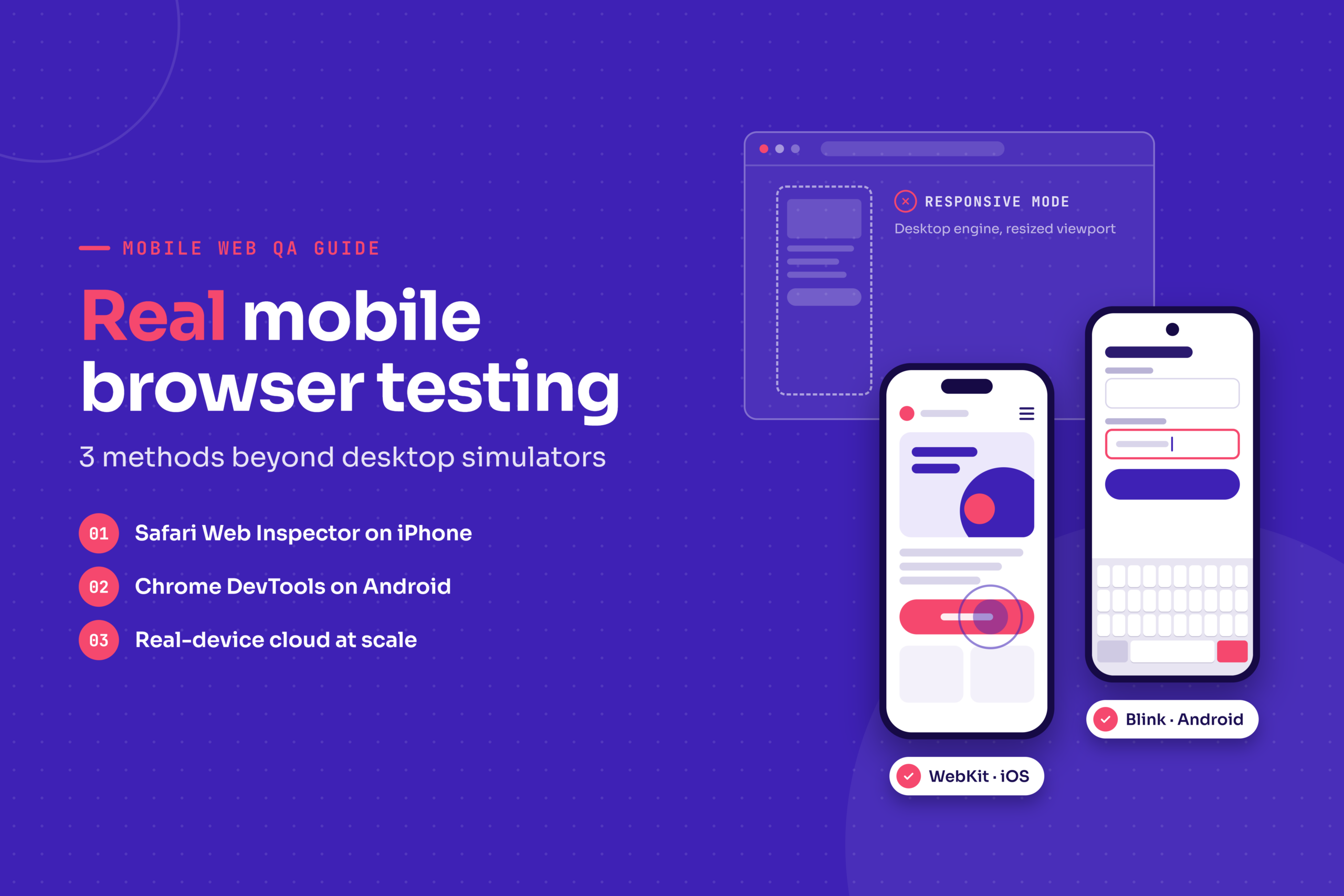
From a green responsive-mode check to a confirmed fix on a real phone: that’s the workflow this guide covers. Desktop responsive simulators resize a viewport and spoof a user agent. They get layout breakpoints mostly right. They don’t run the mobile browser’s real engine on real hardware, so they miss touch event quirks, on-screen keyboard behavior, safe-area handling, and slow-network effects.
For enterprise QA teams, the risk is coverage exposure: the phone your site breaks on is the one nobody on the team is holding. The workflow below has four steps: observe on a real device, debug with remote tools, verify against a checklist, and make the findings repeatable.
What “real mobile browser testing” actually means
Terms get blurred, so here are the definitions used in this guide:
- Responsive mode: a desktop browser resizing its viewport and optionally throttling the network. It runs the desktop engine build.
- Emulator or simulator: software that mimics a device’s OS (Android Emulator, Xcode’s iOS Simulator). Better than responsive mode, but it still runs on desktop hardware without a real touch, sensor, or memory profile.
- Real device: a physical phone or tablet running the actual mobile browser.
- Real-device cloud: a managed pool of physical devices you access remotely.
“Real” matters for mobile web because of the engine. Every iOS browser must use Apple’s WebKit, while Chrome on Android uses Blink. A bug that appears in one engine only will not show up if you test everywhere through a single desktop Chromium window. Kobiton defines Real-Device Testing as testing on real mobile devices to catch device-specific issues, and that definition applies to websites as much as apps.
You can’t eliminate real-device testing, but you can spend it wisely: use emulation for fast layout iteration, and reserve real devices for validation.
How to choose between remote debugging and a device cloud
| Factor | Local remote debugging | Real-device cloud |
|---|---|---|
| Setup time | Minutes, with a cable | Minutes, no hardware |
| Fidelity | Real device, real browser | Real device, real browser |
| Cost model | Devices you already own | Subscription or usage-based |
| Coverage | Only what’s on your desk | Many OS versions and models |
| Best for | Developer-led debugging | Regression, breadth, shared evidence |
Use remote debugging when a developer needs to inspect the DOM and console while reproducing a bug. Use a cloud when the question is “does this work on the devices our customers use?” and your team can’t own them all.
One caution: passing in an emulator is not evidence of real-device correctness. Treat it as a smoke test.
Method 1: Test on a real iPhone or iPad with Safari Web Inspector
Apple documents this workflow in its Safari Developer Help. You need a Mac.
- On the iOS device, go to Settings > Safari > Advanced and turn on Web Inspector.
- On the Mac, open Safari, then Settings > Advanced, and enable “Show features for web developers” (labeled “Show Develop menu” in older versions).
- Connect the device by cable and unlock it. Trust the computer if prompted.
- Open your page in Safari on the device.
- In Safari on the Mac, open the Develop menu, choose your device name, then select the page.
You now have the Elements, Network, and Console tabs against the live page. Watch for these iOS-specific problems:
- Viewport height: 100vh includes the area behind Safari’s collapsing toolbar, so full-screen sections can be clipped. Test 100dvh as an alternative.
- Safe areas: on notched iPhones, content can sit under the notch or home indicator unless you set viewport-fit=cover and use env(safe-area-inset-*) in CSS.
- Fixed elements and keyboards: fixed headers and footers can jump when the keyboard opens.
- Input zoom: Safari zooms into form fields with a font size below 16px.
Method 2: Test on a real Android device with Chrome DevTools
Google’s Chrome for Developers documentation covers remote debugging in detail.
- On the phone, enable Developer options (tap Build number seven times), then turn on USB debugging.
- Connect the phone to your computer and accept the debugging prompt.
- In desktop Chrome, open chrome://inspect/#devices.
- Find your page under the device name and click Inspect.
DevTools shows a live mirror of the phone screen along with the console, network waterfall, and runtime exceptions. Look for touch listeners that don’t fire (or fire twice), autofill differences in form fields, and assets that load slowly on the phone’s real network. You can also throttle the connection from the DevTools Network panel to compare against cellular conditions.
Android adds its own variable: manufacturers ship different default browsers and WebView versions, so Chrome on a Pixel won’t tell you what Samsung Internet does.
Method 3: Test on real mobile browsers using a real-device cloud
Cables and a drawer of phones stop scaling quickly. A real-device cloud gives you a managed pool of physical devices across iOS and Android versions, with repeatable sessions and records you can share. Services in this category include BrowserStack, Sauce Labs, LambdaTest, and Kobiton. Google’s Firebase Test Lab also offers physical devices, though it is oriented toward app testing.
Kobiton’s Mobile Device Cloud provides on-demand access to physical Android and iOS devices, with Device Lab Management for teams that want to control which devices are available. Whatever provider you evaluate, structure each session the same way:
- Define the test URLs and any required auth state.
- Pick device and browser targets from your analytics, not from guesswork.
- Run the checklist below manually first.
- Capture evidence: screenshots or session video, console output, and a HAR file for network analysis.
- Write reproduction steps with device model, OS version, browser, and orientation.
Kobiton’s Session Explorer captures and surfaces issues from a test session, including automatic screen load time measurement, which keeps evidence attached to the session instead of scattered across chat threads.
The mobile web validation checklist
Most guides stop at “test on real devices.” This is the part to actually run.
Layout and viewport
- <meta name=”viewport” content=”width=device-width, initial-scale=1″> is present.
- No horizontal scroll at any width or after rotating.
- Layout survives orientation changes without losing state.
Touch and interaction
- Tap targets are large enough. WCAG 2.2 sets a 24 by 24 CSS pixel minimum (Success Criterion 2.5.8), and Google and Apple guidance suggest roughly 44 to 48 pixels for comfortable use.
- Scroll containers, overscroll, and swipe gestures behave properly.
- Focus states are visible.
Visual correctness
- Content clears the notch, status bar, and home indicator.
- Fonts render without fallback jumps.
- Dynamic content doesn’t cause layout shifts.
Input
- The keyboard doesn’t cover the active field or submit button.
- Validation errors appear near the field and remain visible.
- Autocomplete and password managers work.
Network and performance
- Check Largest Contentful Paint, Interaction to Next Paint, and Cumulative Layout Shift against Google’s Core Web Vitals thresholds (2.5 seconds, 200 milliseconds, and 0.1) on a mid-range phone, not just a flagship.
Cross-engine behavior
- Run every item on at least one WebKit device and one Blink device. If an error appears in only one, you’ve found an engine-specific bug.
From a failing session to a fix you can trust
Reproduce first. Fix variables one at a time: URL, login state, geolocation, network speed, orientation. A bug you can’t reproduce on demand can’t be verified.
Then collect console errors, failed network requests, and a recording or screenshots. Classify the failure as layout and viewport, input and touch, network and asset, or engine difference. That classification tells you who owns it and where to look.
After the fix, verify on the original device and browser, then on a second device in the same OS family. A fix that works on only one phone is often a workaround for a one-off quirk.
Making ad-hoc findings repeatable
For enterprise teams, running tests is rarely the bottleneck. Writing and maintaining them is. Every bug you find on a real device should become a standing check: a checklist line, a scripted assertion, or an automated test.
Selenium or Appium scripts can drive mobile browsers on real devices, and Kobiton publishes a guide on using Selenium to test websites on real mobile devices. For teams that want less scripting, Kobiton’s No-Code Validations let you run a manual test on one device and replay it across other real devices automatically, without writing code. Review the comparison of real devices and emulators if you need to justify the device mix to stakeholders.
FAQ
If my site looks correct in responsive mode, why does it break on my phone?
Responsive mode resizes a desktop viewport. It doesn’t reproduce the mobile engine, real touch input, the on-screen keyboard, dynamic toolbars, or the phone’s CPU and network.
What’s the cheapest way to test on real iPhones?
A Mac, one iPhone, a cable, and Safari Web Inspector. Add a cloud for models and iOS versions you don’t own.
How many devices do we need?
Start from your analytics: cover your top browser and OS combinations by traffic, plus the oldest supported iOS and Android versions, and at least one small-screen and one large-screen device per platform.
What evidence should we capture?
Device model, OS and browser versions, URL, reproduction steps, console output, a HAR file, and a screenshot or recording.
Do we need separate checks for iOS and Android with identical CSS?
Yes. Identical CSS runs through different engines, with different viewport, keyboard, and safe-area behavior.
A practical path to real-browser confidence
Start with remote debugging for fast fixes, add a device cloud for breadth and regression, and keep the checklist as the quality anchor. As next steps, pick your target devices from analytics, standardize the evidence every bug report needs, and schedule recurring real-device runs before each release. The phone your customers hold deserves to be in your test plan before it shows up in your support queue.