iOS signing in Kobiton environments involves three related tasks: understanding how iOS code signing works, generating signing certificates and provisioning profiles, and importing those files into a device host.
This guide focuses on understanding how iOS signing works. For related tasks, see the guides listed in Related guides at the end of this document.
Overview
iOS requires both code signing and provisioning before an app can run on a device. In Kobiton environments, this affects how iOS devices are prepared for hosting, automation, app re-signing, and device management.
Before an iOS app can run on a device, it must:
- Be signed with a valid Apple-issued certificate
- Match a provisioning profile that authorizes the app on the target device
This guide explains the technical role of code signing, certificates, and provisioning profiles, how they work together, and the common issues that can prevent a signed app from running.
Why iOS requires code signing
iOS does not allow unsigned code to run. Before an app can launch, the operating system verifies that it has been properly signed.
In Kobiton environments
iOS code signing requirements still apply when devices are hosted in a Kobiton device lab. Automation tools, device hosting services, and re-signing workflows all operate within Apple’s security model. Apps must still be signed with valid certificates before they can be installed or executed on hosted devices.
Code signing confirms two things:
- Identity: the app was signed by a recognized developer using a valid Apple-issued certificate
- Integrity: the app has not been modified since it was signed
If the app’s contents change after signing, the signature no longer matches and iOS rejects the app.
Apple enforces this at the operating system level. Users, testing tools, and automation frameworks do not bypass this requirement.
How iOS code signing works
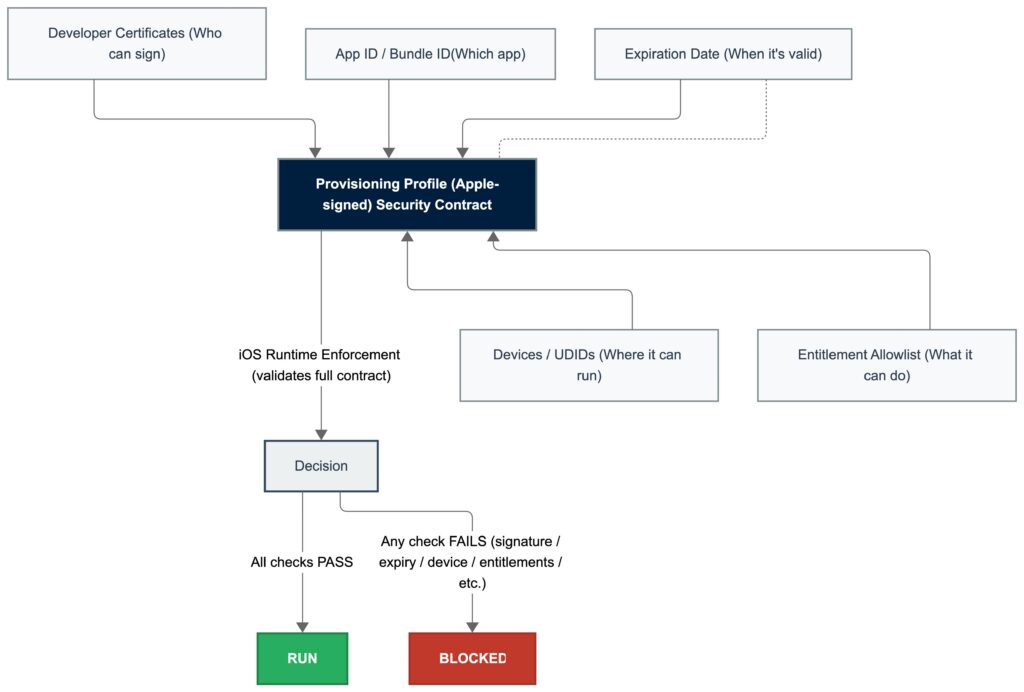
Code signing occurs during the build process.
When an app is built, Xcode uses a private key stored on the signing machine to generate a digital signature. That signature is embedded in the app bundle. When the app is installed or launched, iOS verifies:
● the app has been signed
● the signature matches the app’s current contents
● The signing certificate is valid and trusted by Apple
If any of these checks fail, the app will not run.
Xcode offers two ways to supply the certificate and profile for a build. With automatic signing, Xcode creates and renews certificates, App IDs and profiles on the developer’s behalf; the profiles it creates are marked as Xcode-managed, are tied to one project on one Mac, and are regenerated without notice. With manual signing, the developer generates the certificate and profile in the Apple Developer portal and selects them explicitly in the project’s signing settings.
Automatic signing is the right default for day-to-day development. It is not suitable when the same certificate and profile must be shared across several machines or used by tooling outside Xcode, because Xcode-managed profiles are not meant to be copied and may be replaced the next time Xcode runs. Device labs, CI pipelines and re-signing workflows use manual signing for that reason.
Code signing establishes identity and integrity. It does not determine whether the app is authorized to run on a specific device. That is handled by the provisioning profile.
What is an iOS certificate?
An iOS certificate is a digital document issued by Apple that verifies a developer’s identity.
When a developer enrolls in the Apple Developer Program, a public and private key pair is generated. Apple issues a certificate that associates the public key with the developer account. That certificate is then used as part of the trust chain that allows iOS devices to validate signed apps.
Certificates are used to sign apps in a way that Apple devices can trust. They establish who signed the app, but they do not determine where the app is allowed to run.
Certificate types
There are two main certificate categories used in iOS signing workflows:
Development certificate
Used during development and testing. This certificate signs apps that run on registered development devices.
Distribution certificate
Used for broader distribution scenarios, including App Store, Ad Hoc, and Enterprise distribution.
What is a provisioning profile?
A provisioning profile is a configuration file that determines whether a signed app is authorized to run on a specific device.
A provisioning profile typically links:
● an App ID
● one or more valid signing certificates
● a list of device UDIDs, when required
● enabled entitlements or capabilities
When an app is installed or launched, iOS checks not only the signature and certificate, but also whether the provisioning profile permits the app to run on that device.
If certificates establish identity, provisioning profiles establish authorization.
In Kobiton environments
When hosting iOS devices in a Kobiton device lab, provisioning profiles determine which apps can run on those devices. Development and Ad Hoc provisioning profiles typically include the UDIDs of the hosted devices so that signed apps can be installed for testing and automation workflows.
Provisioning profile types
Development provisioning profile
Used during development and testing. Requires a development certificate and includes registered device UDIDs.
Ad Hoc provisioning profile
Used to distribute an app outside the App Store to a limited set of registered devices. Requires a distribution certificate and includes device UDIDs.
App Store provisioning profile
Used when submitting an app to the App Store. Requires a distribution certificate and does not include device UDIDs.
Enterprise provisioning profile
Used by organizations in Apple’s Enterprise Program to distribute internal apps without App Store submission. Does not require listing individual device UDIDs.
How certificates and provisioning profiles work together
An iOS app must satisfy two independent checks before it can run:
● Identity check: the certificate allows iOS to verify who signed the app and whether the signature is valid
● Authorization check: the provisioning profile determines whether the signed app is allowed on the target device
An app will run only if:
● the signing certificate is valid
● the provisioning profile includes the certificate
● the provisioning profile matches the App ID
● the device is authorized, if the profile type requires device registration
Both pieces are required. A valid certificate without a matching provisioning profile, or a valid provisioning profile without a trusted certificate, is not enough.
In Kobiton environments
Device hosting and automation environments often involve multiple Mac mini hosts and large pools of iOS devices. Maintaining valid certificates and provisioning profiles ensures that hosted devices remain available for testing and that automation workflows can install and run signed apps successfully.
Inside the provisioning profile file
A provisioning profile is a single file with the extension .mobileprovision. It is a property list (plist) that Apple signs with its own certificate when the profile is generated, so its contents cannot be edited after download. Any change, such as adding a device or a certificate, means regenerating the profile in the Apple Developer portal and downloading a new file.
The fields that matter when diagnosing a signing problem are listed below. Field names are shown as they appear when the file is decoded.
| Field | What it holds | Why it matters |
| Name and UUID | The profile name entered in the portal and a unique identifier for this generation of the profile | Tooling refers to profiles by UUID; two downloads of the same profile have different UUIDs if it was regenerated in between |
| TeamIdentifier | The ten-character Team ID of the Apple Developer account that issued the profile | The certificate and the app’s bundle must belong to the same team |
| Entitlements / application-identifier | The Team ID plus the App ID, for example TEAMID.com.company.app or TEAMID.com.* | Must match the bundle ID of the app being signed, exactly or by wildcard prefix |
| DeveloperCertificates | The public half of every signing certificate the profile authorizes | If the certificate used to sign the app is not in this list, the app will not run |
| ProvisionedDevices | The UDIDs of the registered devices (development and Ad Hoc profiles only) | The device must be in this list; App Store and Enterprise profiles omit it |
| ProvisionsAllDevices | Present and true only in Enterprise (In-House) profiles | Explains why Enterprise profiles do not carry a device list |
| Entitlements | The capabilities the signed app may use, for example get-task-allow, aps-environment, keychain-access-groups, App Groups | The entitlements claimed by the app’s signature must be allowed by the profile |
| ExpirationDate | The date after which iOS treats the profile as invalid | See Provisioning profile expired under Common code signing errors |
| Platform | The platforms the profile is valid for (iOS, tvOS, watchOS, visionOS, and so on) | A profile for one platform does not cover an app built for another |
The profile can be decoded on any Mac to read these fields directly. The Generate iOS Signing Certificates and Provisioning Profiles guide includes the commands and a checklist for verifying a profile before distributing it to host machines.
Where the profile goes when an app is built
At build time, Xcode copies the selected profile into the app bundle as embedded.mobileprovision, alongside the signed binary. The embedded profile travels with the app from then on: it is inside the .ipa, and it is installed on the device together with the app.
When the app is installed or launched, iOS reads the embedded profile and checks that:
- The profile is signed by Apple and has not expired
- The application-identifier in the profile matches the app’s bundle ID
- The certificate that signed the app is one of the certificates listed in the profile
- The device’s UDID is in ProvisionedDevices, if the profile type requires it
- The entitlements in the app’s signature are all permitted by the profile
Apps that contain more than one executable, such as a main app plus a widget, a Watch app or a share extension, carry one embedded profile per executable. Each must satisfy the same checks, which is why a build that runs on its own can fail once an extension is added.
Development and Ad Hoc profiles can also be installed on a device on their own, separate from any app. This is what happens when a profile is installed from Xcode or a device-management tool, and it lets the device trust apps signed against that profile before they are installed.
The building blocks a profile links together
Four identifiers and one list appear in every provisioning profile. Understanding each one makes the rest of this guide, and most signing error messages, readable.
- Bundle ID: the identifier written into the app itself, in reverse-domain form such as com.company.appname. It is set in Xcode and travels with the binary.
- App ID: the registration of a bundle ID in the Apple Developer portal, under the team’s account. An explicit App ID matches one bundle ID exactly. A wildcard App ID, such as com.company.*, matches every bundle ID with that prefix. Capabilities are enabled on the App ID, not on the app.
- Team ID: a ten-character code that identifies the Apple Developer account. It prefixes the App ID inside the profile (TEAMID.com.company.appname) and appears in the certificate name. Certificates, profiles and the app must all belong to the same team.
- Entitlements: the capabilities the app is allowed to use, such as push notifications, App Groups, keychain sharing or Sign in with Apple. They are declared on the App ID, copied into the profile when it is generated, and embedded into the app’s signature at build time. The profile must allow every entitlement the app claims.
- Device UDIDs: the unique identifier of each physical device registered to the team. Development and Ad Hoc profiles carry a list of them; App Store and Enterprise profiles do not.
A profile holds exactly one App ID. Apps with different bundle ID prefixes therefore need different profiles, and an app that uses a capability requiring an explicit App ID (push notifications, App Groups, Associated Domains, iCloud) needs its own profile rather than a wildcard one.
In Kobiton environments
Re-signing is the process of replacing the embedded profile and the code signature of an existing .ipa with a profile and certificate that the device lab controls. The app’s code does not change; the signature and embedded.mobileprovision do. After re-signing, the app satisfies the checks above on hosted devices because the lab’s profile lists their UDIDs and the lab’s certificate. This is why re-signing requires a profile whose App ID covers the app’s bundle ID and whose entitlements include everything the app claims.
Common code signing errors
Most code signing failures fall into one of four categories:
● invalid or expired certificate
● provisioning profile does not match the certificate
● provisioning profile does not match the App ID
● target device is not authorized in the provisioning profile
No provisioning profile found
This usually means iOS cannot find a provisioning profile that matches the App ID, certificate, or current device.
Code signing failed
This is a general signing error. Common causes include certificate and profile mismatches, invalid signing configuration, or expired certificates.
A valid provisioning profile for this executable was not found
This usually indicates that the current device UDID is not included in the provisioning profile, or the selected provisioning profile does not match the app’s App ID.
Provisioning profile doesn’t include the selected signing certificate
The provisioning profile references a different certificate than the one being used to sign the app.
Certificate expired or revoked
If a certificate has expired or been revoked, iOS fails the identity check, and the app cannot be installed or launched.
Provisioning profile expired
Every provisioning profile carries an ExpirationDate. Once it passes, iOS fails the authorization check even though the certificate, App ID and device list are all still correct. Xcode reports this as a profile that “has expired”; installation tools typically report that the provisioning profile used has expired.
What happens next depends on the profile type:
- Development and Ad Hoc: apps already installed with the expired profile embedded stop launching, and new installs fail. The app itself is unchanged; it needs to be re-signed with a current profile and reinstalled.
- Enterprise: the same, across every device the app was distributed to, which is why Enterprise profile expiry is usually scheduled and communicated in advance.
- App Store: not affected. Apple re-signs apps for App Store distribution, so the profile used to submit a build does not control whether it keeps running on users’ devices.
A profile can also become invalid before its ExpirationDate. The Apple Developer portal marks a profile invalid when a certificate it contains is revoked or expires, when a device in its list is disabled, or when a capability is added to or removed from its App ID. In every case the fix is the same: edit and regenerate the profile, download the new file, and redistribute it to every host that uses it.
Typical lifetimes, as issued by the Apple Developer portal:
| Item | Typical validity | What expiry or revocation affects |
| Development or Distribution certificate | One year from issue | New signing fails; every profile containing the certificate becomes invalid; apps already installed keep running until their profile expires |
| Development, Ad Hoc or Enterprise provisioning profile | One year from generation, or earlier if a certificate it contains expires or is revoked | Apps embedding the profile stop launching; new installs fail |
| Profile generated with a free Apple ID (no paid membership) | Seven days | Same as above; this is why builds from a free account stop working within a week |
| Apple Developer Program membership | One year | All certificates and profiles under the account become invalid if the membership lapses |
The four types differ on a small number of attributes. The table below summarises them.
| Profile type | Certificate required | Device UDIDs listed | Debugging allowed (get-task-allow) | Who can install the app | Typical use in a device lab |
| Development | Apple Development | Yes, up to 100 per device family per membership year | Yes | Registered devices only | Default for installing and automating test builds on hosted devices |
| Ad Hoc | Apple Distribution | Yes, same 100-device limit | No | Registered devices only | Validating a release candidate signed exactly as it will ship |
| App Store | Apple Distribution | No | No | Anyone, via TestFlight or the App Store | Not used for device-lab signing; App Store builds are re-signed by Apple |
| Enterprise (In-House) | Apple Distribution (Enterprise Program) | No | No | Any device inside the organisation | Internal apps installed as-is or re-signed with a lab profile |
Two constraints follow from the table. A development certificate cannot be used in an Ad Hoc, App Store or Enterprise profile, and a distribution certificate cannot be used in a development profile. And because Development and Ad Hoc profiles share the same registered-device allowance, a large device lab counts against the same 100-per-family limit whichever of the two it uses.
In Kobiton environments, the practical consequence is that certificate and profile expiry dates are inventory data, not a one-time setup detail. Renewing a certificate before it expires, adding the new certificate to each profile alongside the old one, and redistributing before revoking the old certificate avoids any gap in device availability. The renewal procedure and the verification checks to run afterwards are in the Generate iOS Signing Certificates and Provisioning Profiles guide.
What changes in Kobiton environments
In small development workflows, signing and provisioning may be handled once per device or app. In Kobiton environments, these requirements often need to scale across multiple hosted devices, Mac mini hosts, and automation workflows.
This introduces additional operational requirements:
● managing multiple device UDIDs
● maintaining valid certificates across host machines
● keeping provisioning profiles aligned with device inventory
● updating certificates and profiles without interrupting device availability
● ensuring automation and re-signing workflows continue to function after certificate or profile changes
Large device labs may host dozens or hundreds of physical devices. Managing provisioning profiles, device UDIDs, and certificate expiration becomes an operational task rather than a one-time setup step.
In Kobiton environments
Device hosting platforms must maintain valid certificates and provisioning profiles across the device lab so that hosted devices remain available for testing, automation, and app installation. Proper certificate and profile management helps prevent interruptions to testing workflows when certificates expire or device inventories change.
Frequently asked questions
What is the difference between a provisioning profile and a certificate?
A certificate proves who signed the app. A provisioning profile states where that signed app is allowed to run and what it is allowed to do. The certificate is a credential that belongs to the developer or team; the profile is a permission document that Apple signs and that references the certificate. Both are checked every time the app launches.
Does a provisioning profile have to be installed on the device separately from the app?
No. The profile is embedded inside the app bundle at build time as embedded.mobileprovision, and iOS reads it from there. Installing a development profile on the device on its own is possible and sometimes done by device-management tooling, but it is not required for an app whose bundle already contains a valid profile.
Why does an App Store profile not list any devices?
App Store profiles authorise submission to App Store Connect, not installation on specific devices. Once Apple reviews and distributes the app it re-signs it, so the embedded profile and its device list are irrelevant to end users. Only Development and Ad Hoc profiles restrict installation to a fixed set of registered devices.
What is the 100-device limit?
Each Apple Developer Program membership can register up to 100 devices per product family (iPhone, iPad, Apple TV, Apple Watch, Mac, Apple Vision Pro) per membership year for use in Development and Ad Hoc profiles. Removing a device does not free its slot until the membership renews. Enterprise and App Store profiles do not count against this limit because they carry no device list.
Can an app with extensions share one provisioning profile?
Each executable in the bundle, including widgets, Watch apps and share or notification extensions, has its own bundle ID and its own embedded profile. A wildcard App ID can cover all of them with one profile if none of them needs a capability that requires an explicit App ID; otherwise each extension needs its own profile. Re-signing an app with extensions therefore means re-signing every executable, not only the main app.
Do the same rules apply to iPadOS, tvOS, watchOS and visionOS?
Yes. Every Apple platform except macOS uses the same certificate, App ID and .mobileprovision model, and a profile’s Platform field states which platforms it covers. macOS apps use the same concepts but embed the profile as embedded.provisionprofile and require it only for certain distribution paths.
Summary
An iOS app runs on a device only when two independent checks pass. The code signature, produced with an Apple-issued certificate, proves who built the app and that it has not been modified. The provisioning profile, embedded in the app bundle and signed by Apple, proves that this app, signed with this certificate, is authorised to run on this device with these capabilities. Certificates establish identity; profiles establish authorization; both expire; and in a device lab both have to be maintained across every host and every hosted device as inventory changes.
Related guides
- Generate iOS Signing Certificates and Provisioning Profiles: step-by-step creation of the CSR, certificate, .p12 and development profile, including device registration, wildcard App IDs, verification commands and renewal.
- Importing signing certificates and provisioning profiles into a device host: installing the .p12 and .mobileprovision on a Mac mini host so that hosted devices can run signed apps (link to the import guide referenced in the introduction).