Oct 28, 2026
How to capture device logs, video, and screenshots from failed mobile tests
Kobiton Team
Read More
A test fails on a Pixel overnight. By morning there’s a Jira ticket titled “Checkout broken on Android” with one line of description. No logs, no video, no screenshot. The developer asks which build, which device, which OS version. The tester reruns the test, and it passes. Three days later the ticket is closed as “cannot reproduce,” and the bug ships.
Every mobile team I talk to has lived this loop. The fix isn’t more discipline from testers. It’s moving evidence collection out of human hands and into the failure path of your test code. This post walks through how to do that for Android and iOS, which artifacts to collect for which symptoms, and how to turn the output into a ticket an engineer can act on without asking a single follow-up question.
Good failure evidence is three artifacts captured together: device logs, a screen recording, and screenshots. Each answers a different question, and none of them substitutes for the others.
Different failures lean on different artifacts. A crash lives in the logs. A UI mismatch is obvious in a screenshot and nearly invisible in a log. A timeout could be a slow network, a blocked main thread or a missing element, and you usually need the video to tell which.
One caveat before you automate any of this: logs contain things you don’t want in a ticket. Auth tokens, emails, device identifiers and request bodies all show up in verbose output. Plan for filtering before attachments reach a shared tracker, and we’ll cover that below.
On Android you have three practical routes: Tradefed’s built-in collectors, Appium commands inside your failure handler, or raw adb. Pick the one that matches how your tests already run.
If you run instrumentation tests through Android’s Trade Federation harness, collection is a configuration choice. The Android Open Source Project documents automated log-on-failure collection with --auto-collect values such as LOGCAT_ON_FAILURE and SCREENSHOT_ON_FAILURE, plus direct flags:
--logcat-on-failure
--screenshot-on-failure
The AOSP page is short and doesn’t cover where files land, how long they’re kept or how to filter them. Run a deliberately failing test once and find the output in your results directory before you trust it.
If your suite uses Appium, wrap every test in a failure handler. Appium exposes startRecordingScreen and stopRecordingScreen, a screenshot endpoint ( GET /session/:session_id/screenshot, returned as Base64), and device log retrieval for logcat on Android and syslog on iOS. A Python pytest sketch:
import base64, pytest

@pytest.fixture(autouse=True)
def evidence(request, driver):
    driver.start_recording_screen()
    yield
    video = driver.stop_recording_screen()
    failed = request.node.rep_call.failed  # set via a pytest hook
    if failed:
        run_id = f"{request.node.name}-{driver.session_id[:8]}"
        with open(f"{run_id}.mp4", "wb") as f:
            f.write(base64.b64decode(video))
        driver.save_screenshot(f"{run_id}.png")
        logs = driver.get_log("logcat")
        with open(f"{run_id}-logcat.txt", "w") as f:
f.write("\n".join(l["message"] for l in logs))Start the recording before the test body, not after the failure. You can’t record the past. Discard the video on success if storage matters.
When you need evidence fast on a connected device, adb covers all three:
adb logcat -c                                  # clear old buffer first
adb logcat -d > logcat.txt                     # dump logcat to file
adb exec-out screencap -p > failure.png        # screenshot
adb shell screenrecord /sdcard/run.mp4         # record (Android 4.4+)
adb pull /sdcard/run.mp4screenrecord stops at three minutes by default, so it suits single-scenario repros rather than full suites. Clear the logcat buffer at the start of each test. Otherwise the dump includes noise from the previous run, and the buffer may have already rolled over the failure you care about.
On iOS, the cleanest route is to attach evidence to the test result itself. XCTest supports XCTAttachment objects added inside an XCTActivity, and everything lands in the .xcresult bundle that CI archives.
Here’s a pattern for capturing a screenshot when a test fails:
override func tearDown() {
    if let run = testRun, !run.hasSucceeded {
        XCTContext.runActivity(named: "Failure evidence") { activity in
            let shot = XCUIScreen.main.screenshot()
            let attachment = XCTAttachment(screenshot: shot)
            attachment.name = "\(name)-failure"
            attachment.lifetime = .keepAlways
            activity.add(attachment)
        }
    }
    super.tearDown()
}The lifetime property is the detail people miss. By default Xcode can discard attachments from passing tests, and setting .keepAlways guarantees retention. Because the screenshot only exists on failure, you won’t bloat results from green runs.
XCTest has no equivalent of Tradefed’s one-line flags for video. Screen recording is configured in the Xcode test plan’s capture settings, and recordings appear in the report navigator alongside the logs. For CI, you need to extract them from the bundle. Recent Xcode versions ship xcrun xcresulttool subcommands for exporting attachments, so add that step to your pipeline rather than asking people to open Xcode on a build agent.
Keep the screenshots even if you have video. A screenshot is a single image a developer can open in a ticket preview. A video needs a click, a download and a scrub.
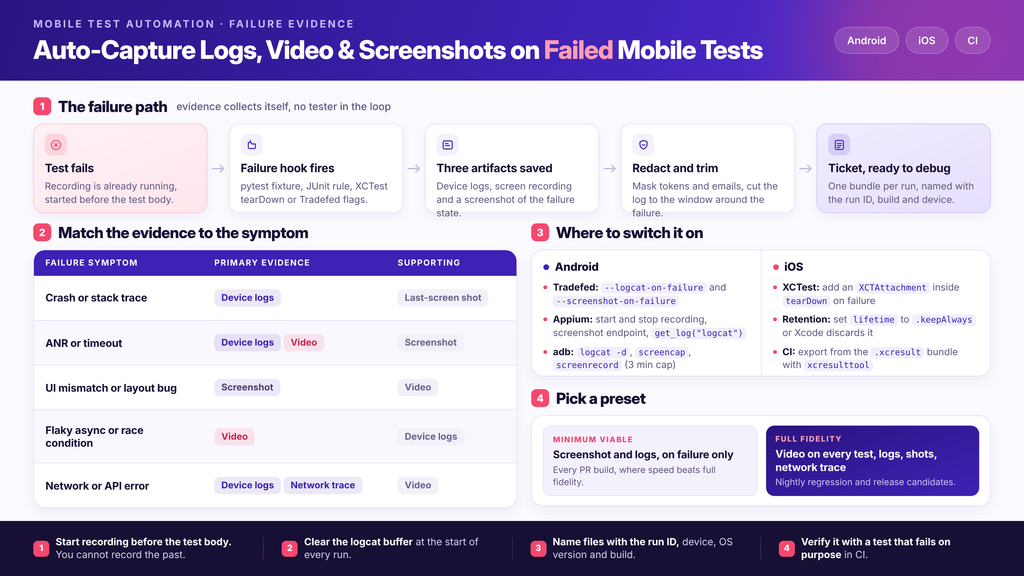
Match the artifact to the symptom, then choose a preset based on how much storage and run time you can spend.
| Failure symptom | Primary evidence | Supporting evidence |
|---|---|---|
| Crash or stack trace | Device logs | Screenshot of the last screen |
| ANR or timeout | Device logs, video | Screenshot |
| UI mismatch or layout bug | Screenshot | Video |
| Flaky async or race condition | Video | Device logs |
| Network or API error | Device logs, network trace (HAR, if your stack supports it) | Video |
Two presets cover most teams:
| Preset | What it captures | Use it for |
|---|---|---|
| Minimum viable | Screenshot and logs on failure only | Every PR build, fast feedback |
| Full fidelity | Video for every test, logs, screenshots, network trace | Nightly regression, release candidates |
BrowserStack’s Espresso documentation makes a related point: some debugging options, such as device logs, network logs and screenshots, must be explicitly enabled rather than coming on by default. Whatever platform you use, check what’s off by default before you assume the evidence exists.
Artifacts only help if they travel with the ticket. Package one bundle per failed run and make the ticket template carry the context that no file can.
Every bug filed from a failed run should include:
Name files with that run ID, for example checkout_login-7f3a9c21-pixel8-android15.mp4, so a log and a video from the same run can be correlated by eye. Timestamps do the rest: if the video starts when the test starts, a stack trace at 00:42 in the log points to 00:42 in the recording.
Strip secrets at the bundle step, not by hand. A simple pass can mask bearer tokens and email addresses before upload:
sed -E 's/(Bearer )[A-Za-z0-9._-]+/\1[REDACTED]/g; s/[A-Za-z0-9._%+-]+@[A-Za-z0-9.-]+/[EMAIL]/g' logcat.txt > logcat-clean.txtTrim the log to the window around the failure as well. A 200 MB logcat dump is not a bug report. Network traces carry even more sensitive data than logs, so treat them with stricter access rules.
Hand-built bundles work, but they’re maintenance you own. On real devices in Kobiton, sessions are recorded with device details and logs, and Session Explorer lets you replay a run and pinpoint where a defect appeared. Kobiton also supports one-click Jira bug filing with logs, device details and session context pre-populated, and it works with Appium, XCUITest and Espresso. For teams with strict data rules, deployment options range from public cloud to full on-prem, so you can keep artifacts and their retention inside your own boundary.
Evidence also has a second life. A recorded manual session can generate an Appium script, so the bug you just reproduced becomes a regression test.
For more on organizing output, see our guide to structuring mobile test results and a deeper look at device log capture.
Work through this list once per test stack, then copy it into your team wiki.
Then verify it. Add a test that fails on purpose, run it in CI, and confirm the video, screenshot and log open from the CI results page without rerunning anything. If someone has to ask “can you rerun it?”, the pipeline isn’t done.
If your tickets still arrive empty, start with the minimum viable setup: screenshot and logs on failure. Get the bug template working and the redaction step trusted. Once engineers are actually opening those bundles, add screen recording for your nightly regression runs.
It’s worth a quick tally of how many hours your team lost last quarter to “repro steps and logs, please.” That number tends to justify the afternoon of setup. For related reading, see how to fix device-specific bug reproduction, or how to run automated testing on real devices without a physical lab.
In Tradefed, enable --logcat-on-failure or --auto-collect LOGCAT_ON_FAILURE. In Appium, call get_log("logcat") inside your failure handler and write it to a file. For a quick manual dump, adb logcat -d > logcat.txt works after you clear the buffer with adb logcat -c.
Not directly, because a recording can’t start after the failure happens. Record every test, then keep the file only when the test fails. That keeps storage low while still giving you the full timeline for any failure.
They’re stored inside the .xcresult bundle for the test run, attached to the activity or test that created them. Set lifetime to .keepAlways so they aren’t discarded, and add an export step with xcresulttool so CI can publish them.
Trim to the window around the failure and redact tokens, emails and identifiers first. Link to the full log in your artifact store instead of attaching it.