Modern applications evolve quickly. Layouts change, components get updated, and responsive adjustments are pushed multiple times a day. In this fast release cycle, UI issues can easily slip through even when functional tests pass.
AI-powered visual testing uses machine learning and computer vision to catch these issues as they happen. It compares how an interface is supposed to look with how it actually appears across devices and browsers, helping teams catch visual regressions before users ever see them.
1. What is AI-Powered Visual Testing?
AI-powered visual testing is an automated way to validate the visual layer of an application using intelligent image analysis rather than basic pixel matching.
Traditional visual testing relies on pixel-by-pixel comparisons. This approach often breaks down due to small rendering differences like font smoothing, anti-aliasing, or browser inconsistencies. These minor changes can trigger false alerts even when the UI is working as expected.
AI-based systems take a more human-like approach. They:
- Recognize UI elements such as buttons, forms, and images
- Understand the layout structure and how elements relate to each other
- Ignore visual noise that does not impact user experience
- Focus only on meaningful UI changes
Pixel Comparison vs. AI Visual Testing at a Glance
| Aspect | Pixel-by-pixel comparison | AI-powered visual testing |
| What is compared | Raw pixel values between two screenshots | Recognised UI elements, their layout, and their relationships |
| Rendering noise (anti-aliasing, font smoothing) | Flagged as a difference | Recognised as noise and ignored |
| Dynamic content | Must be excluded with manually defined ignore regions | Often classified automatically; manual masking still available |
| False positives | High, especially across devices and browsers | Substantially lower, so reviewers see fewer irrelevant diffs |
| What a flagged diff means | Some pixels changed | A specific element moved, disappeared, overlapped, or changed style |
| Maintenance | Thresholds and ignore regions need constant tuning | Learns from accepted and rejected changes over time |
| Scaling across devices | Noise multiplies with every device added | Remains reviewable across large device matrices |
The difference is clearest in the cases pixel comparison gets backwards. A one-pixel anti-aliasing change around a rounded card can light up an entire screen in a pixel diff, while a longer label that pushes the primary button below the fold may change relatively few pixels. An AI-based comparison treats the first as noise and the second as a regression, because it evaluates structure and element position rather than counting changed pixels.
This makes the testing process far more aligned with how users actually experience an interface.
2. Why UI Regressions Are Hard to Catch
UI regressions are often subtle. They may not break functionality, but they directly affect usability and perception.
Common examples include:
- Misaligned buttons after a CSS change
- Overlapping text on smaller screens
- Missing images in certain browsers
- Layout shifts caused by dynamic content
Traditional automation struggles here for a few reasons:
- Pixel comparisons produce too many false alerts
- Selector-based tests cannot interpret layout issues
- Dynamic content constantly alters the visual state
What Visual Testing Catches That Functional Tests Miss
Functional tests check that elements exist and behave correctly. They do not check what the user actually sees, which is why these defects routinely pass a green test run:
- Covered or unreachable elements. A button can exist in the view hierarchy and pass a locator-based assertion while a banner, modal, or keyboard covers it. The test framework can interact with it; the user cannot.
- Truncated or clipped text. A label cut off by an ellipsis or its container edge usually still returns its full text to an assertion, so the check passes while the user sees half a word.
- Contrast and colour regressions. A theme or design-token change can leave text unreadable against its background without altering any element or behaviour a functional test checks.
- Stacking order problems. Elements rendered in the wrong layer order, such as a dropdown drawn behind the content it should overlay, are invisible to assertions about presence and state.
- Wrong or broken assets. An image view that is present but blank, a placeholder icon, or a low-resolution asset all satisfy an existence check.
In each case the app is functionally correct and visibly broken. Visual testing covers exactly this layer, which is why it complements functional automation rather than overlapping with it.
AI closes this gap by interpreting visual meaning rather than relying only on code or pixels.
3. How Machine Learning Detects UI Changes
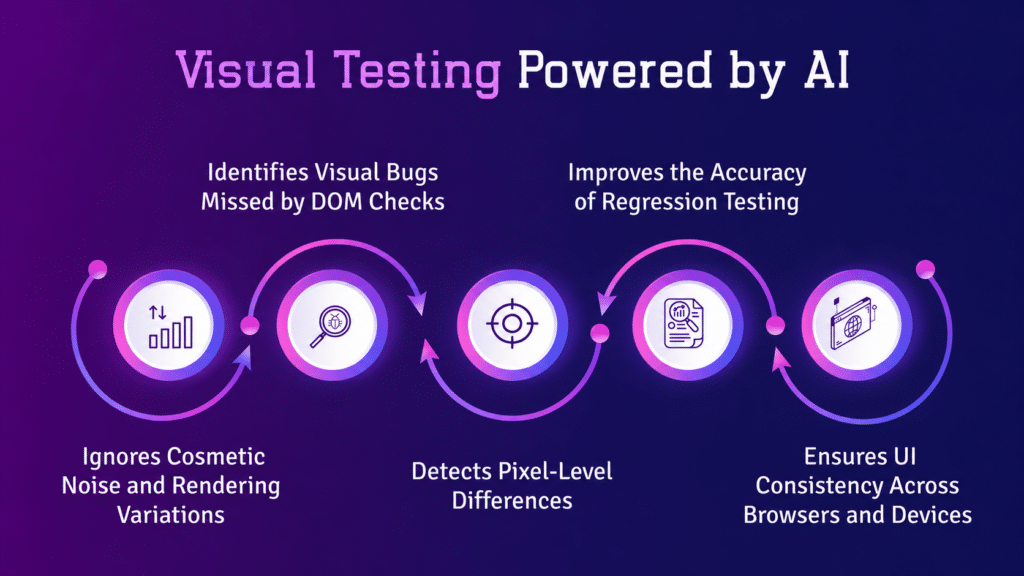
Machine learning models used in visual testing are trained on large sets of UI screenshots and design patterns. Over time, they learn what a stable and correct UI should look like and flag anything that deviates from that expectation.
Here is how the process works:
1. Baseline creation
A reference version of the UI is captured after a stable release. This becomes the standard for comparison.
2. Screenshot capture
Each new build generates fresh UI snapshots across different devices and browsers.
3. Intelligent comparison
The system analyzes changes in:
- Layout structure
- Element positioning
- Colors and typography
- Component hierarchy
4. Change classification
The system separates:
- Meaningful issues, such as broken layouts or missing elements
- Non-critical differences, such as animations or timestamps
5. Regression detection
Only real UI defects are flagged, which reduces unnecessary noise and speeds up review.
6. Review and approval
Flagged changes go to a reviewer, typically a QA engineer, developer, or designer, who decides whether each one is a defect or an intended update. Good tools make this fast by:
- Annotating exactly which element changed, rather than showing a raw image diff
- Grouping the same change across screens and devices so it is approved once
- Recording each decision, which also feeds the model’s adaptive learning
7. Baseline update
Approved changes replace the previous baseline, so the next build is compared against the new expected design. Teams working on several features at once usually keep branch-specific baselines, which prevents one feature’s intentional change from being flagged as a regression on every other branch.
4. Real-Time Detection in CI/CD Pipelines
One of the biggest advantages of AI-powered visual testing is how quickly it fits into modern development workflows.
When integrated into CI/CD pipelines:
- Tests run on every commit or pull request
- Screenshots are captured automatically
- AI compares changes instantly
- Results are available within minutes
This allows teams to catch UI regressions early, before they reach production. Platforms like Kobiton extend this further by running tests across real devices, giving teams a more accurate view of how the UI behaves in real-world conditions.
5. Core Machine Learning Techniques Behind Visual Testing
AI visual testing combines several machine learning techniques to analyze interfaces effectively.
Computer Vision
Identifies UI components such as buttons, input fields, navigation elements, and images, treating them as structured objects rather than raw pixels.
Pattern Recognition
Detects inconsistencies in layout alignment, spacing, and typography hierarchy.
Adaptive Learning
Improves over time by learning from accepted changes, rejected false positives, and historical regression data.
Context Awareness
Distinguishes between intentional UI updates and random rendering differences, reducing unnecessary alerts.
6. Key Benefits for QA and Engineering Teams
AI-powered visual testing changes how teams approach UI quality.
Fewer false alerts
Irrelevant visual differences are filtered out, so teams focus only on real issues.
Faster feedback loops
Developers get immediate visibility into UI problems after each change.
Better cross-device consistency
UI is validated across different screen sizes, operating systems, and browsers.
Lower maintenance effort
Tests adapt to UI updates more naturally, reducing the need for constant script adjustments.
7. Common Use Cases
1. Design system validation
Confirms that components remain consistent after updates.
2. Mobile UI testing
Validates layouts across a wide range of devices and screen sizes.
Mobile apps introduce visual failure modes that rarely appear in desktop testing, and many of them depend on device hardware or user settings rather than on the code change itself:
- Display cutouts and safe areas. Notches, punch-hole cameras, and the Dynamic Island can clip headers or cover toolbar buttons when safe-area insets are handled incorrectly.
- System font scaling. iOS Dynamic Type and Android font size settings can make labels wrap, truncate, or push buttons off screen, even when the layout is correct at default text size.
- Dark mode and theming. Hard-coded colours can turn into invisible text or disappearing icons when the system theme changes.
- Orientation and foldables. A layout that works in portrait can collapse in landscape, or stretch awkwardly on tablets and unfolded foldable screens.
- Keyboard and system overlays. The on-screen keyboard can hide input fields or submit buttons, and permission dialogs or notifications can sit on top of content.
- Manufacturer skins and OS versions. Android OEM customisations change default fonts, system bars, and component rendering, so the same build can look different on two devices with the same screen size.
- Localisation. Longer translated strings and right-to-left languages can break layouts that were sized for English.
Many of these only reproduce on physical hardware, or on the specific OS version and device setting that triggers them. That is why coverage matters as much as the comparison engine: AI visual testing can only flag a regression on a configuration it actually runs against. Running visual checks on real devices, and including settings such as enlarged text and dark mode in the test matrix, closes that blind spot.
3. Frequent UI releases
Identifies cascading issues caused by small CSS or component changes.
4. Cross-browser testing
Checks consistent rendering across Chrome, Safari, Firefox, and Edge. Platforms like Kobiton support this by combining visual validation with real device testing.
8. Challenges in AI Visual Testing
Even with advanced machine learning, some challenges remain:
- Highly dynamic content, such as ads or live feeds
- Initial effort required to set up baselines
- Defining what counts as an acceptable UI change
- Occasional misclassification in complex layouts
| Challenge | Why it happens | How teams handle it |
| Highly dynamic content | Ads, feeds, clocks, and personalised content change on every run | Mask volatile regions, use fixed test accounts and mocked data, freeze dates in test builds |
| Initial baseline effort | Every screen on every device needs an approved reference | Start with critical flows and expand coverage release by release |
| Defining acceptable change | The tool cannot know design intent | Set sensitivity per screen type and name a clear owner for approvals |
| Misclassification in complex layouts | Dense or unusual layouts are harder to interpret | Review accept/reject decisions consistently so the model learns; tune sensitivity per screen |
| Opaque decisions | It is not always obvious why a model flagged or ignored a change | Prefer tools that annotate the specific element changed; keep a human approval step |
| Animation, video, and canvas rendering | Frames differ between runs; game and canvas content has no element structure to read | Disable animations in test builds, capture at defined idle states, and checkpoint specific frames |
| Coverage blind spots | Only the configured devices and settings are tested | Build the device matrix from real user analytics and include settings such as dark mode and large text |
It is also worth being clear about one firm limit. Visual testing confirms that a screen looks right, not that it works. A perfectly rendered checkout button that never submits the order will pass every visual check, so visual tests supplement functional assertions rather than replace them.
Teams typically handle these with techniques like ignore regions and baseline adjustments.
9. Best Practices for Implementation
To get reliable results from AI-powered visual testing:
- Start with high-impact user flows such as login, checkout, and onboarding
- Maintain clean and stable baselines
- Integrate visual tests early in the CI/CD pipeline
- Combine visual testing with functional testing
- Regularly review flagged changes to improve accuracy
- Stabilise screens before capture. Wait for loading states and animations to finish, turn off system animations on Android test devices, and disable UI animations in iOS test builds.
- Use deterministic test data. Fixed test accounts, mocked feeds, and frozen dates remove most dynamic-content noise before the AI has to filter it.
- Mask the status bar. Clock, battery, and signal indicators change on every run; use status bar demo or override modes where the platform supports them, or mask the region.
- Set sensitivity per screen type. Branded and marketing screens may need strict comparison, while data-heavy screens can tolerate minor rendering variation.
- Keep baselines per branch and assign ownership. Branch-specific baselines stop parallel work from colliding, and a named approver (often QA plus design) keeps decisions consistent.
- Include device settings in the matrix. Add at least one enlarged-text and one dark-mode configuration to catch regressions that default settings hide.
How to Evaluate an AI Visual Testing Tool
Almost every visual testing tool now describes itself as AI-powered, but the label covers a wide range: from genuine element- and layout-aware comparison to pixel diffing with an adjustable tolerance. The questions below separate the two and help teams choose a tool that fits how they actually build, test, and release.
| Criterion | What to ask | Why it matters |
| Comparison method | Does the tool recognise elements and layout, or apply a pixel-difference threshold? Can it show why a change was flagged? | Threshold tuning reduces noise only by also reducing sensitivity. Element-aware comparison can ignore rendering noise and still catch a small but structurally serious shift. |
| Native app support | Does it capture native iOS and Android screens, or only web pages and mobile browsers? | Many visual tools are web-first. Native apps need screenshots captured through automation frameworks such as Appium, XCUITest, or Espresso. |
| Real devices | Are screenshots taken on real devices, on emulators and simulators, or re-rendered in a cloud browser grid? | Manufacturer skins, display cutouts, system fonts, and OS-level UI differ on real hardware, and that is where many mobile regressions appear. |
| Framework and CI/CD fit | Can it plug into existing test suites and the current CI system without rewriting tests? | Adding visual checkpoints to functional flows that already run gives broad coverage for little extra authoring effort. |
| Dynamic content handling | Are timestamps, animations, ads, and personalised content handled automatically, or only through manually drawn ignore regions? | Manually maintained ignore regions become their own maintenance burden every time a screen changes. |
| Baselines and approvals | Does it support branch-specific baselines, approval history, and clear ownership of who accepts a change? | Without branch baselines, parallel feature work overwrites shared references and floods reviewers with false alerts. |
| Review workflow | Does it group the same change across many screens and devices, and annotate diffs clearly? | One header update can surface on hundreds of screenshots. Grouping turns hundreds of reviews into one decision. |
| Scale and cost model | Is pricing per screenshot, per device, per user, or per parallel session? How does cost grow with the device matrix? | Mobile matrices multiply screenshot volume quickly, so the pricing model can matter more than the headline price. |
A short proof of concept usually answers these questions faster than any feature comparison. Pick two or three high-traffic flows, run them across the devices your users actually have, introduce a few deliberate UI defects, and see which ones the tool catches and how much noise it produces along the way.
10. Future of AI in Visual Regression Testing
The direction of AI-powered visual testing is moving toward:
- Automated test creation based on UI behavior
- Closer alignment with design tools like Figma
- Real-time monitoring of UI health in production
- More accurate validation based on user intent rather than static rules
Over time, testing systems will behave less like scripted tools and more like intelligent observers of UI behavior.
Frequently Asked Questions
Is AI visual testing the same as visual regression testing?
Visual regression testing is the practice of catching unintended visual changes between builds. AI visual testing is one way of doing it, where the comparison uses machine learning and computer vision instead of raw pixel differences. All AI visual testing is regression testing, but not all visual regression testing uses AI.
Can AI visual testing replace functional testing?
No. Visual testing confirms that the interface looks correct; functional testing confirms that it works. A well-rendered button that fails to submit a form passes a visual check. The strongest approach adds visual checkpoints to existing functional flows so both are validated in the same run.
How does AI visual testing handle dynamic content?
AI models can classify changing regions such as timestamps, animations, and personalised content as expected variation rather than defects. For the most volatile areas, teams still combine this with masking and deterministic test data to keep results stable.
What is the difference between snapshot testing and visual testing?
Serialised snapshot testing, such as Jest snapshots, compares a component’s rendered output structure, not what appears on screen, so it misses styling, layout, and rendering problems. Visual testing compares actual screenshots of the rendered interface, which is what catches the regressions users see.
Does AI visual testing work for native mobile apps?
Yes, provided the tool can capture screenshots from native apps, typically through automation frameworks such as Appium, XCUITest, or Espresso. Results are only as broad as the device coverage, so running on real devices across the OS versions and settings your users have is what makes mobile visual testing reliable.
Do you still need baselines with AI visual testing?
Yes. AI reduces noise and speeds up review, but every intentional design change still has to be approved as the new baseline. Good tools make this faster with grouped changes and branch-specific baselines; they do not remove it.
Final Thoughts
AI-powered visual testing is changing how teams approach UI quality. Instead of relying on manual comparisons or fragile automation, teams can now use intelligent systems that understand context and visual structure.
By combining machine learning, computer vision, and adaptive learning, tools like Kobiton help teams catch UI regressions in real time and maintain a consistent user experience across devices and platforms.