When working with Android UI automation using Espresso, execution speed is often the first bottleneck teams notice in CI pipelines. Tests that feel “instant” in a local emulator can slow down significantly on real devices, especially when scaling across multiple Android versions and OEM models.
This guide breaks down why execution speed differs between real devices and emulators, what actually impacts runtime, and how teams can make test runs more predictable using modern mobile testing setups like real device clouds.
Understanding Espresso Test Execution in Different Environments
Espresso tests run as instrumentation tests on either emulators or physical devices. Both environments execute the same test code, but the runtime behavior differs due to hardware, OS, and system-level constraints.
Espresso interacts directly with the app’s UI thread, so execution speed is tightly linked to how fast the device processes UI events, rendering, and background tasks.
Why Emulators Are Usually Faster (But Not Always Reliable)
Emulators often feel faster for test execution because they run on high-performance development machines instead of mobile hardware.
Key reasons:
- Desktop CPU/GPU power is significantly higher than mobile chips
- No real battery, thermal, or power management constraints
- Simulated network conditions are often idealized
- Faster I/O and memory access compared to physical storage on devices
However, this speed advantage comes with trade-offs.
Hidden cost:
- UI timing behaves differently under real workloads
- Rendering pipelines are simplified
- Background OS behavior is not fully realistic
As a result, tests may pass quickly on emulators but behave differently on production devices.
Why Espresso Tests Run Slower on Real Devices
Real devices introduce realistic constraints that directly impact test execution time.
1. Hardware variability
Real phones differ in CPU speed, RAM, GPU, and storage performance. Mid-range or older devices can slow down UI rendering and test synchronization.
2. OS-level workload
Background services, OEM skins, and system optimizations compete for resources during test execution.
3. UI rendering delays
Real rendering pipelines include:
- Frame scheduling
- GPU composition
- Touch input processing
These steps introduce delays that Espresso must wait for.
4. Network and I/O latency
If your test interacts with APIs, real network conditions add variability that emulators don’t fully reproduce.
Key Speed Differences: Emulator vs Real Device
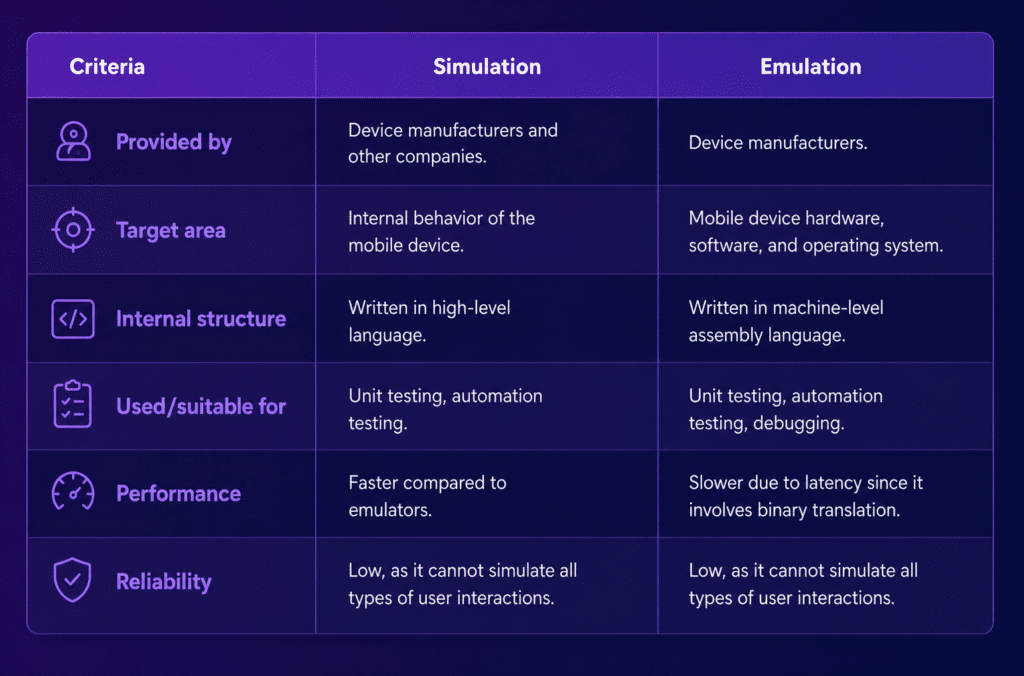
| Factor | Emulators | Real Devices |
| CPU performance | High (host machine) | Limited (mobile chip) |
| UI rendering accuracy | Medium | High |
| Execution speed consistency | High | Variable |
| Background interference | Low | High |
| Real-world reliability | Low | High |
Practical Ways to Improve Espresso Test Execution Speed
1. Reduce UI synchronization overhead
Espresso waits for the UI thread to be idle. Heavy animations or background tasks increase wait time.
Action:
- Disable animations in test builds
- Avoid long-running UI transitions during tests
2. Use test-only build configurations
Strip unnecessary production overhead.
Examples:
- Disable analytics SDKs
- Remove logging in debug test builds
- Mock slow network calls
3. Parallelize test execution
Instead of running all tests on one device:
- Split test suites across multiple devices
- Run parallel jobs in CI pipelines
This is especially effective when using a device farm or cloud lab.
4. Optimize real device selection
Not all devices behave the same.
- Use a mix of mid-range and flagship devices
- Avoid outdated devices for CI smoke tests
- Keep a stable “reference device set”
5. Minimize idle waits and sleeps
Hard-coded delays slow everything down.
Replace:
- Thread.sleep()
With:
- Espresso Idling Resources
This keeps tests synchronized without unnecessary waiting.
6. Stabilize test data setup
Slow setup logic is a hidden performance killer.
- Preload test data
- Reset app state efficiently
- Avoid repeated API seeding inside each test
Real Devices vs Emulators in CI Pipelines
Modern CI systems often combine both environments:
- Emulators: fast feedback during development
- Real devices: validation before release
Studies on Android CI workflows show that emulator-based setups are faster for frequent checks, while real devices provide more reliable execution behavior but take longer per run due to hardware constraints and setup overhead .
Where Real Device Testing Becomes Slower (But Necessary)
Real devices introduce unavoidable delays:
- Device boot time (cold start)
- App installation per run
- Device cleanup/reset cycles
- Queue time in shared device labs
Even though slower, this environment catches issues that emulators often miss, especially performance-related UI timing problems.
Recommended Strategy for Espresso Execution Speed
A balanced approach works best:
- Emulators → fast iteration, debugging, early test validation
- Real devices → performance validation, release confidence
- Device cloud platforms → scalable parallel execution across models
This hybrid approach keeps execution speed manageable without sacrificing reliability.
Final Takeaway
Espresso test execution speed is not just about tooling—it’s about environment realism.
Emulators give faster runs but can hide timing issues. Real devices introduce delay but reflect actual user conditions. The most stable testing strategy combines both, with careful optimization of test design, data handling, and parallel execution.