Mobile teams can test apps on emulators, simulators, real devices, or a combination of all three. It may be tempting to treat these environments as opposites: virtual devices are fast, flexible, and easier to access, while real devices require more planning, management, and infrastructure.
What becomes apparent is that emulators, simulators, and real devices are not competitors. They are different tools which answer different testing questions.
Emulators and simulators help teams move quickly during development. They are useful for early feedback, debugging, UI checks, and repeatable automation when the test does not depend heavily on physical hardware. Real devices help teams validate how an app behaves under the conditions users actually experience, including hardware differences, operating system behavior, gestures, sensors, network changes, performance limits, accessibility settings, and device-specific issues.
The strongest mobile testing strategies use each environment where it fits best.
This guide compares emulators, simulators, and real devices, explains when to use each one, and shows how to combine them in a practical mobile testing strategy.
What are emulators, simulators, and real devices?
Emulators, simulators, and real devices are different environments for mobile app testing.
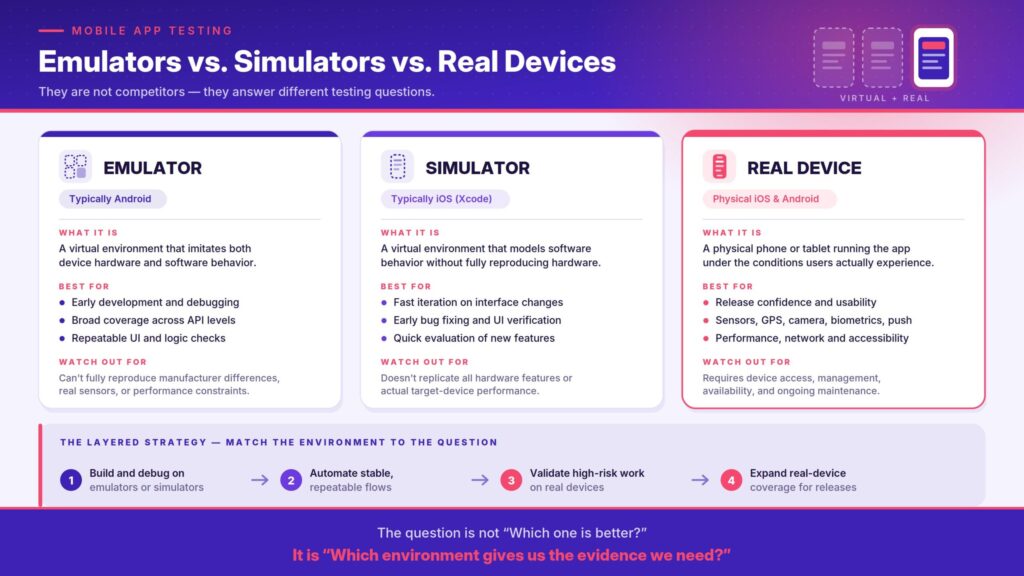
An emulator is a virtual environment that imitates device hardware and software behavior. In mobile testing, emulators are most commonly associated with Android development. Android’s emulator lets teams test apps on many virtual devices and Android API levels without needing each physical device on hand.
A simulator is a virtual environment that models the software behavior of a device without fully reproducing the underlying hardware. In mobile testing, simulators are most commonly associated with Apple development through Xcode. Apple describes simulated devices as useful for quickly evaluating features, fixing bugs, and checking interfaces, but notes that simulated devices do not reproduce all physical-device features or performance.
A real device is a physical smartphone or tablet used to test a mobile application under actual device conditions. Real devices include the hardware, operating system, screen, sensors, settings, performance limits, and interaction patterns users experience when they use the app.
The short version:
- Emulators imitate hardware and software behavior in a virtual environment.
- Simulators model software behavior without fully reproducing hardware.
- Real devices are physical devices running the app under real mobile conditions.
For most mobile teams, the practical distinction is not whether one option is universally better. The practical distinction is what the team needs to prove.
Quick comparison: emulators vs. simulators vs. real devices
| Testing option | What it represents | Best for | Limitations |
| Emulator | A virtual environment that imitates device hardware and software behavior | Android development, debugging, early automation, and broad virtual coverage | Cannot fully reproduce physical-device behavior, manufacturer differences, real sensors, performance constraints, or real-world conditions |
| Simulator | A virtual environment that models software behavior without fully reproducing physical hardware | iOS development, UI checks, fast iteration, and early debugging | Does not replicate all hardware features or physical-device performance |
| Real device | A physical iOS or Android phone or tablet | Release validation, usability, accessibility, performance, sensors, networks, device-specific bugs, and real user conditions | Requires device access, management, availability, and maintenance |
When to use emulators and simulators
Use emulators and simulators when the team needs fast feedback.
Virtual environments are especially useful early in development because they let teams run builds, check basic behavior, debug issues, and iterate on UI or logic without waiting for physical device access. They help answer questions such as: does the app launch, does the screen render, does the basic flow work, and did this change break an expected path?
Use emulators or simulators when:
- the feature is early in development
- the team needs fast feedback
- the test does not depend on physical hardware
- the team is debugging basic UI or logic
- the app flow is stable enough for repeatable checks
- broad early coverage matters more than device realism
- the team needs to test an interface on devices it does not physically have
Customer conversations show this pattern in practice. In one airline customer conversation, developers used local simulators or emulators to test builds, while other teams tested on physical devices and lab devices. That kind of split workflow is common: virtual devices help teams move quickly during development, while real devices support deeper validation later in the process.
Virtual devices are useful because they reduce friction. A developer can test a simple UI change, confirm a build launches, or debug a basic flow without waiting for a shared physical device.
That speed matters, but speed and evidence answer different testing questions.
When to use real devices
Use real devices when the team needs evidence from the environment users actually hold.
A virtual device can show whether a flow works in a controlled environment. A real device shows how that flow behaves on physical hardware, with actual device settings, screen behavior, OS behavior, performance limits, sensors, gestures, interruptions, and network conditions.
Use real devices when:
- the test affects release confidence
- the workflow depends on camera, GPS, biometrics, Bluetooth, sensors, or push notifications
- performance, battery, memory, temperature, or network behavior matters
- accessibility settings or assistive technologies need review
- the issue appears only on a specific device or OS version
- the team needs to reproduce a user-reported bug
- the app has to support many screen sizes, OS versions, or manufacturer variations
- the team needs evidence of real user conditions before release
Real devices are especially important for hardware-dependent flows. A banking app that uses check deposit, a retail app that scans barcodes, a travel app that handles location services, or a healthcare app that depends on notifications should not rely only on virtual testing.
They are also important for accessibility. In one financial services customer conversation, the team described primarily using simulator builds, while physical devices were brought in for specific needs such as accessibility review. That distinction matters because accessibility often depends on the full device environment, including settings, assistive technologies, focus behavior, gestures, screen size, and real interaction patterns.
Real devices help teams answer the question virtual environments cannot fully answer: what happens when the app runs where users actually use it?
How to combine virtual and real devices in one testing strategy
Most teams should use both virtual and real devices.
A practical mobile testing strategy is layered. Use emulators and simulators for fast feedback early in the cycle, then use real devices when the team needs evidence from actual hardware and real mobile conditions.
A typical workflow might look like this:
- Use emulators or simulators during early development.
- Run fast checks for basic UI, logic, and build stability.
- Move stable flows into automated tests when they are repeatable.
- Validate high-risk workflows on real devices.
- Use real devices for accessibility, performance, sensors, network behavior, and device-specific issues.
- Expand real-device coverage for major releases, critical fixes, or user-reported bugs.
This layered approach helps teams balance speed and confidence.
Teams that rely only on virtual environments may miss issues that depend on hardware, performance, accessibility settings, or device-specific behavior. Teams that run everything on real devices may slow down feedback loops that could be handled earlier and faster in virtual environments.
The better strategy is to ask: what is this test trying to prove?
If the test checks basic logic or early UI behavior, a virtual environment may be enough. If the test checks the real-world experience, run it on real hardware.
Choose the right mobile testing route
Use this guide to decide whether a test should start on an emulator, simulator, real device, or a mix of environments.
The goal is not to pick one “best” option. The goal is to match the testing environment to the question the team needs to answer.
Choose the right mobile testing environment
Match the testing environment to the question you need to answer. Answer what applies below — the route updates as you go.
Start with the test you have
Answer the questions below, or load one of the example tests. The route lights up on the left and the split shows roughly where the testing effort should sit.
Recommended play
How teams scale real-device testing
Real-device testing becomes harder as teams support more devices, operating systems, regions, and user conditions.
Buying and maintaining a large physical device inventory can become expensive and difficult. Teams also need to manage device availability, OS versions, security, charging, network access, permissions, and remote access for distributed testers.
That is where mobile device labs, real device clouds, and device farms for mobile testing can help.
A mobile device lab gives teams access to multiple physical smartphones and tablets for testing applications across different hardware, operating systems, and configurations. A real device cloud provides remote access to physical devices, so distributed teams can run tests without maintaining every device themselves. Some teams also use the term device farm to describe a managed pool of devices used for manual or automated mobile testing.
Device labs may be local, cloud-based, hybrid, private, or dedicated depending on the organization’s security and workflow needs.
For enterprise teams, device access may also depend on governance. In one banking customer conversation, Kobiton discussed both virtual device support and real-device testing, then recommended a private device pool because of the customer’s security needs. That kind of deployment decision matters for teams that need real-device coverage without exposing sensitive workflows to a shared environment.
Platforms like Kobiton help teams scale real-device testing by providing access to physical iOS and Android devices alongside automation, session review, logs, screenshots, and device management capabilities.
The goal is not to make every team own every phone. The goal is to make real-device validation available when the testing question requires it.
Final takeaway
Emulators, simulators, and real devices all belong in a strong mobile testing strategy.
Use emulators and simulators when the team needs speed, early feedback, debugging, and development convenience. Use real devices when the team needs evidence from actual hardware, operating systems, performance conditions, accessibility settings, sensors, networks, and device-specific behavior.
Between virtual machines and real devices, the question is not “Which one is better?” The real question is “Which environment gives us the evidence we need?”
Virtual devices help teams move faster. Real devices help teams validate what happens under real mobile conditions. A balanced strategy uses both: fast virtual testing early, and real-device validation when quality, risk, and release confidence depend on reality.
FAQ
What is the difference between an emulator and a simulator?
An emulator imitates both hardware and software behavior in a virtual environment. In mobile testing, emulators are commonly associated with Android testing. A simulator models the software environment and user interface behavior but does not fully reproduce the underlying hardware. In mobile testing, simulators are commonly associated with iOS testing in Xcode.
Are emulators and simulators good for mobile app testing?
Yes. Emulators and simulators are useful for early development, debugging, UI checks, and fast feedback. They help teams test quickly without needing immediate access to every physical device. However, they should not be the only testing environment when the app depends on real hardware, performance, sensors, accessibility settings, or device-specific behavior.
When should teams use real devices instead of emulators or simulators?
Teams should use real devices when the test affects release confidence or depends on actual mobile behavior. Real-device testing is especially important for camera, GPS, biometrics, Bluetooth, sensors, push notifications, performance, battery behavior, accessibility settings, network changes, and device-specific bugs.
Can emulators replace real-device testing?
No. Emulators are valuable for fast development and virtual testing, but they cannot fully replace real-device testing. Some issues only appear on physical devices because they depend on hardware, operating system behavior, manufacturer differences, performance constraints, accessibility settings, or real user conditions.
Can simulators replace real-device testing for iOS apps?
No. iOS simulators are useful for development, debugging, and interface checks, but Apple recommends testing on physical devices to verify that the app runs as intended. Simulators do not replicate all physical-device features or actual target-device performance.
What should teams test on real devices?
Teams should test high-risk workflows, release-critical features, accessibility behavior, performance-sensitive flows, hardware-dependent features, authentication, payments, camera or barcode scanning, GPS, Bluetooth, push notifications, network changes, and device-specific UI behavior on real devices.
Should mobile teams use both virtual and real devices?
Yes. Most mobile teams should use both. Emulators and simulators provide speed and flexibility during development. Real devices provide accuracy and real-world validation before release. Using both helps teams move quickly without losing confidence in how the app behaves under real conditions.
How do device labs help with real-device testing?
Device labs give teams access to multiple physical smartphones and tablets for testing. They help teams validate apps across device models, operating system versions, screen sizes, and hardware configurations. Cloud, private, hybrid, and local device labs can also support distributed teams and automated testing workflows.