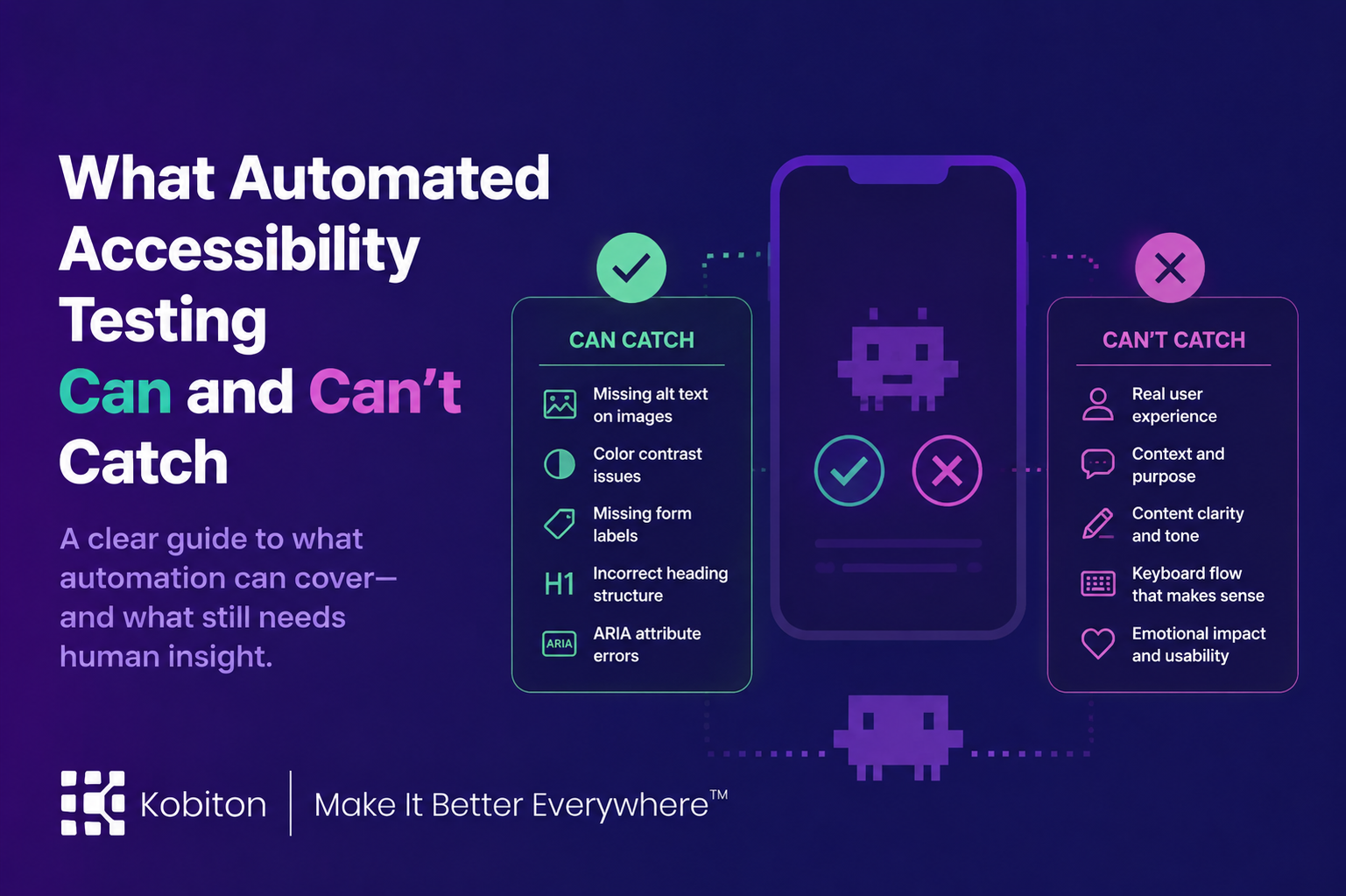
Automation is a first pass, not the finish line
Automated accessibility testing can help teams find accessibility issues earlier and more consistently.
That matters. Missing labels, poor contrast, small touch targets, and confusing element structure can make a mobile app harder or impossible to use for people with disabilities. Automated checks can flag many of these issues before they reach production, but automated accessibility testing is not the whole inspection.
A tool can tell you that a button has a label. It may not tell you whether the label makes sense in the flow. A tool can flag a contrast issue. It may not tell you whether a user can complete the task with larger text enabled. A tool can identify a touch target problem. It may not tell you whether the screen feels navigable with VoiceOver, TalkBack, switch control, or voice control.
The question is not whether teams should automate accessibility testing.
The better question is: what can automation catch, and what still needs human review?
What automated accessibility testing is
Automated accessibility testing uses software tools, scripts, or built-in platform checks to scan an app for potential accessibility issues.
These tools evaluate the app against accessibility rules and guidelines. They can help teams identify problems such as missing labels, low contrast, small touch targets, unreachable elements, and other issues that may create barriers for users.
Automated accessibility testing is especially useful because it can be run repeatedly. Teams can add accessibility checks to development workflows, regression testing, and CI/CD pipelines so common issues are caught earlier.
For mobile teams, automated checks are most useful when they are treated as a baseline layer, not a full accessibility verdict.
What automated accessibility testing can catch
Automated accessibility testing is good at finding issues that are rule-based, repeatable, and detectable by scanning the app interface or code.
It can help catch issues such as:
- missing or unclear accessibility labels
- poor color contrast
- small or crowded touch targets
- form fields without labels
- images or icons without useful descriptions
- elements that may not be reachable by assistive technology
- inconsistent heading or navigation structure
- missing focus indicators
- text scaling issues
- controls that are difficult to identify programmatically
These issues matter. They can block users, create confusion, or make an app harder to navigate.
Automation also helps with consistency. If the same accessibility check needs to run across many builds, devices, or screens, automation can reduce the chance that teams miss repeated issues.
Where automated accessibility testing works best
Automated accessibility testing works best when the question has a clear rule or expected result.
Good automation candidates include:
- checking whether interactive elements have accessible names
- verifying that touch targets meet size expectations
- flagging low-contrast text or controls
- scanning for missing form labels
- identifying elements that may be hidden from assistive technologies
- running baseline accessibility checks during regression testing
- catching repeated issues during CI/CD workflows
These checks are useful because they give teams fast feedback.
They also help make accessibility part of the development process instead of something reviewed only at the end. When accessibility checks run earlier, teams can fix issues before they become more expensive or disruptive.
What automated accessibility testing can’t catch
Automation is useful, but it cannot understand the whole user experience.
Automated tools can miss issues that depend on context, task flow, human understanding, assistive technology behavior, or device-specific interaction.
For example, automated accessibility testing may not fully answer questions like:
- Does the screen reader announce elements in a logical order?
- Does the label make sense to someone completing the task?
- Can the user recover from an error?
- Does the app still work when text size is increased?
- Can someone complete the flow without relying on color alone?
- Does a modal or pop-up trap the user?
- Is the flow exhausting or confusing with assistive technology?
- Does the app behave correctly across real devices and OS versions?
- Can a user complete the task without precise gestures?
- Does the experience feel clear, respectful, and usable?
That last category matters. Accessibility is not only about whether individual elements pass checks. It is about whether a person can use the app.
Automation can find many barriers. It cannot feel the path.
Why mobile accessibility needs real-device testing
Mobile accessibility happens where the user meets the app.
That is why real-device testing matters. Mobile users interact with apps through actual screens, operating system settings, assistive technologies, gestures, audio, haptics, orientation changes, and device-specific behavior.
A layout may appear acceptable in a static review but break when larger text is enabled. A flow may look clear visually but become confusing when announced by a screen reader. A button may be technically present but difficult to reach or activate on a specific device.
Real devices can also expose accessibility issues caused by:
- screen size differences
- OS version differences
- manufacturer behavior
- device settings
- keyboard behavior
- orientation changes
- pop-ups and interruptions
- screen reader behavior
- touch target spacing
- performance slowdowns
Testing on real devices helps teams understand how accessibility behaves in context, not just in theory.
Where VoiceOver and TalkBack fit
Screen reader testing is an important part of mobile accessibility review.
VoiceOver is Apple’s screen reader for its platforms, and Apple recommends testing apps with accessibility settings and assistive technologies to find accessibility issues. Android’s TalkBack is Google’s screen reader included on Android devices, and Android accessibility testing guidance emphasizes testing from the user’s perspective. (Apple Developer)
For mobile teams, this means automated checks should be paired with actual assistive technology review.
A tool may confirm that elements have labels. VoiceOver or TalkBack testing helps reveal whether those labels are announced in a useful order, whether the user can move through the flow, and whether the app explains what changed after an action.
If you want a light Kobiton tie-in, this section is a natural place to include it:
Kobiton supports accessibility testing with iOS VoiceOver and Android TalkBack, helping teams evaluate how mobile app flows behave with the screen readers many users rely on every day.
How to combine automated and manual accessibility testing
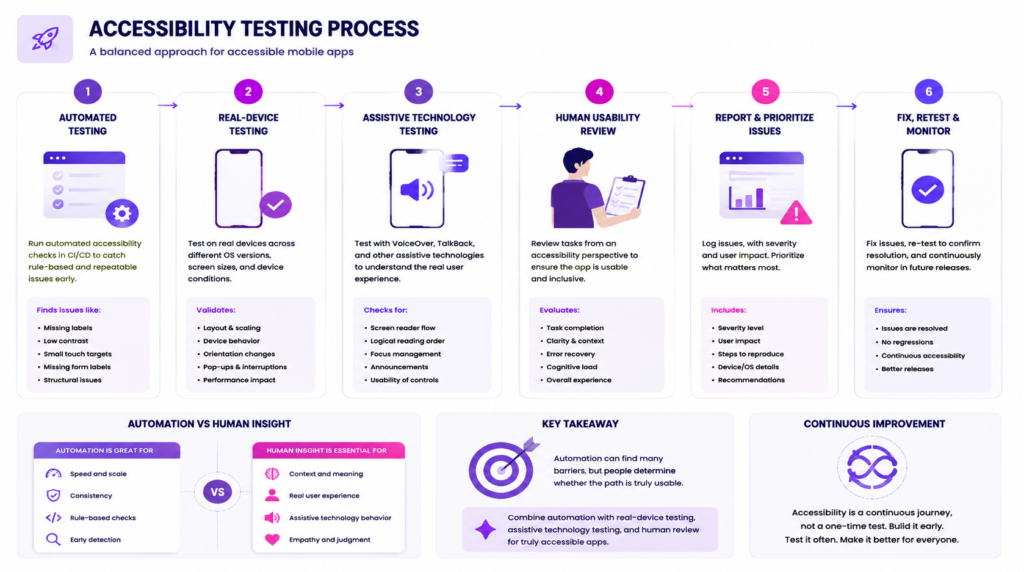
Automated accessibility testing should be part of a broader accessibility workflow.
A practical approach looks like this:
| Step | Testing approach | Goal |
| Run baseline checks | Automated accessibility testing | Catch common rule-based issues early |
| Test on real devices | Real-device testing | Validate behavior across device and OS conditions |
| Use assistive technologies | VoiceOver, TalkBack, and related tools | Understand how users navigate and complete flows |
| Review task completion | Human review | Confirm that users can complete real workflows |
| Track and fix issues | Reporting and bug workflows | Prioritize accessibility issues by severity and user impact |
| Repeat during releases | CI/CD and regression checks | Prevent known issues from returning |
This combined approach gives teams speed without giving up context.
Automation helps catch repeatable issues. Human review helps teams understand whether the app actually works for the people using it.
Final takeaway
Automated accessibility testing is valuable, but it is not the whole story.
Use automation to catch issues that are rule-based, repeatable, and easy to scan. Use real-device testing to understand how accessibility behaves across devices, operating systems, and settings. Use VoiceOver, TalkBack, and human review to understand whether someone can actually navigate and complete the task.
Accessibility testing works best when automation and human judgment support each other.
Automation can find many barriers.
People still have to decide whether the path is usable.