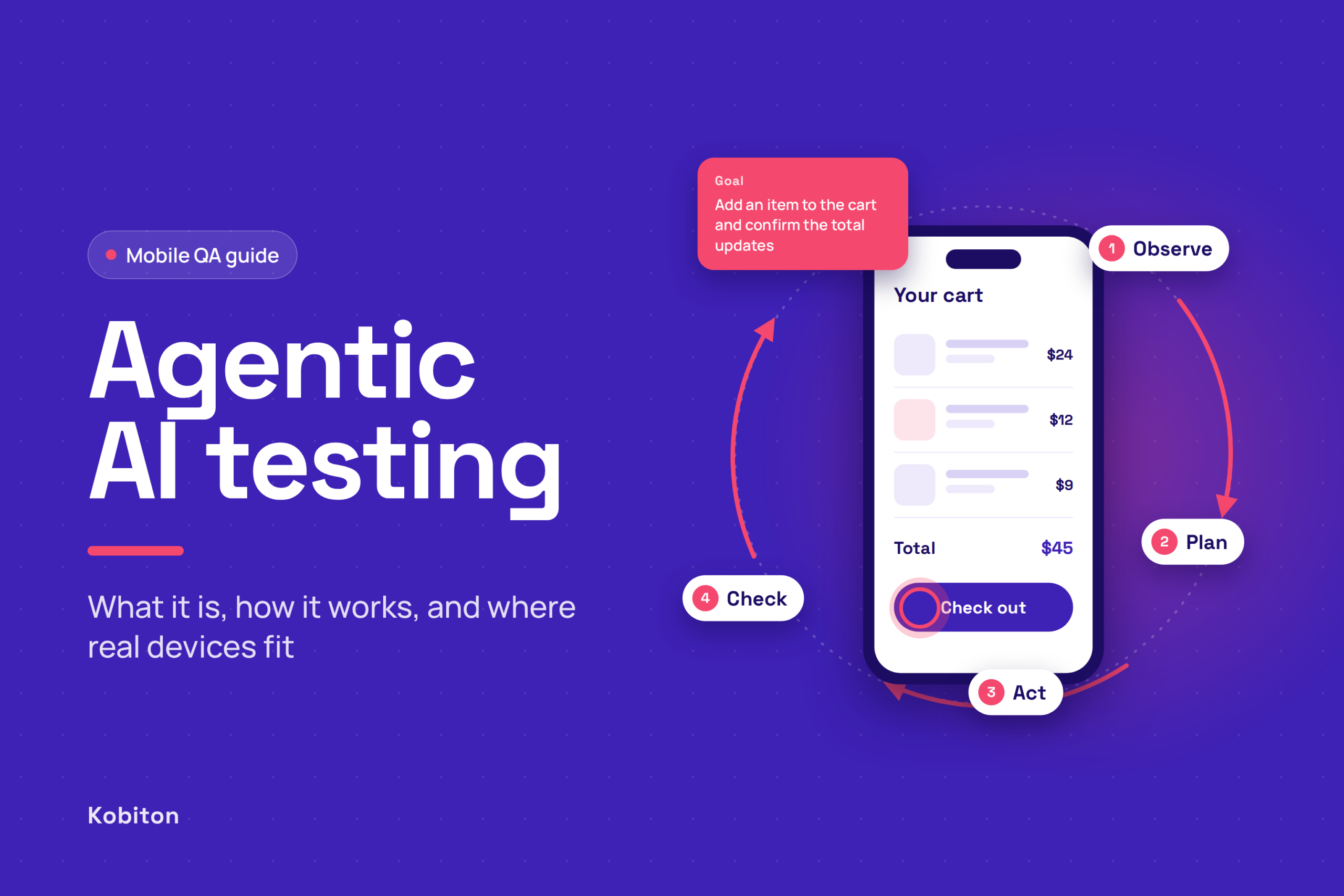
Agentic AI testing means giving an AI agent a testing goal instead of a script. You describe what a user needs to do, such as sign in, transfer funds, and see the updated balance, and the agent works out the taps, swipes, and checks on its own.
For enterprise teams, that changes the math on coverage. Writing and maintaining a script for every flow, on every device, for every release is where most mobile QA time goes. An agent can start covering a new or changed flow as soon as the build is ready, so your engineers spend their time on the scripts that gate releases and the bugs that matter.
Enterprises are already moving. In the World Quality Report 2025, which surveyed more than 2,000 senior executives across 22 countries, 89% of organizations said they are piloting or deploying generative AI in their quality engineering work, and 37% already run it in production. Respondents report an average productivity gain of 19%, though a third have seen little gain so far. In August 2025, Gartner predicted that up to 40% of enterprise applications would include task-specific AI agents by 2026, up from less than 5% at the time.
The next step is scale. Only 15% of organizations in the same report have rolled AI out across the whole enterprise. This guide is for the teams getting there: what agentic AI testing is, how an agent runs a test, where it still needs human judgment, and why the devices it tests on decide how far you can trust its results.

What agentic AI testing is
You give an AI agent a goal, and the agent decides the steps. You write “Sign in as a returning user, add an item to the cart, and confirm the total updates.” The agent works out which screen it’s on, what to tap, what to type, and whether the result looks right.
That is a different contract from the automation most mobile teams run today. It helps to put it next to the two models you already know.
| Scripted automation | AI-assisted automation | Agentic AI testing | |
| Who decides the steps | An engineer writes every step | An engineer, with AI help on parts of the work | The agent, working from a goal |
| What you give it | Appium, XCUITest, or Espresso code | Code plus natural-language hints | A plain-language goal, expected results, and limits |
| When the UI changes | The test fails until someone fixes the locator | Self-healing repairs many broken steps | The agent reads the new screen and adapts |
| Repeatability | Same steps every run | Same steps, with occasional repairs | The path can differ between runs |
| Best at | Stable regression gates in CI/CD | Cutting script-writing and maintenance time | Exploring new builds and flows nobody has automated yet |
Most teams will use all three. Scripted tests stay as the release gate, because they run the same steps every time, so any failure points to a real change in the app. AI-assisted tools make those scripts faster to write and easier to maintain. Agents cover what scripts can’t reach yet: testing a new build before the scripts are updated, checking a screen that was just redesigned, and trying “what happens if” scenarios without writing any code first.
How an agent runs a test
Nearly every testing agent, whatever model it runs on, follows the same loop. It starts from a goal, then repeats four steps until the goal is met, a check fails, or it reaches its step limit.
- Set the goal. The agent needs to know who the user is, where the app starts, and what “done” looks like. “Test checkout” is too vague to verify. “As a signed-in user with one saved card, buy the cheapest item and confirm an order number appears” gives the agent a clear finish line.
- Observe the screen. The agent captures a screenshot and the UI hierarchy, which is the same element tree you see in Appium Inspector. Many agents read device logs too.
- Plan one action. The model weighs the goal, the current screen, and what it has already tried, then picks a single next step.
- Act on the device. The action goes to the device through a driver, usually Appium, the open standard for mobile test automation: tap an element, enter text, swipe, or go back.
- Check the result. The agent reads the new screen and asks two questions: did that step work, and is the goal met? If the goal isn’t met yet, it goes back to step 2.
Two things follow from this loop.
Agents handle UI changes better than scripts. A script stores a locator and breaks when that element moves. An agent reads the screen fresh at every step, so a renamed button or a reordered menu doesn’t stop it.
An agent is only as good as what it observes. Every screenshot, element tree, and log comes from the device, and every action lands on it. If that device behaves differently from your users’ phones, the agent’s verdict will be wrong in the same way.
What this looks like on a real device
Here is a case from my own work this fall. A customer’s automated login kept failing on an iPad. The app was an iPhone-only build running on the iPad in compatibility mode, and the test turned the device to landscape before signing in.
The screen looked fine. The PIN field was visible, and tapping it gave it focus. But in that state the keyboard never appeared. Only the small toolbar that sits above the keyboard showed up, with no keys under it. The driver’s standard “type into this field” command failed with an accessibility error. When we tapped the field by its screen coordinates and sent the keystrokes directly, the driver reported success, and the field still didn’t hold the PIN.
The same test passed on an iPhone in landscape. A manual session on the same iPad in portrait passed too. The failure needed one device type, one orientation, and one kind of build, all at once.
Think about an agent running that flow. Its driver says the text went in, the field is still on screen, and the next tap on Log In fails. It would report a login bug, and the login code was never the problem. We found the real cause by replaying the session step by step in Session Explorer, seeing the empty keyboard area, and comparing the run with the same test on other devices and orientations. That is the evidence you need before you trust any verdict, from an agent or from a script.
How to get results you can trust
Agents are fast at getting through a flow. Confirming the flow is right takes some setup. Teams that get the most out of agentic testing build these habits from the start.
- Pair agents with your scripted suite. An agent may take a different path to the same goal on each run, which helps it find new issues. For release gates that need identical steps every night, keep your Appium scripts and let the agent explore around them.
- Define pass and fail up front. An agent judges results by reading the screen, so give it concrete expected results: the order number appears, the balance matches, the error text reads exactly as specified.
- Point agents where they add the most value. Each step involves a model call, so an agent run takes longer than the same steps in Appium. Use agents on new features, screens that change often, and exploratory passes, where the time saved on script writing and upkeep matters most.
- Give agents more than screenshots. Device logs, network data, and performance metrics let an agent catch slow API calls, memory spikes, and crashes that never show up on screen.
- Run agents in a safe environment. Use test accounts and non-production environments, and spell out which actions are off-limits.
- Earn trust before you hand over a gate. My rule: an agent doesn’t gate a release until someone on the team has replayed a batch of its failures and agrees with every verdict. If it called a device quirk an app bug even once, keep it in exploratory work for now.
With these in place, your team spends its time on the work that needs human judgment: deciding what to test, defining what “correct” means, and reviewing results. Agents close the gap between “we should test that” and a finished run.
Why real devices make agents more accurate
An agent trusts what it sees. An experienced tester on an emulator knows which parts are simulated and adjusts for them. An agent can’t make that adjustment, so the device it runs on determines how closely its results match what your users experience.
That matters most in the areas agents are built for: screens that look different from one device to the next, and flows that rely on hardware. The iPad case above is a good example. A simulator wouldn’t have shown that keyboard behavior the way the real device did.
| What the agent tests | Emulator or simulator | Real device |
| Permission prompts and system dialogs | Stock OS screens | The manufacturer’s own version, exactly as your users see it |
| Biometric login | A simulated match or no-match | Face ID and fingerprint flows on real hardware |
| Camera and image capture | A virtual scene, or no camera at all | The real camera path, plus image injection on Kobiton |
| Voice and audio input | Limited support | The real microphone path, plus audio injection on Kobiton |
| Performance and timing | Your computer’s CPU and memory | The phone’s own CPU, memory, and thermal limits |
| Interruptions | Triggered manually, if at all | Calls, notifications, and low-battery alerts as they really happen |
Timing deserves special attention. Before each action, an agent waits for the screen to settle. Apple’s Simulator guide notes that apps can run faster and smoother in Simulator than on a physical device. On a real phone, especially an older model, the agent sees the same loading spinners and slow transitions your users do, and it can flag them.
How Kobiton fits
An agent needs two things from a testing platform: real devices to act on, and evidence to judge with. Kobiton provides both.
Kobiton runs your tests on real iOS and Android devices, in the public cloud, as private devices, or in an on-prem lab. Kobiton also exposes an MCP server. MCP (Model Context Protocol) is the open standard AI agents use to call outside tools. It works with AI tools including Claude Code, Claude Desktop, GitHub Copilot, Gemini CLI, Codex CLI, and Cursor.
Through it, an agent can check which devices are available, reserve and release a device, upload an Android or iOS app, run an Appium script, and pull back logs, screenshots, and video from the session. In Kobiton for Claude Code, you can use prompts like “Run tests/smoke_test.js on a Pixel device” or “Download logs from last failed session.”
When an agent reports a failure, you need to know why before you act on it. Sometimes the app is broken. Other times the agent tapped the wrong element, misread the screen, or hit device behavior like the one in the iPad case. Session Explorer lets you replay and debug the run step by step, with a timeline, device logs, crash logs, and system metrics, plus network payloads on private devices. That evidence shows whether you’re looking at a real app bug or an agent mistake.
Kobiton also covers the hardware flows from the table above. It supports audio injection, plus camera image injection and biometric authentication testing, both enabled by adding Kobiton’s SDK to your app. On private devices, you can also test Apple Pay and Google Pay.
For the AI-assisted middle column, Kobiton generates an Appium script from a recorded manual session.
Kobiton also offers natural-language element locators through Appium AI (Beta), and self-healing that keeps Appium scripts working when the app changes, through flexCorrect. For Scriptless tests, which you record once with no code, remediations let you fix a blocked step without recording the test again. When an agent finds a flow worth keeping, these tools turn it into a repeatable test for your regression suite.
Getting started with agentic AI testing
The easiest way to start is with a small pilot: one flow, a few devices, and a clear definition of success. Here’s how to run your first one.
- Pick one important flow. Choose a flow that matters to your users and tends to break, such as login, onboarding, or checkout.
- Write down what success looks like. Before the agent runs, describe the goal and the expected results in plain language, for example “the order confirmation screen shows an order number.” These become the checks the agent uses to decide whether to pass or fail.
- Set up a safe test environment. Give the agent a test account in a non-production environment, and list any actions it shouldn’t take, such as deleting data or making real purchases.
- Choose devices that match your users. Use your analytics to pick your most popular iOS and Android models, and add one older phone to catch performance issues. If your users run your app on tablets, include one, in both orientations.
- Review the results. For each failure, replay the session and decide whether it was a real app bug, a device behavior, an agent mistake, or a goal that needs clearer wording. Fix the goal or prompt where needed, and file real bugs with your dev team.
- Keep what works. When the agent finds a flow that passes reliably, turn it into a scripted test for your regression suite. Keep the agent focused on new features and exploratory testing.
Ready to try it on real devices? Start testing for free, or book a demo, and we’ll help your team connect Kobiton’s MCP server to your agent.