Mobile users form an opinion about your app almost instantly. A slow screen transition, laggy scrolling, or delayed button response can quickly lead to frustration and a loss of trust. This is where XCUITest for performance testing plays an important role, giving teams a practical way to measure UI speed and responsiveness within Apple’s native testing environment.
So, what is XCUITest? Built on top of XCTest, XCUITest is Apple’s UI testing framework for iOS applications. It allows teams to simulate real user interactions while capturing key performance signals such as execution time, UI responsiveness, and system resource usage. Teams can also evaluate Luciq on UI performance and glitch detection alongside XCUITest when assessing broader monitoring and debugging capabilities.
It is important to note that you cannot run XCUITest tests on Samsung devices because XCUITest is designed exclusively for Apple platforms. Testing Samsung and other Android devices requires an Android-compatible framework such as Appium or Espresso.
This guide explains how to use XCUITest for performance testing, with a focus on measuring UI speed, identifying bottlenecks, and building a reliable approach for continuous testing pipelines.
What is XCUITest for Performance Testing?
XCUITest is Apple’s native UI automation framework designed for testing user interactions in iOS applications. It integrates directly with Xcode and supports both functional validation and performance measurement.
When used for performance testing, XCUITest helps answer questions that directly impact user experience:
- How quickly does the UI respond to user input?
- Are animations smooth or do they feel delayed?
- How long does it take for screens to fully render?
- Does performance vary across different devices?
Unlike unit-level performance checks, XCUITest focuses on user-perceived performance, which is often the deciding factor in how users judge an app.
Why UI Performance Testing Matters
UI performance is not just about raw speed. It is about how fast the app feels to the user.
Even minor delays in visual feedback can make an app feel unresponsive. Users do not think in terms of backend execution time. They react to what they see and how quickly the interface responds to their actions.
Key impact areas include:
- First screen load time
- Interaction latency from tap to response
- Animation smoothness
- Scrolling performance
- Navigation transitions
XCUITest allows you to measure these using real UI interactions instead of relying on artificial benchmarks that do not reflect actual usage.
Core Performance Metrics in XCUITest
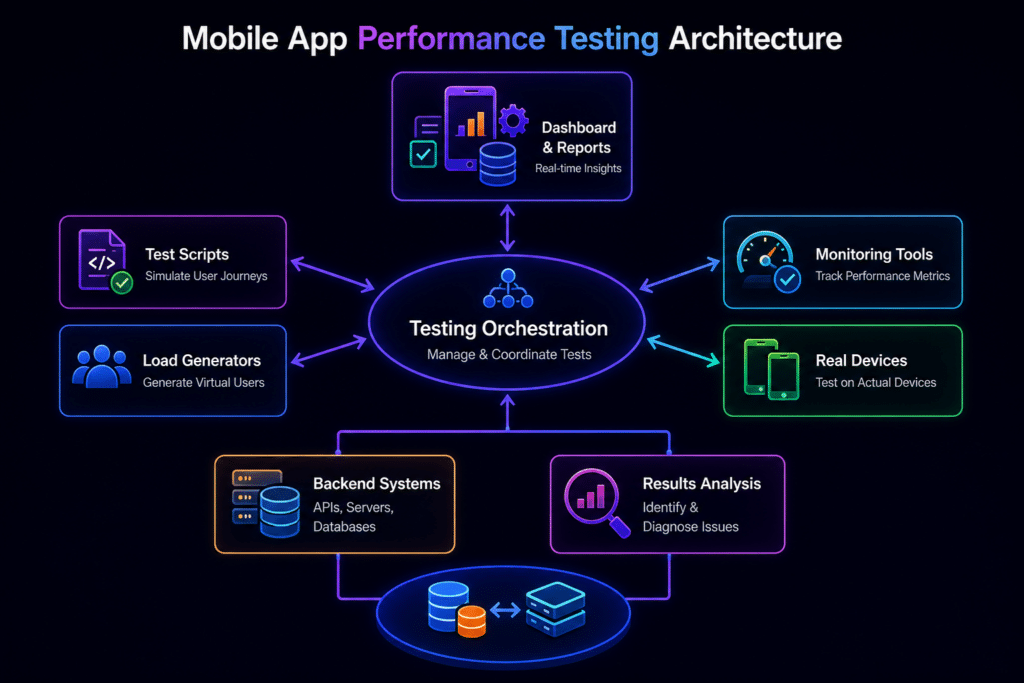
XCUITest uses XCTest’s measurement APIs to track performance across several important dimensions.
1. Execution Time
Measures how long an action takes from start to finish.
This is the most commonly used metric in UI performance testing.
Example: Time taken to open a screen after tapping a button.
2. Responsiveness
Measures the delay between a user action and the UI response.
This helps identify lag in taps, gestures, and transitions.
3. Scrolling Performance
Evaluates how smooth scrolling feels, including deceleration behavior.
Uses system metrics such as XCTOSSignpostMetric.
4. System Resource Usage
Tracks how the app behaves under load, including:
- CPU usage
- Memory consumption
- Disk and energy impact
These metrics help detect performance issues early, especially when integrated into CI pipelines.
Setting Up XCUITest for Performance Testing
Step 1: Create a UI Test Target
- Open Xcode
- Add a UI Testing target
- Enable performance testing in your test plans
Step 2: Use the measure API
func testLoginPerformance() {
    measure {
        app.buttons["Login"].tap()
    }
}This runs the action multiple times and calculates the average execution time, giving you more reliable results.
Step 3: Use Advanced Metrics
measure(metrics: [XCTOSSignpostMetric.applicationLaunch]) {
    XCUIApplication().launch()
}This allows you to capture deeper system-level performance data.
Measuring UI Speed with Real Scenarios
1. App Launch Time
measure(metrics: [XCTApplicationLaunchMetric()]) {
    app.launch()
}Use cases:
- Detect slow cold starts
- Compare performance across builds
2. Screen Transition Performance
measure {
    app.buttons["NextScreen"].tap()
}What to track:
- Navigation delay
- Rendering issues
3. Scrolling Responsiveness
measure(metrics: [XCTOSSignpostMetric.scrollingAndDecelerationMetric]) {
    app.tables.firstMatch.swipeUp()
}Important note: Some advanced metrics only work on real devices because they rely on hardware components such as the GPU.
4. Interaction Latency
measure {
    app.buttons["Submit"].tap()
}What this reveals:
- Tap response time
- Delay in UI updates
Best Practices for Accurate Performance Testing
Test on Real Devices
Simulators do not always reflect real-world performance. Hardware differences can significantly affect results.
Isolate Test Scenarios
Keep each test focused on a single action or flow. This makes results easier to interpret and debug.
Use Stable Locators
Efficient element queries reduce test execution time and improve consistency.
Run Multiple Iterations
XCUITest automatically repeats tests to reduce variability and improve accuracy.
Integrate with CI
Running performance tests in CI pipelines helps catch regressions before they reach production.
Common Challenges and How to Address Them
Flaky Performance Results
Cause: Background activity or network variability
Solution: Use controlled environments and consistent test data
Slow Element Lookup
Cause: Deep or complex UI hierarchies
Solution: Use optimized queries such as .firstMatch
Limited Metrics Visibility
Cause: Running tests on simulators
Solution: Execute tests on real devices to access full metrics
Test Overhead
Automation can introduce additional load. Keep test flows simple and focused to reduce impact.
Integrating XCUITest with Kobiton
Running XCUITest locally works well for basic scenarios, but scaling performance testing across devices is where many teams face limitations. This is where Kobiton fits naturally into the workflow.
With Kobiton, you can run XCUITest performance tests on real devices without maintaining your own device lab.
Key benefits:
- Execute tests on a wide range of real devices
- Compare performance across different device models
- Run tests in parallel for faster feedback
- Integrate with CI pipelines and access detailed reports
Kobiton makes performance testing more consistent and repeatable, especially for teams that need reliable results across multiple environments.
Advanced Strategies for Scalable Performance Testing
Baseline Benchmarking
Define acceptable performance thresholds and compare each build against them.
Trend Tracking
Monitor performance over time to identify gradual slowdowns that may go unnoticed in individual tests.
Hybrid Testing Approach
Combine:
- XCUITest for UI performance
- Unit tests for logic validation
- Network monitoring tools for backend visibility
Shift Performance Testing Earlier
Running performance tests early in development helps reduce the cost and effort of fixing issues later.
When to Use XCUITest for Performance Testing
Use XCUITest when:
- You need to simulate real user interactions
- UI responsiveness is a key concern
- You want native Apple tooling integrated with Xcode
- You need performance checks that fit into CI workflows
Avoid relying on it alone for:
- Backend performance testing
- Large-scale load testing
Key Takeaways
Consistent benchmarking helps catch performance issues early
XCUITest focuses on real user experience rather than just backend speed
It measures UI responsiveness, execution time, and system behavior
Testing on real devices is necessary for accurate results
Platforms like Kobiton allow you to scale testing across devices