Datasheet | Fact Sheet
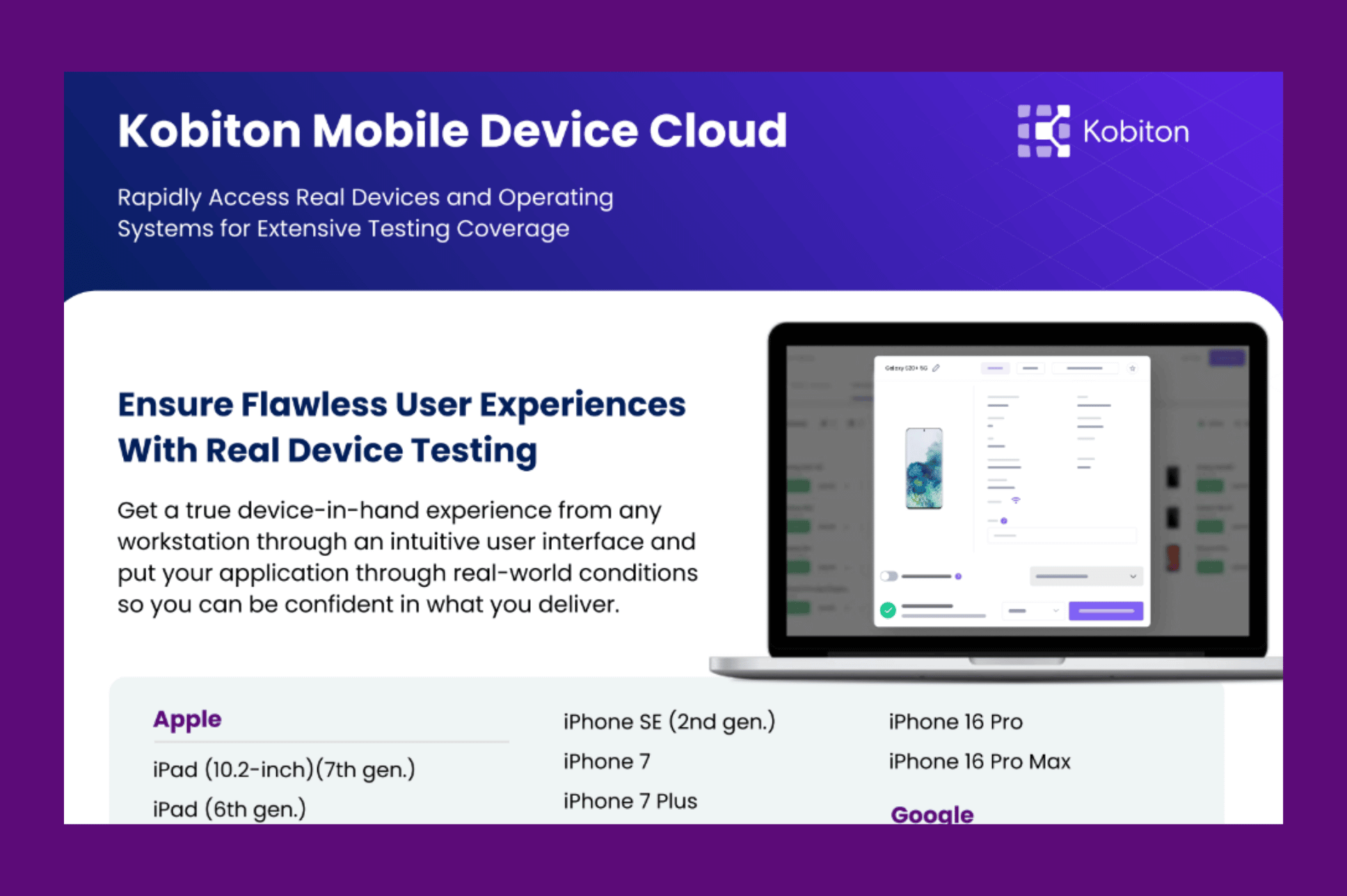
Kobiton Mobile Device Cloud
Read More
Learn how to run Maestro automated mobile tests on Kobiton Real Device Cloud. This tutorial walks through the process of setting up and executing Maestro test scripts on real mobile devices, helping development and QA teams streamline their mobile testing workflows.
Maestro is a YAML-driven mobile UI automation framework designed to simplify test creation and execution. By combining Maestro with Kobiton’s real device cloud, teams can validate mobile application behavior on actual devices rather than relying only on emulators or simulators.
Explore how Maestro and Kobiton work together to support mobile test automation, improve testing efficiency, and help teams build more reliable testing workflows across Android and iOS devices.
Whether you’re a QA engineer, mobile developer, or automation tester, this video provides an introduction to running Maestro tests with Kobiton.
Running Maestro Tests on Kobiton Real Device Cloud
Learn how to set up and run Maestro mobile automation tests on Kobiton Real Device Cloud. Execute YAML-based test scripts on real devices and simplify mobile app testing.
Video Transcript
In this tutorial, I am going to demonstrate how a Maestro test can run on a Kobiton cloud device using Kobiton VirtualUSB.
Maestro is a popular open-source mobile UI testing framework, and tests are written as simple YAML files.
The prerequisite is VirtualUSB, which makes a Kobiton cloud device appear as if it’s plugged into my computer.
Setup instructions are available at docs.kobiton.com in the VirtualUSB section.
For this demonstration, I’m using a Pixel 6 Pro in the Kobiton cloud.
First, confirm that the device is visible by checking adb devices.
The Android ADB tool lists the device. It matches the UDID I just connected, so my computer recognizes the cloud device as a local device.
Here is my test case.
It launches the Settings app, clicks on “Network & internet,” and verifies that “Connected devices” is visible.
To run the test, I execute the command that points Maestro to the device by its ID and runs the YAML file.
Once the test starts executing, the device enters Utilization mode on the Kobiton portal, and you can find the session ID under the Sessions tab.
Our test launches Settings.
It taps “Network & internet,” confirms that the “Internet” screen has opened, taps the Back button, and verifies that “Connected devices” is visible.
We can now see that all the test steps have been successfully executed and passed on the Pixel 6 Pro.
The same Maestro flow that runs on a local phone also runs on a Kobiton real device through VirtualUSB.