Datasheet | Fact Sheet
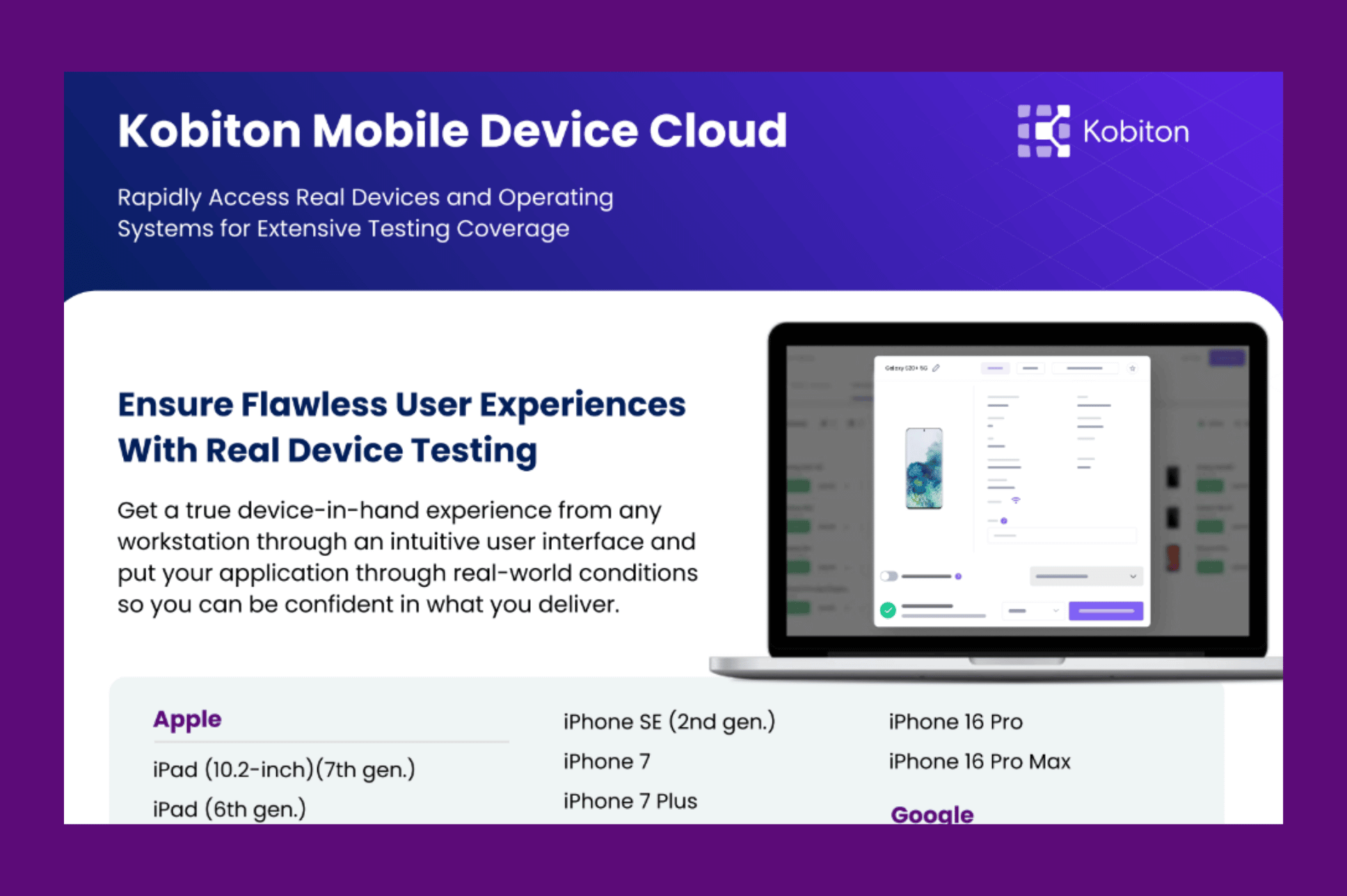
Kobiton Mobile Device Cloud
Read More
Brittle XPath selectors and changing UI hierarchies can make mobile test automation difficult to maintain. In this Kobiton tutorial, learn how Appium AI Natural Language Locators let you identify mobile app elements using plain English instead of relying on complex XPath expressions or missing accessibility IDs.
The demonstration introduces natural language selectors within existing Appium test scripts, including an example such as driver.find(“natural”, “the checkout button”). See how this approach can make test scripts easier to understand, reduce selector maintenance, and improve automation workflows as mobile interfaces evolve.
Explore how Kobiton supports mobile testing and automation on real devices, helping QA engineers and developers create more readable and maintainable test scripts.
Appium AI Natural Language Locators Tutorial
Learn how to use Appium AI Natural Language Locators in Kobiton to identify mobile UI elements with plain English and simplify automated test scripts.
Video Transcript
Welcome. Today, we’re taking a look at Kobiton’s Appium Natural Language feature.
On the left side of my screen, you can see our live Kobiton portal running a manual session on a real mobile device. We’ll be interacting with the native Settings app using plain text instead of traditional brittle XPath or ID locators.
To start, we launch the native Settings app. Now, instead of inspecting elements to grab complicated locators, we pass “natural” as the search strategy and standard text like “Wi-Fi.”
As I run this, watch the live session on the left. It taps Wi-Fi immediately.
Next, we target the Wi-Fi toggle switch element. The device processes the click action right away and toggles the state to off, perfectly matching our intent.
Next, we call driver.findElement with “natural” and “back button” to tap the back arrow.
Then, we pass “Bluetooth” as the target to click the Bluetooth menu, followed by another “back button” element call to return to the main Settings list.
Next, we execute driver.findElement with “natural” and “display” to open the Display settings menu.
Finally, we pass “brightness level” to target the brightness slider, executing the click action that increases the device brightness during the live session.
As you can see in our live session on the left, Kobiton Natural Language makes your Appium scripts easier to write, highly readable, and resilient against element locator changes.
Thanks for watching.