How to Use Appium Inspector with Kobiton
Struggling to inspect UI elements for mobile testing? Appium inspector is your go-to for finding locators and building robust Appium scripts. But for real device testing, local setup falls short – enter Kobiton cloud devices for instant access to 1000+ real iOS and Android devices without hassle.
In this guild, you will learn to integrate Kobiton with Appium inspector in under 10 minutes , inspect a sample app and extract locators. Perfect for QA engineers automating Appium on cloud platforms.
Prerequisites
- Kobiton account. Get your Username and API Key from portal.kobiton.com/settings/keys.
- Appium 2.5+ installed
- Appium Inspector
- Sample app – Uploaded to Kobiton app repository – Link
Step-by-Step: Set Up Appium Inspector with Kobiton
Step 1: Start Appium Server
Open terminal and run:
appium server –use-plugins=inspector –port 4723
Step 2: Open Appium Inspector
- Launch Appium Inspector desktop app
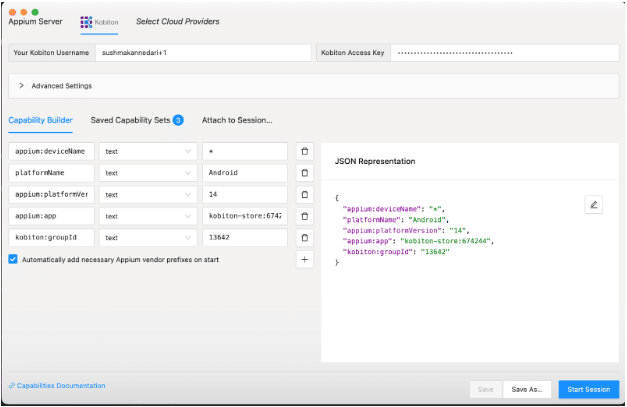
- Click Select Cloud Providers as Kobiton.
- Enter your Kobiton Username and API Key – Link
Step 3: Configure Desired Capabilities for Kobiton
In Inspector’s capabilities JSON, paste this for an Android device (adjust app and groupID from Kobiton portal):
{

  "appium:deviceName": "*",
  "platformName": "Android",
  "appium:platformVersion": "14",
  “appium:app": "KOBITON_SAMPLE_APP_ID",
  “kobiton:groupID”: “If Applicable. Check your device capabilities”

}
Step 4: Start Session
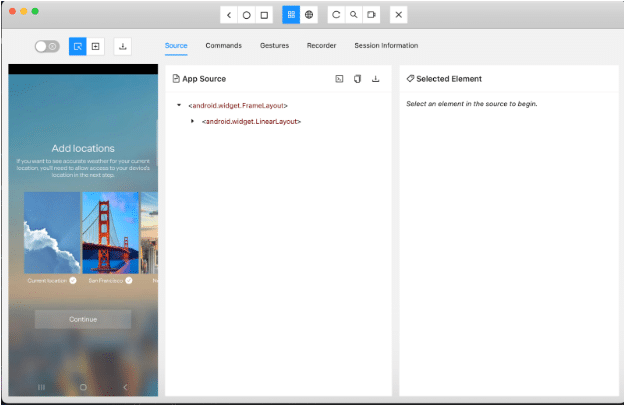
Click “Start Session” and device launches the app and mirrors the screen in the inspector

Conclusion
Appium Inspector with Kobiton cloud devices supercharges your mobile test automation workflow with zero local setup, real devices, and locators ready for production tests. Start inspecting today and cut debugging time by 50%.