This step-by-step guide sets up C# Appium tests (NUnit) on Kobiton real devices for your native app. Start with NUnit .NET 8+
Prerequisites
- .NET SDK 8.0+
- Visual Studio Code
- Kobiton account
- Uploaded app in Kobiton (store ID) – Please refer docs for more information
Step 1: Create a NUnit Project
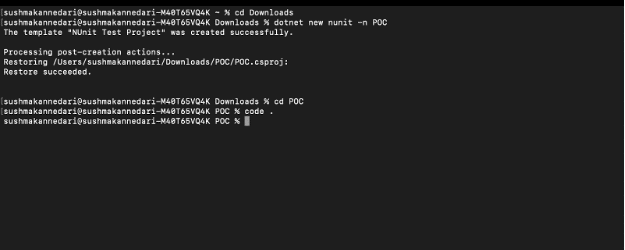
Open Terminal on MAC and type the following commands:
- Navigate to VScode installed Path
- Enter “dotnet new nunit -n POC”
- Enter “cd POC”
- Enter “code .”
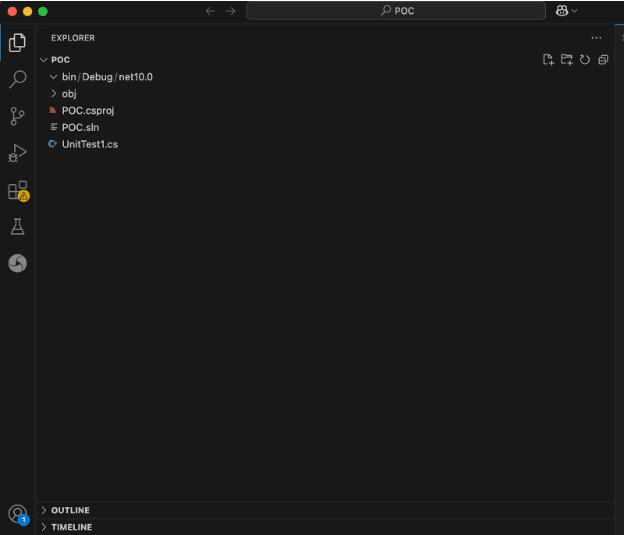
VS Code reopens Automatically with NUnit project
Step 2: Ensure .NET 8 Target Framework
Open POC.csproj and set:
<PropertyGroup>
<TargetFramework>net8.0</TargetFramework>
</PropertyGroup>
Step 3: Install Required NuGet Packages
dotnet add package Appium.WebDriver –version 8.0.1
dotnet add package NUnit –version 3.14.0
dotnet add package NUnit3TestAdapter –version 4.5.0
dotnet add package Microsoft.NET.Test.Sdk –version 17.10.0
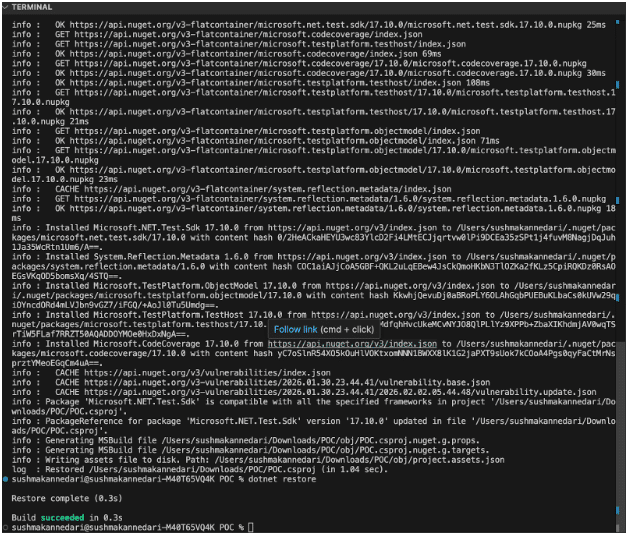
dotnet restore
Step 4: Add Test Code (UnitTest1.cs)
using NUnit.Framework;
using OpenQA.Selenium;
using OpenQA.Selenium.Appium;
using OpenQA.Selenium.Remote;
using System;
namespace AppiumTest
{

   [TestFixture]

   public class AppLaunchPOC

   {

       private RemoteWebDriver? driver;

       [Test]

       public void Launch_App_On_Pixel6()

       {

           string username = "Your_UserName;

           string apiKey = "Your_API_Key";

           string hubBase = "https://api.kobiton.com/wd/hub";

           var builder = new UriBuilder(hubBase) { UserName = username, Password = apiKey };

           var options = new AppiumOptions();

           // EXPLICIT AUTH CAPS

           options.AddAdditionalAppiumOption("kobiton:username", username);

           options.AddAdditionalAppiumOption("kobiton:accessKey", apiKey);

           // Standard properties

           options.PlatformName = "Android";

           options.AutomationName = "UiAutomator2";

           options.DeviceName = "001 - Pixel 6"; //Modify as needed

           options.PlatformVersion = "12"; //Modify as needed

           options.App = "kobiton-store:v749318";  //Modify as needed

           // Kobiton caps (exact match)

           options.AddAdditionalAppiumOption("kobiton:groupId", 13945); //Modify as needed

           options.AddAdditionalAppiumOption("kobiton:deviceGroup", "ORGANIZATION"); //Modify as needed

           options.AddAdditionalAppiumOption("kobiton:sessionName", "C# POC Pixel6");

           options.AddAdditionalAppiumOption("kobiton:deviceOrientation", "portrait");

           options.AddAdditionalAppiumOption("kobiton:captureScreenshots", true);

           options.AddAdditionalAppiumOption("kobiton:retainDurationInSeconds", 0);

           driver = new RemoteWebDriver(builder.Uri, options);

           driver.Manage().Timeouts().ImplicitWait = TimeSpan.FromSeconds(10);

           Console.WriteLine("Session ID: " + driver.SessionId);

           Console.WriteLine("Page source preview: " + driver.PageSource.Substring(0, Math.Min(500, driver.PageSource.Length)));

           System.Threading.Thread.Sleep(5000);

           Assert.IsNotEmpty(driver.PageSource, "App loaded successfully!");

       }

       [TearDown]

       public void TearDown()

       {

           driver?.Quit();

           driver?.Dispose();

       }

   }

}Step 5: Your final POC.csproj should look like below:
<Project Sdk="Microsoft.NET.Sdk">

 <PropertyGroup>

   <TargetFramework>net8.0</TargetFramework>

   <ImplicitUsings>enable</ImplicitUsings>

   <Nullable>enable</Nullable>

   <IsPackable>false</IsPackable>

   <IsTestProject>true</IsTestProject>

 </PropertyGroup>

 <ItemGroup>

   <PackageReference Include="Appium.WebDriver" Version="5.0.0" />

   <PackageReference Include="Microsoft.NET.Test.Sdk" Version="17.10.0" />

   <PackageReference Include="NUnit" Version="3.14.0" />

   <PackageReference Include="NUnit3TestAdapter" Version="4.5.0" />

 </ItemGroup>

</Project>Step 6: Run the test
dotnet test
You should see:
- A real device session start in Kobiton
- App launched successfully
- Session ID printed in console’
Refer this documentation to learn more about Automation sessions
GitHub repository
You can download the complete working sample from GitHub here:
https://github.com/kobiton/samples/tree/master/csharp/kobiton-nunit