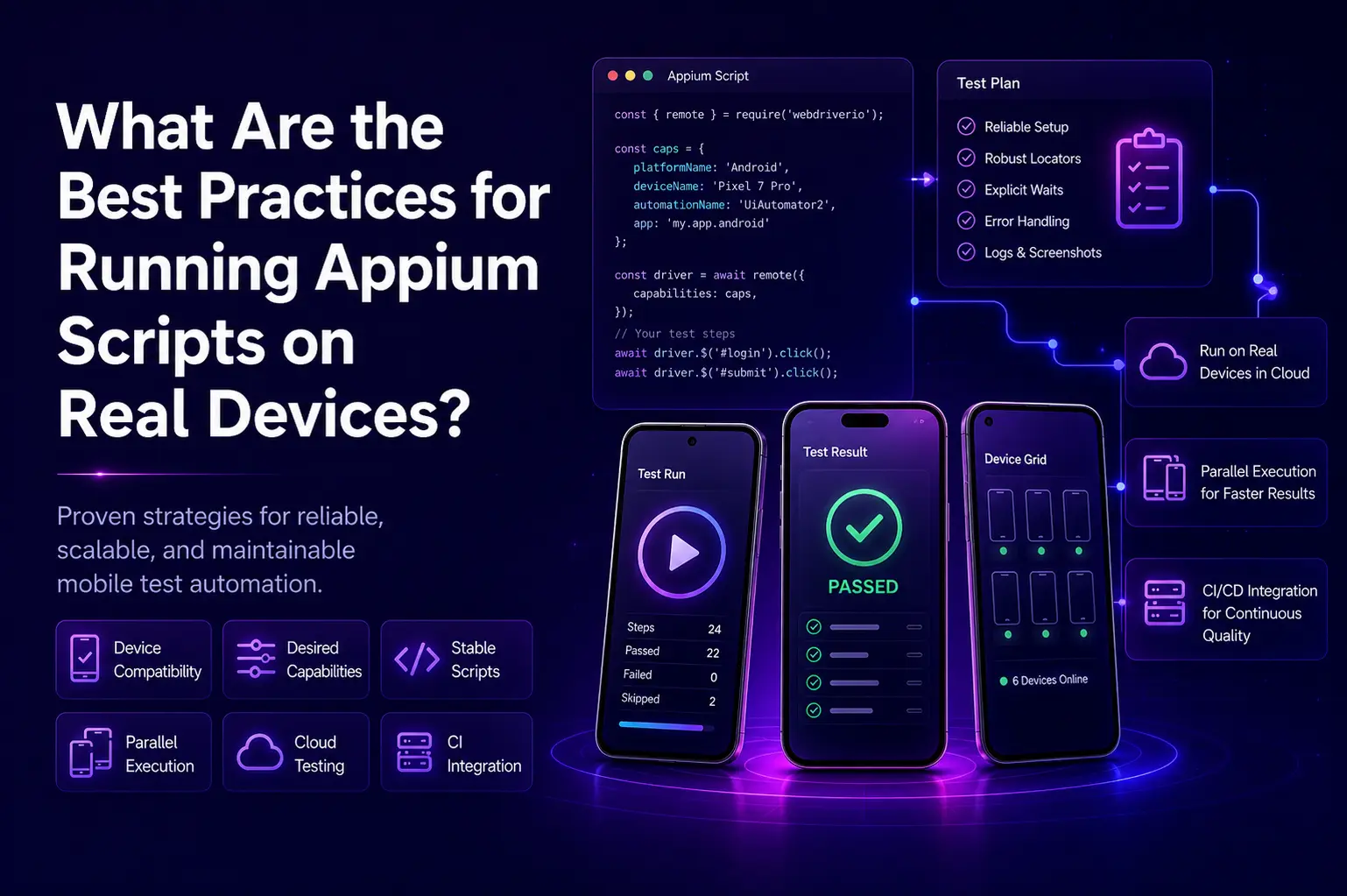
When it comes to mobile app testing, running Appium scripts on real devices is essential to ensure your app behaves as expected in real-world conditions. Unlike emulators or simulators, testing on actual devices helps uncover issues that may not appear in virtual environments.
However, executing Appium scripts on physical devices comes with its own challenges. So, how can you ensure smooth and reliable execution? Below are some proven best practices to help you achieve optimal results in your Appium automation testing.
Running Appium scripts on real devices
Eight stages from picking the device matrix to gating the release. Pick a stage to see the Android and iOS steps, the exact configuration, and the mistake that makes runs flaky.
1. Ensure Device Compatibility
Before writing or executing Appium scripts on real devices, it is important to confirm that the device meets your testing requirements. This includes verifying the platform version (Android or iOS) and ensuring that the Appium setup is correctly configured for that environment.
Appium supports both Android and iOS, but different OS versions may require specific configurations. For example, Appium uses UiAutomator2 for Android and XCUITest for iOS. You should ensure that the correct drivers are installed and aligned with the device’s OS version.
If you are working with Android, make sure the Android Debug Bridge (ADB) is properly set up. For iOS, verify that you are using a compatible version of Xcode and that all necessary dependencies are configured.
2. Use Proper Desired Capabilities
Desired capabilities in Appium define how your test environment is set up. They specify key details such as platform name, platform version, device name, and the application under test.
For example, to run Appium on an Android device:
DesiredCapabilities capabilities = new DesiredCapabilities();
capabilities.setCapability("platformName", "Android");
capabilities.setCapability("platformVersion", "10.0");
capabilities.setCapability("deviceName", "Pixel 4");
capabilities.setCapability("app", "/path/to/app.apk");
capabilities.setCapability("automationName", "UiAutomator2");For iOS devices:
DesiredCapabilities capabilities = new DesiredCapabilities();
capabilities.setCapability("platformName", "iOS");
capabilities.setCapability("platformVersion", "14.0");
capabilities.setCapability("deviceName", "iPhone 12");
capabilities.setCapability("app", "/path/to/app.ipa");
capabilities.setCapability("automationName", "XCUITest");Setting these capabilities correctly ensures that Appium connects to the right device and executes tests efficiently.
3. Stabilize Your Appium Test Scripts on Physical Devices
Running tests on real devices can introduce variability due to hardware limitations, network conditions, and background processes. Ensuring stability is key to reliable results.
Here are a few ways to improve test stability:
Reduce Flaky Tests
Real devices can behave unpredictably. Use explicit waits instead of implicit waits to ensure elements are fully loaded before interaction. This helps minimize intermittent test failures.
Enable Parallel Execution
If you are testing across multiple devices, consider running tests in parallel. Tools like TestNG or JUnit allow you to execute tests simultaneously, saving time and improving efficiency.
Use Logs and Reports Effectively
Leverage Appium server and driver logs to diagnose failures. Detailed logs help identify exactly where a test is breaking. Additionally, platforms like BrowserStack and pCloudy provide enhanced reporting and debugging tools.
4. Leverage Cloud Testing Platforms for Device Management
Managing a physical device lab can be time-consuming and expensive. Cloud-based platforms such as BrowserStack, Sauce Labs, and pCloudy simplify this process by providing access to a wide range of real devices.
These platforms allow you to test across multiple device types, screen sizes, and OS versions without maintaining physical hardware. They also offer centralized dashboards, making it easier to run, monitor, and analyze tests.
As a result, you can execute tests faster, reduce infrastructure costs, and achieve more comprehensive test coverage.
5. Optimize for Battery and Performance
Real devices have limited resources, and inefficient testing can impact both performance and reliability. To avoid this, consider the following:
Keep Devices Charged
Ensure devices are fully charged before starting tests. For long test runs, keep them connected to a power source.
Manage Device Resources
Close unnecessary applications running in the background. This helps free up CPU and memory, ensuring your tests run smoothly without interference.
6. Integrate with Continuous Integration (CI)
Integrating Appium tests with a CI pipeline helps automate your testing workflow and ensures consistent validation with every build.
Tools like Jenkins, GitLab, and CircleCI can run your Appium tests automatically on real devices. When setting up CI, ensure your environment supports device connectivity, either through physical devices connected to a server or via cloud testing platforms.
This approach improves efficiency, reduces manual effort, and ensures faster feedback for developers.
Conclusion
Running Appium scripts on real devices is critical for validating your mobile application under real-world conditions. By following best practices such as ensuring device compatibility, configuring desired capabilities correctly, stabilizing test scripts, and leveraging cloud platforms, you can significantly enhance the reliability and efficiency of your testing process.
These strategies not only improve test accuracy but also provide valuable insights for developers, ultimately leading to higher-quality mobile applications. Whether you are testing across Android or iOS devices, adopting these practices will help you maintain a smooth, scalable, and effective Appium testing workflow.
FAQs
Why should Appium scripts be run on real devices?
Running Appium scripts on real devices helps uncover real-world issues that may not appear on emulators or simulators.
What are desired capabilities in Appium?
Desired capabilities define the test environment, including platform name, device name, OS version, app path, and automation engine.
How can Appium test stability be improved on real devices?
You can improve stability by using explicit waits, reducing flaky tests, reviewing logs, and managing device resources properly.
Should Appium tests be run in parallel?
Yes. Parallel execution helps test across multiple devices faster and improves overall testing efficiency.